September 14, 2026
Solved

Blurry content when copied and pasted outside of Lucid

  • September 14, 2026
  • 1 reply
  • 28 views

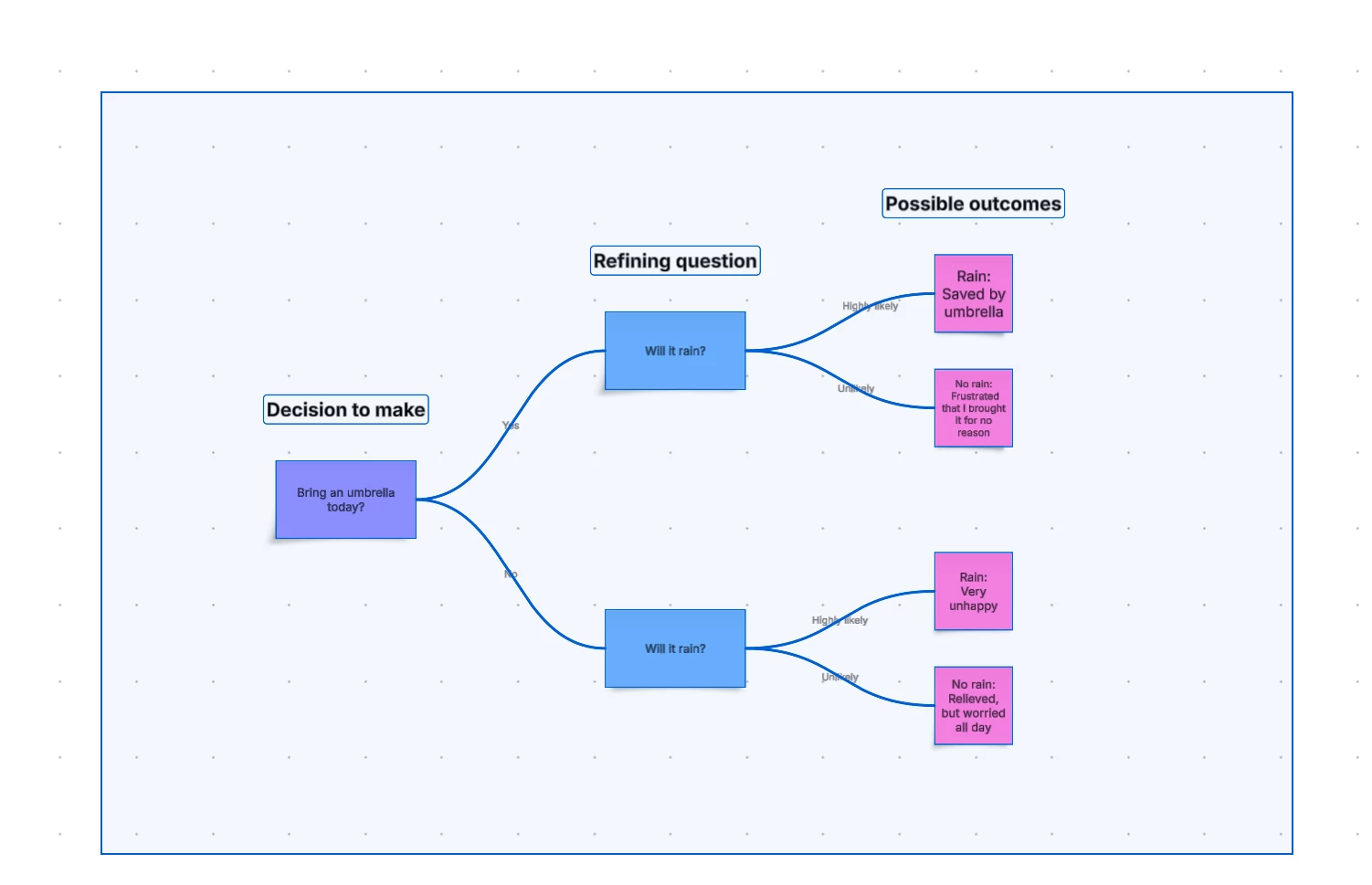
I created a Decision Tree of a process in Lucid but, when I copy and paste it to use outside of Lucid the Decision Tree is all blurry

Best answer by alison cheney

Hi ​@jankinane,

Thank you for posting in the Lucid Community and for clearly explaining the issue you’re running into. There are a couple of things you can try to get your Decision Tree to appear clearly:

  • Instead of using copy/paste, have you tried using “Copy as PNG” and then pasting it? To do this select/span over your Decision Tree with your mouse → Select the three horizontal dot “More” menu → Click “Copy as PNG”. Then paste it where you want it to go. See screenshots below for specific steps. Copying your Decision Tree as a PNG should have a higher resolution. 
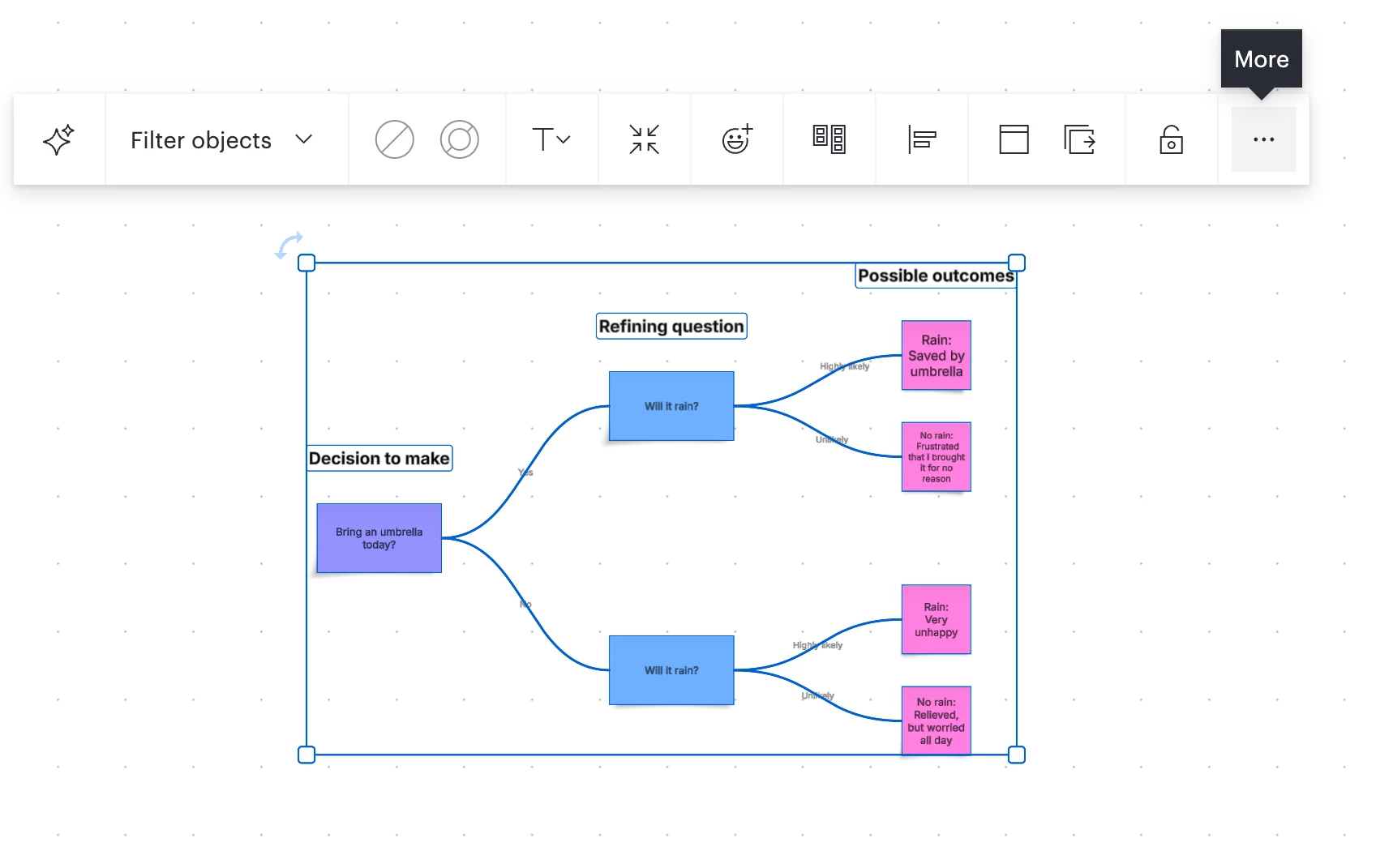
Select the entire Decision Tree by spanning over it with your mouse.
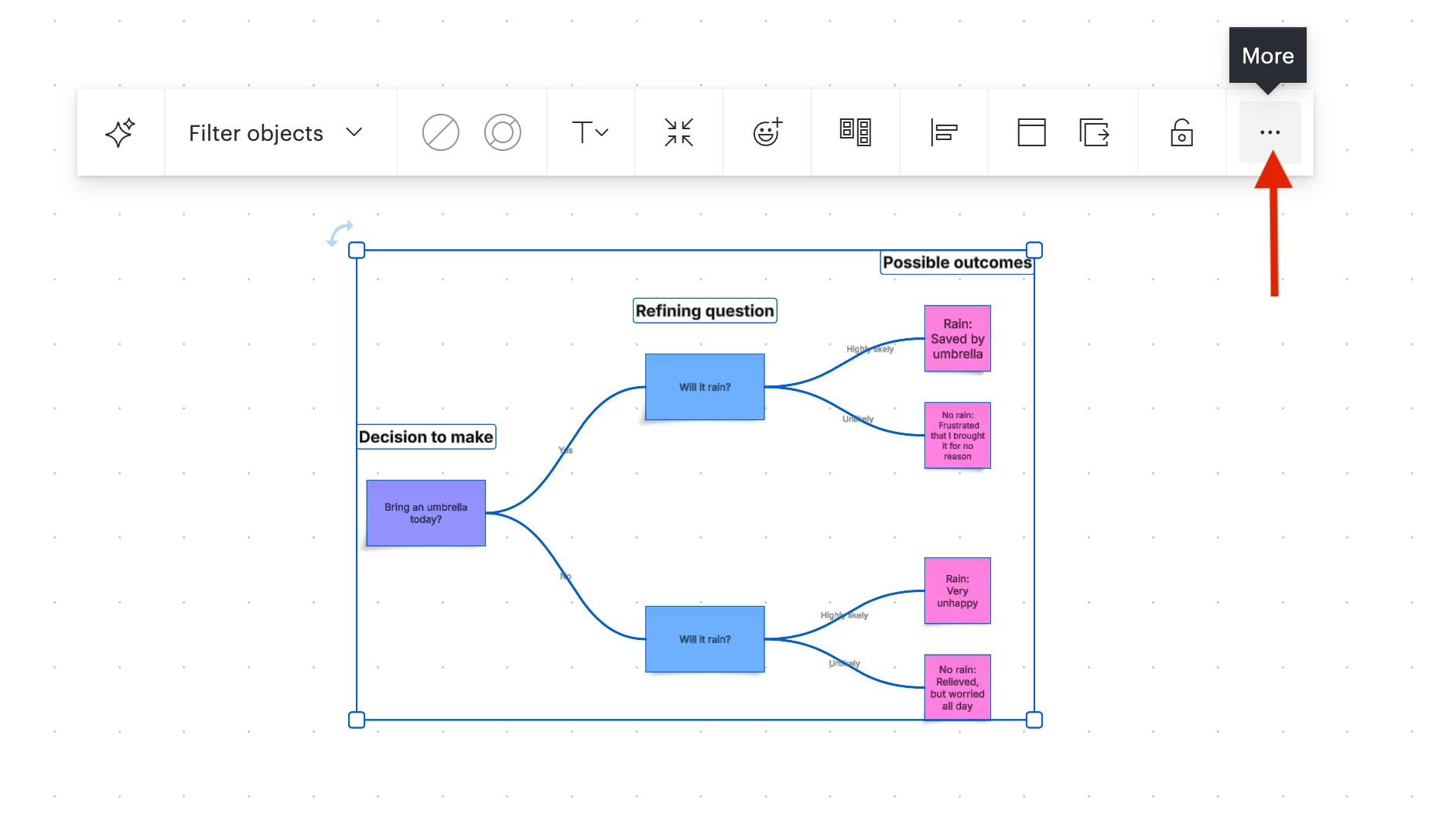
Select “More”


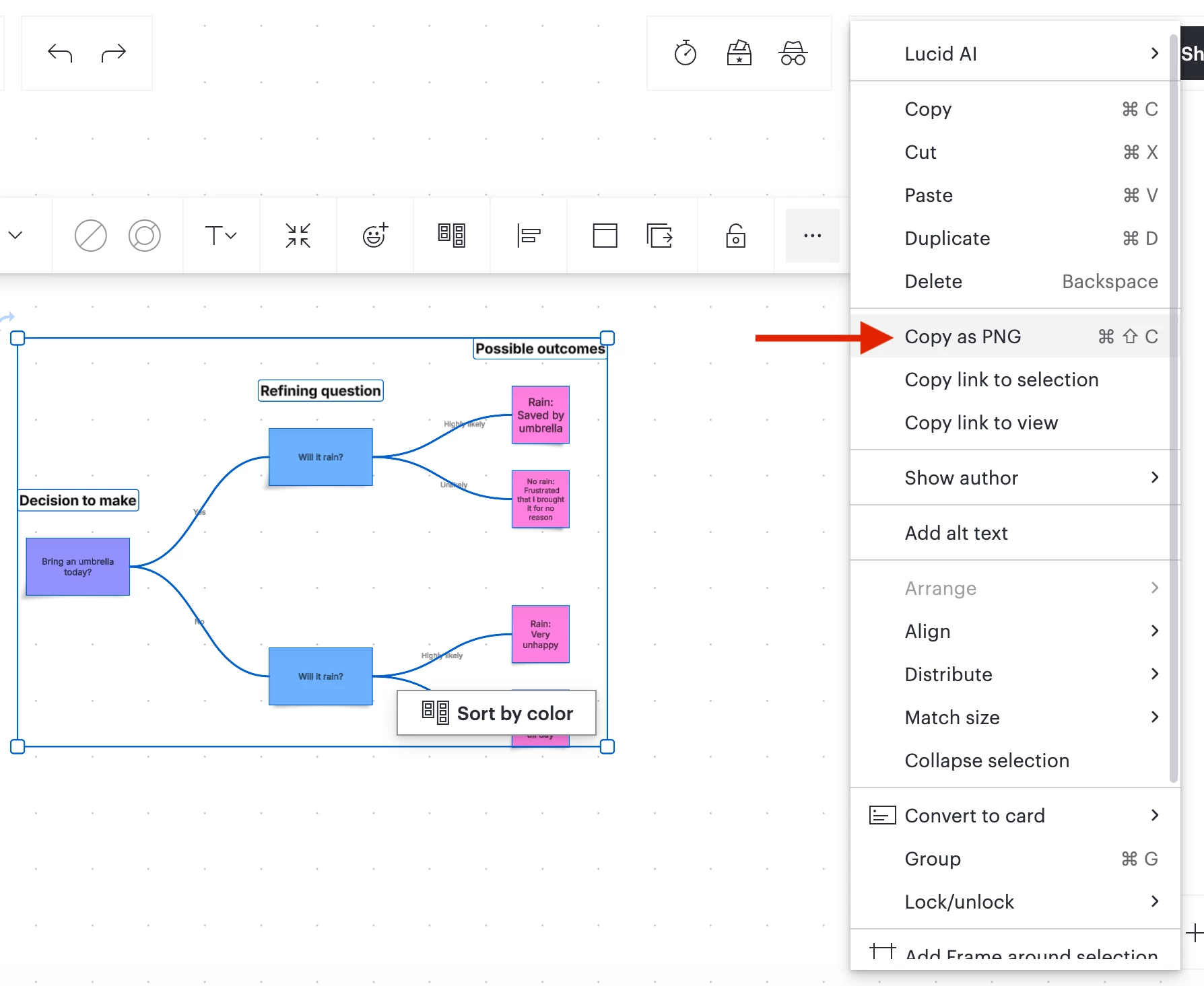
Select “Copy as PNG”
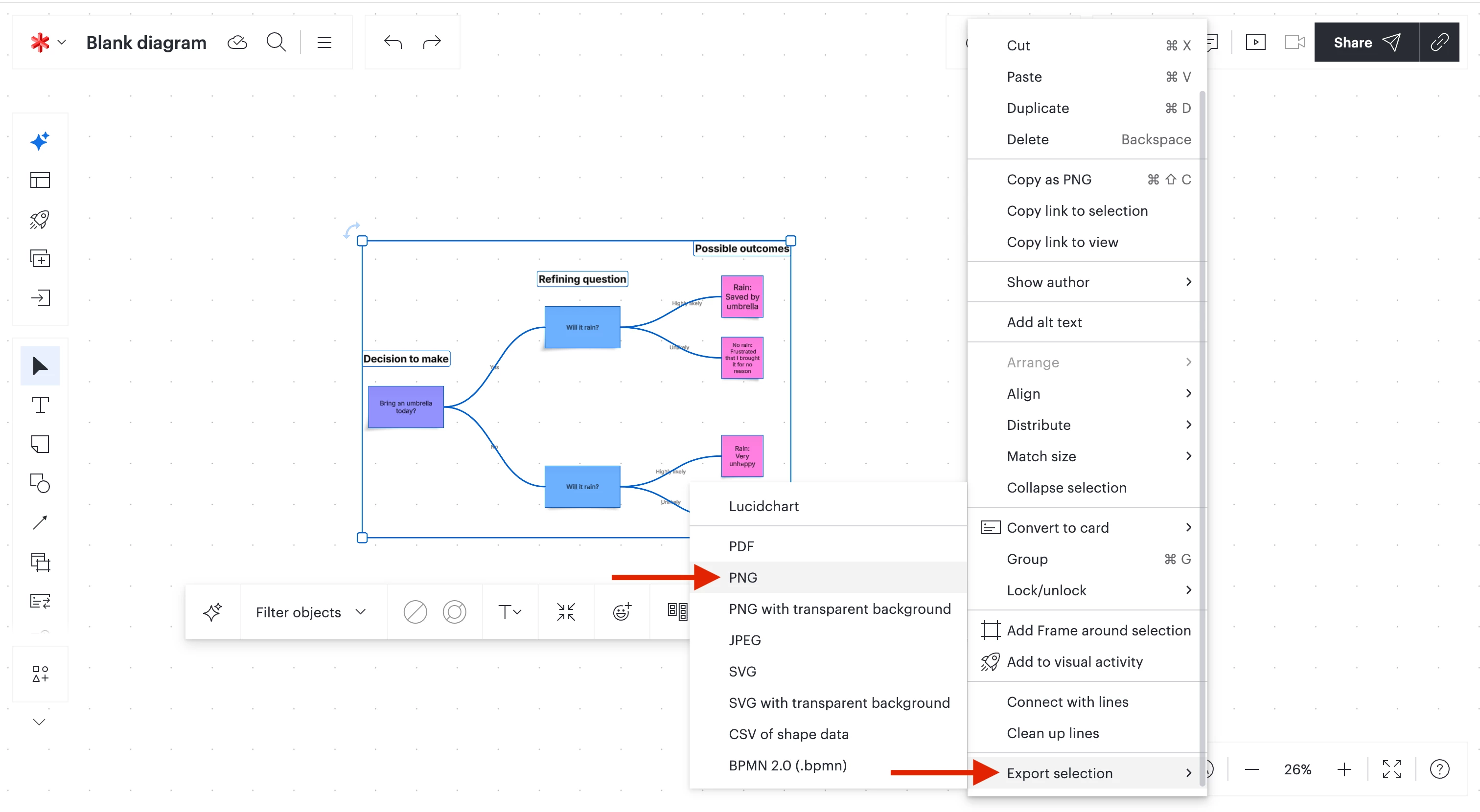
  • You can also export your Decision Tree by: Selecting the entire Decision Tree by spanning over it with your mouse → Select the three horizontal dot “More” menu → Scroll all the way down and select “Export selection” → Click PNG, JPEG, or PDF for the best quality in resolution. 


Thanks for your help and patience and please let us know if you have any additional questions!

Comments

alison cheney
Lucid community team
September 15, 2026

Hi ​@jankinane,

Thank you for posting in the Lucid Community and for clearly explaining the issue you’re running into. There are a couple of things you can try to get your Decision Tree to appear clearly:

  • Instead of using copy/paste, have you tried using “Copy as PNG” and then pasting it? To do this select/span over your Decision Tree with your mouse → Select the three horizontal dot “More” menu → Click “Copy as PNG”. Then paste it where you want it to go. See screenshots below for specific steps. Copying your Decision Tree as a PNG should have a higher resolution. 
Select the entire Decision Tree by spanning over it with your mouse.
Select “More”


Select “Copy as PNG”
  • You can also export your Decision Tree by: Selecting the entire Decision Tree by spanning over it with your mouse → Select the three horizontal dot “More” menu → Scroll all the way down and select “Export selection” → Click PNG, JPEG, or PDF for the best quality in resolution. 


Thanks for your help and patience and please let us know if you have any additional questions!