Solved

Automatically refresh an org chart with Google Sheets

  • May 19, 2026
  • 7 replies
  • 390 views

Forum|alt.badge.img

Hi team,


We have setup a Google Sheet linking to our org chart. From Data Linking, I can see the data refreshed from my Google Sheet. But my org chart is not updated unless I click on the “Refresh Dataset” button. Is there anyway to automatically refresh my org chart once my Google Sheet data is pulled into the Data Linking?


Best answer by aparrish

@ic001 I don’t think we have anything outside of the “Refresh dataset” button, but you may want to check this thread for suggestions, such as a centralized database or template for bulk updates: 

If that’s still unsatisfying, you may want to add Google Sheets in the comments of this idea and upvote it: 


Comments

aparrish
Lucid Legend Level 7
Forum|alt.badge.img+18
  • Lucid Legend Level 7
  • Answer
  • May 19, 2026

@ic001 I don’t think we have anything outside of the “Refresh dataset” button, but you may want to check this thread for suggestions, such as a centralized database or template for bulk updates: 

If that’s still unsatisfying, you may want to add Google Sheets in the comments of this idea and upvote it: 


Forum|alt.badge.img
  • July 7, 2026

I have the same issue: I modify my data in Google Sheets, I see my data updating in the "Data Connection" panel. The refresh is "automatic" (refresh every 30 seconds). However, the organizational chart does not update automatically unless I click on "Refresh data" in the "organizational chart" panel.


alison cheney
Forum|alt.badge.img+4
  • Lucid community team
  • July 9, 2026

Hi ​@lpainsard,

Thank you for your response in this thread! Have you tried managing your sync and refresh settings and selecting the refresh option “Automatic”?

To change refresh settings, follow these steps (outlined in this Lucid Help Center Article). 

  1. Click data-panel-icon-in-lucidchart.png the Data icon from the Primary Toolbar to the far left-hand side.
  2. Select the dataset you want to update settings for from the dropdown at the top-left of the Data panel.
  3. Open manage-data-icon-in-lucidchart.png the Manage Data menu at the top-right of the Data panel.
  4. Click Manage Refresh.
  5. Select a refresh option:
    • Automatic: Changes in Google are reflected in Lucid every 30 seconds.

Once you follow these steps above and set your refresh option as “Automatic”, the changes will automatically be updated on your org chart, without you having to click the “Refresh dataset” button. I did some testing on my end the updates were automatically made to my chart. Please let me know if you have any additional questions!


Forum|alt.badge.img
  • July 10, 2026

Hello ,
and thank you for your help.
I have followed the steps correctly.
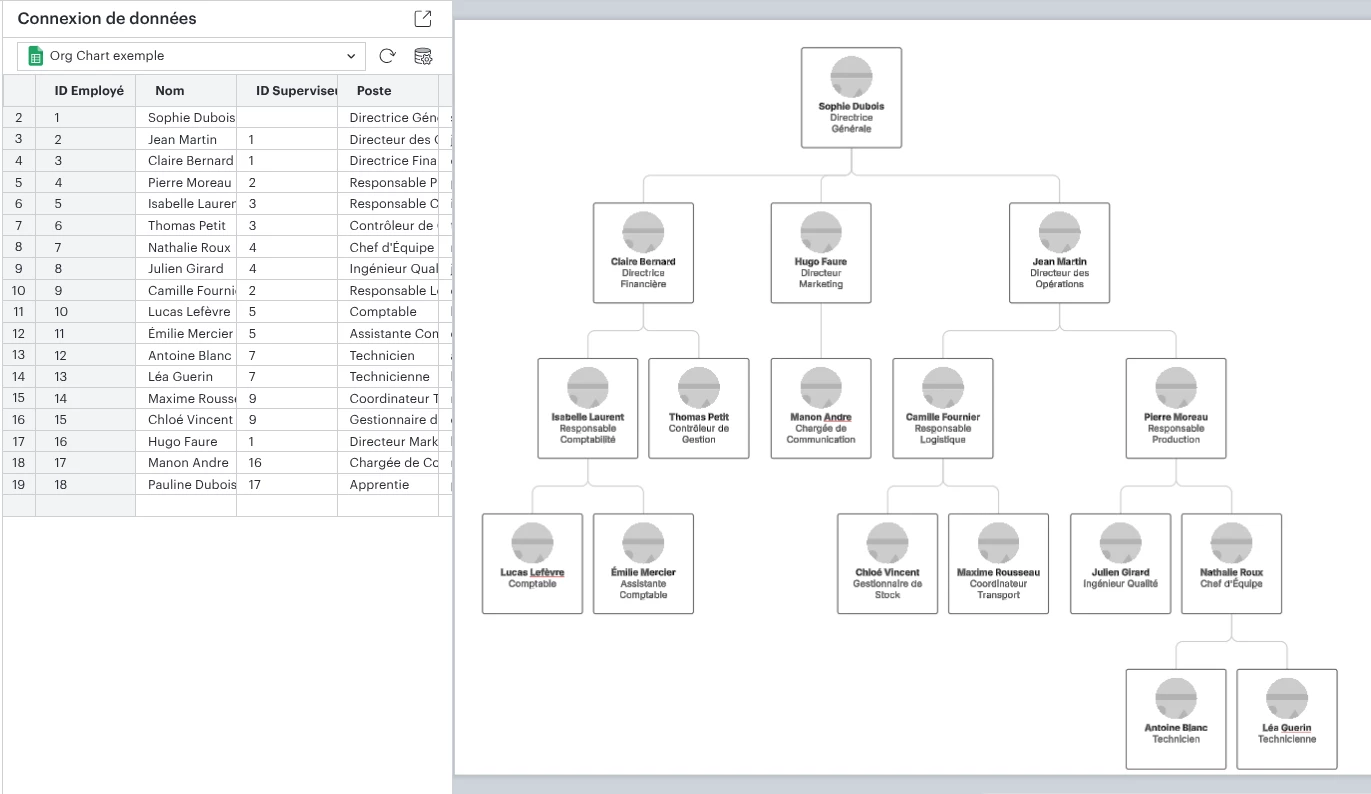
The table on the left side of my window updates properly if I modify my data on Google Sheets, but the changes are not being applied to the organizational chart.

In the example above, I added Pauline Dubois, who should be under the supervision of Manon André, but she does not appear on the organizational chart.

Would there be any other settings to configure?


alison cheney
Forum|alt.badge.img+4
  • Lucid community team
  • July 10, 2026

Hi ​@lpainsard,

Thank you for your thorough response here! It looks like you are doing everything right. Could you share a temporary Document Support PIN for this document? This will help me take a closer look at what’s going on. This PIN is safe to post in this thread because it is only accessible by members of the Lucid support staff. You can find steps for generating a Support PIN in this Lucid Help Center article: Generate a Lucid Support PIN. Thanks in advance for your help and patience!


Forum|alt.badge.img
  • July 24, 2026

Hi ​@alison cheney ,

here is the temporary PIN : duf6D4Q95nFB5gCk3s3hXE4bLnrcugdosz205477734. 

The chart is on page 2.

Thank you for your assistance


alison cheney
Forum|alt.badge.img+4
  • Lucid community team
  • July 24, 2026

Hi ​@lpainsard,

Thank you again for your patience and for sharing your Support PIN! I went ahead and tested things directly in your document to try to get to the bottom of this.

Unfortunately, I wasn't able to get the org chart to sync with the updated Google Sheets data either — even with the automatic refresh enabled and manual refreshes attempted. Since I can't replicate a working solution from my end, I don't want to send you down a path of troubleshooting steps that may not resolve the issue.


I’m converting this to a private support ticket so the right team can take a closer look. You should receive an email with further communication.

If you don’t receive an email please feel free to reach out in the thread below.