Leah W
Lucid support team
August 3, 2023

Auto-Number your Flowchart in Lucidchart

  • August 3, 2023
  • 29 replies
  • 4733 views

Looking for a way to auto-number the steps in your flowchart? Check out this post on how you can utilize conditional formatting and formulas to accomplish this!  

Please use the steps below to accomplish this on your diagram.

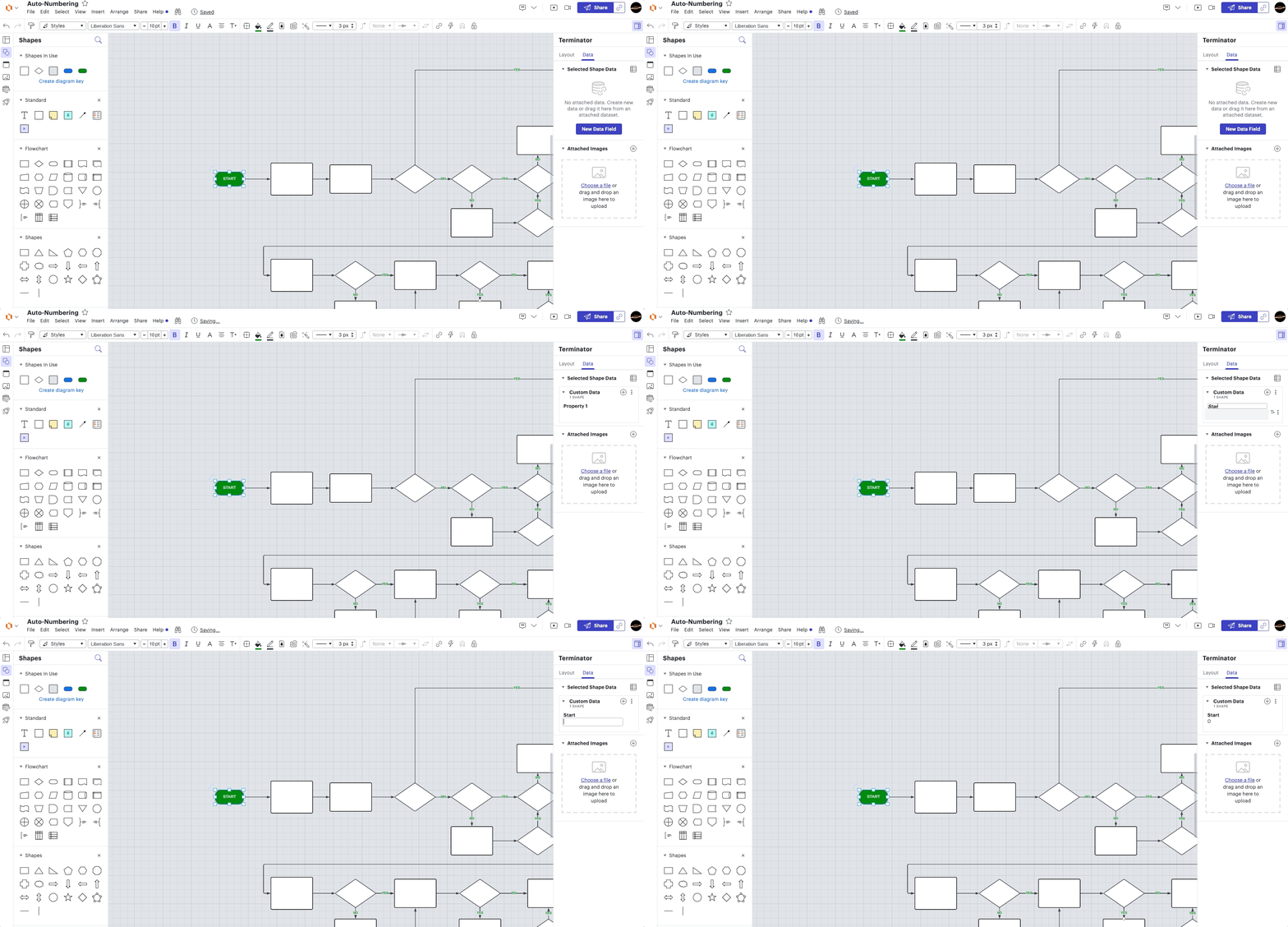
1. Add shape data "Start" to a start node with the value 0. This allows shapes connected to it to know it's part of the flow chart (as opposed to the note).WDRHIlKDibqK-4j8DRbs5A.gif
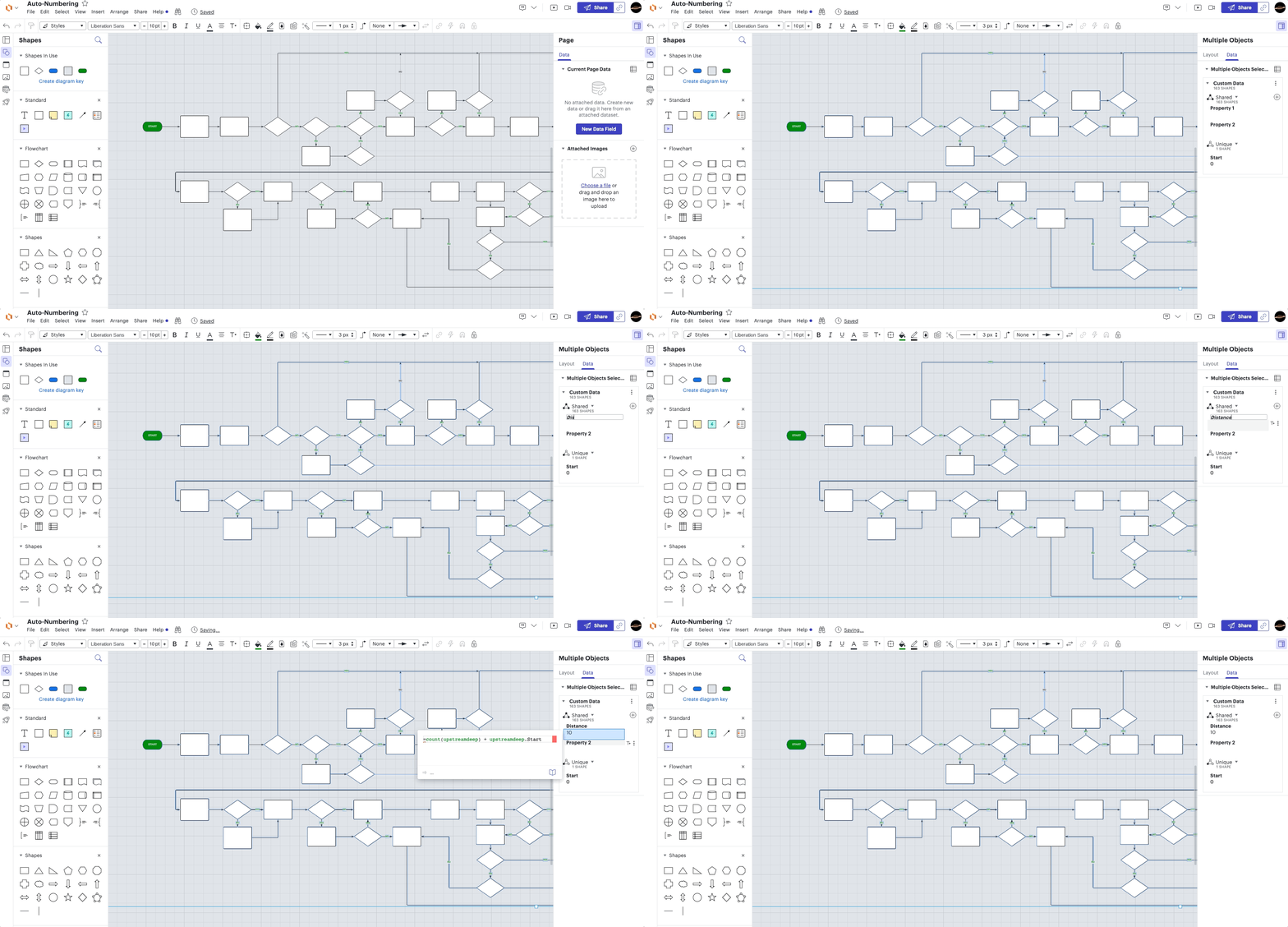
2. Add data "Distance" to all of the shapes with the formula =count(upstreamdeep) + upstreamdeep.Start. This will be defined with the distance from start or error (if the shape is not in the flow chart).
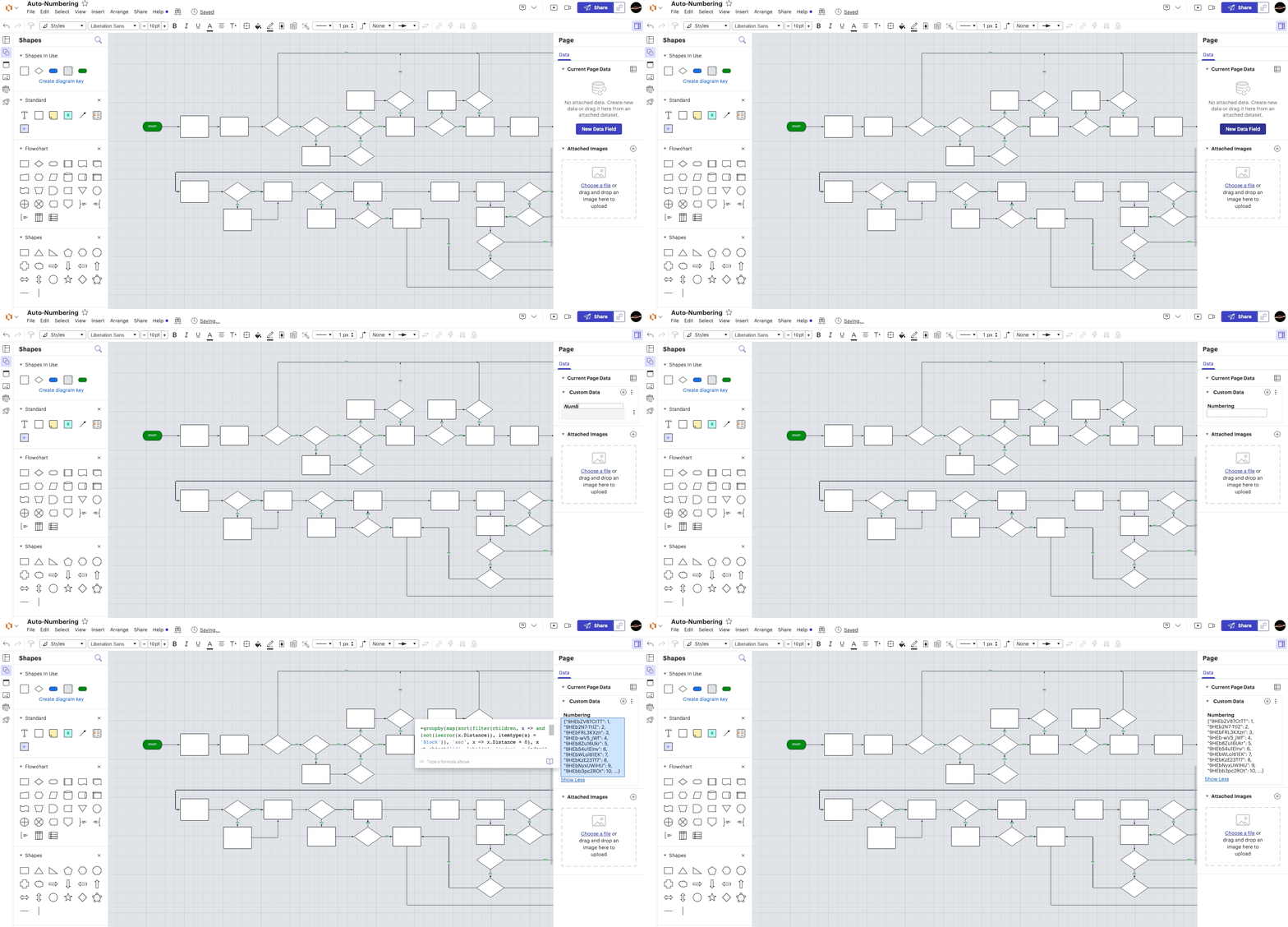
3. Add page data "Numbering" with the formula

=groupby(map(sort(filter(children, x => and(not(iserror(x.Distance)), itemtype(x) = 'Block')), 'asc', x => x.Distance + 0), x => object('id', label(x), 'index', x.index)), x => x.id, x => x.index)

. This formula sorts all blocks in the flow chart by distance and then groups them into an object where the key is the shape label (ID) and the value is the index returning in a mapping from block to unique numbering.   
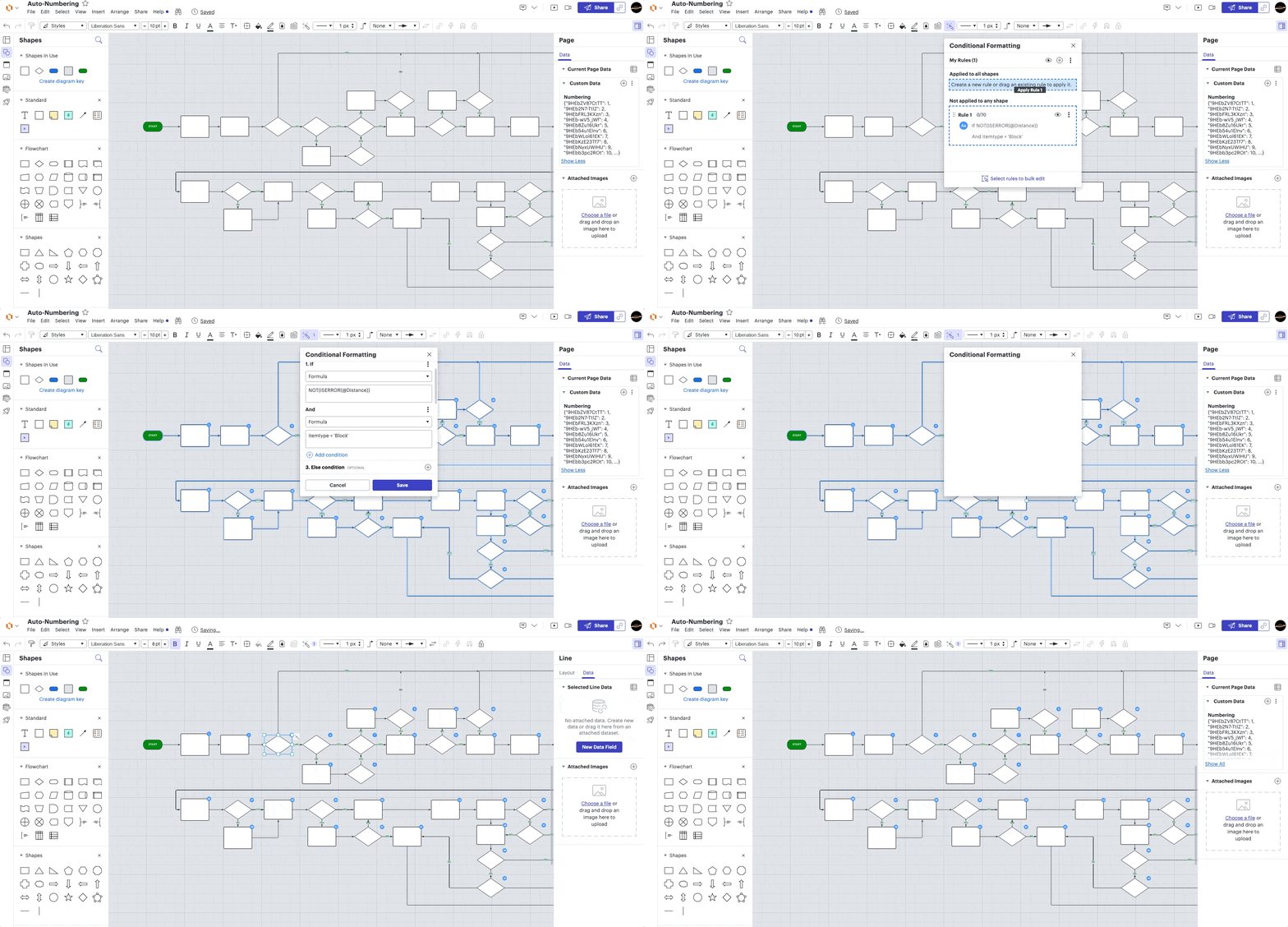
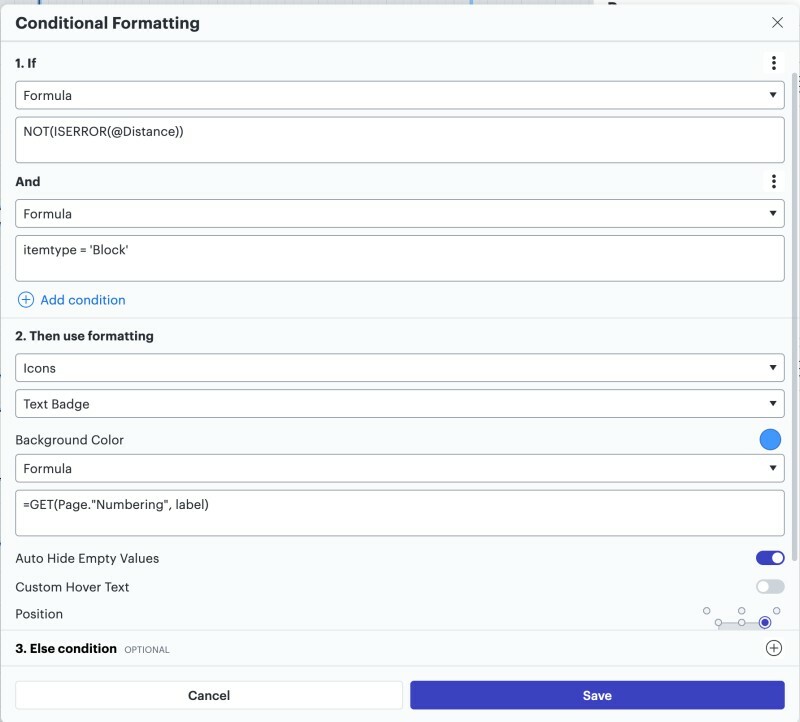
4. Lastly add a conditional formatting rule to add a badge when NOT(ISERROR(@Distance)) and itemtype = 'Block' (to prevent them from showing on lines) with the formula =GET(Page."Numbering", label) for the badge label. See screenshot for what the  conditional formatting rule should look like (no else condition needed for this).
A9lOMHf_v1HFqYD0EiH-iw.jpg

These steps will allow you to easily add and update step numbers to process flows while eliminating any duplicate numbers! 

Useful Links:

Conditional Formatting in Lucidchart 

Formulas help center article

Pinned Reply By geoffmaddox

It looks like there was an error in the original formatting of the formula in Step 3 that stripped out the commas. Here’s the corrected formula with the commas added in (the original post has been updated):


=groupby(map(sort(filter(children, x => and(not(iserror(x.Distance)), itemtype(x) = 'Block')), 'asc', x => x.Distance + 0), x => object('id', label(x), 'index', x.index)), x => x.id, x => x.index)

Comments

Suleiry M
September 2, 2023

This is great I have been looking for a way todo this and this answered my question thanks! can it also be numbered by letters also like abc ?

-Suleiry Matos
Leah W
Leah WAuthor
Lucid support team
September 5, 2023

Thanks for your response. Currently there is no way to label your flowchart using letters (a b c…). However we are always looking for ways to improve. Would you mind sharing your feedback or any clarifying details about what you'd like to use the letter numbering for? We greatly appreciate your feedback!

Luc C101
September 29, 2023

Welcome feature.  Thank you.
Would be even better if I can explode a shape to a new sibling chart and that sibling chart inherit the Distance value from its parent; then the shapes in the sibling would be e.g. If shape 3 was exploded to a new more detailed chart the sibling chart shapes would be numbered 3.1 3.2 3.3 etc.

January 16, 2024

I get some sort of error though when creating the page data (step 3):

Wondering if you might have any ideas what I'm doing wrong, or if there's a better place to get at the elbow support on this?  Thanks so much - this feature is a godsend.

geoffmaddox
Lucidite
January 16, 2024

It looks like there was an error in the original formatting of the formula in Step 3 that stripped out the commas. Here’s the corrected formula with the commas added in (the original post has been updated):


=groupby(map(sort(filter(children, x => and(not(iserror(x.Distance)), itemtype(x) = 'Block')), 'asc', x => x.Distance + 0), x => object('id', label(x), 'index', x.index)), x => x.id, x => x.index)

geoffmaddox
Lucidite
January 16, 2024

can it also be numbered by letters also like abc?

It is actually possible to number using letters instead of numbers, but the formula becomes slightly more complex.


In order to number by letter, we need to be able to convert the index (1, 2, 3, ...) into a letter. There are two formula functions we can use to do that, CODE and CHAR. Generically, the formula looks like this for a given number (with 1 => A, 2 => B, etc.):

char(code('A') + number - 1)


This only works with letters A through Z (numbers 1 through 26), however, so the formula gets slightly more complex to handle numbers above 26. In order to do that, we need to handle each digit separately. For values up to 702, using the following formula in place of Step 3 will work to number using letters (where they are lettered with A to Z, then AA to ZZ):
=groupby(map(sort(filter(children, x => and(not(iserror(x.Distance)), itemtype(x) = 'Block')), 'asc', x => x.Distance + 0), x => object('id', label(x), 'index', if(x.index > 26, char(code('A') + floor((x.index - 1) / 26) - 1) & char(code('A') + mod(x.index - 1, 26)), char(code('A') + x.index - 1)))), x => x.id, x => x.index)


This results in this numbering, which is valid for up to 702 shapes (ZZ):


Beyond 702, the formula becomes much more complex.

February 21, 2024

Are there any videos on this? I’m having some trouble with getting this to work.

Micah
Lucid community team
February 21, 2024

@aaronpatkramer We don’t currently have any video tutorials on this, but we’re more than happy to take a look at what you’re seeing. Is there a particular question you have or step you’re having difficulty with?


April 18, 2024

Hi had an issue where some shapes weren’t included. Took me a while to figure out it was because i had originally drawn the arrows backwards and then reversed the arrow heads. When I deleted the lines and redrew them the correct way around first time, the numbers appeared


P.S. There’s a comma missing in the =GET(Page."Numbering" label) part of the post

Micah
Lucid community team
April 19, 2024

@arhmcleod Thanks for sharing this insight with us - I’m glad that you were able to resolve it and get it to work! 


And great catch - I’ve corrected this in the original post.