If xls contains links to something how to embed it in employee's box? So that if someone clicks on employee's name then it will go to employee's home page (or whatever set in the appropriate column in the imported xls file).
Thanks for posting in the community! You have several options to achieve this:
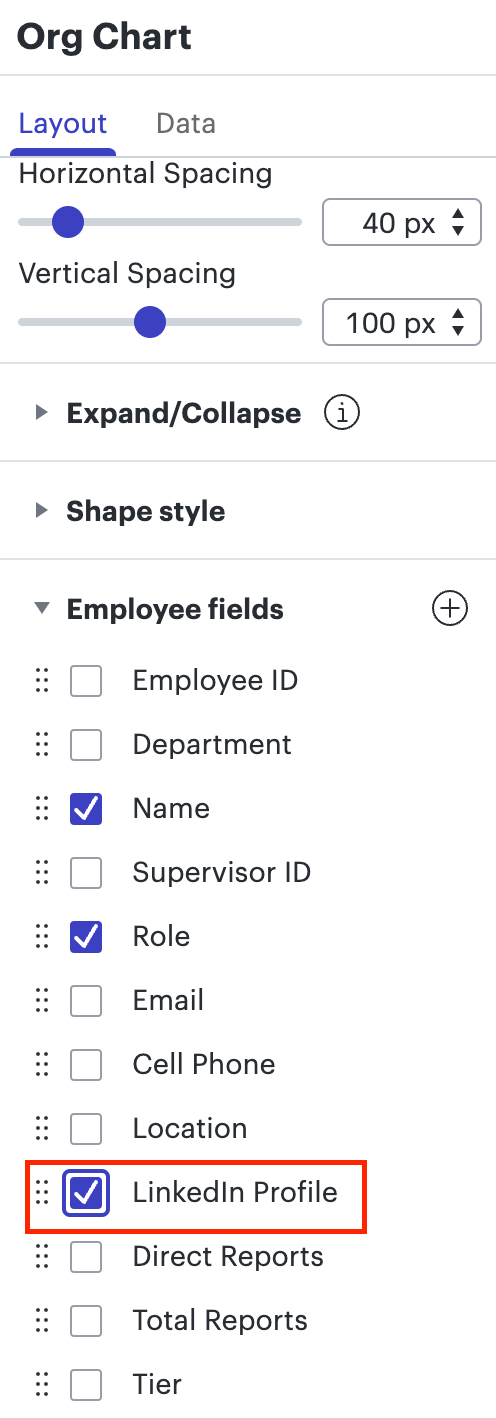
If you want the URL itself to display directly in the employee shape you can create an additional column in your Excel file (LinkedIn Profile CV etc.) and paste the link for each employee under it.Then after importing your Excel sheet you can add that field to display on your employee shapes under the shapes section of the org chart menu. For more information on importing your data please refer to our Org Charts article from our help center.
If you don't want the full URL to display you can simply add a field entitled "LinkedIn Profile" "CV" or whatever you want to link to then set that field to display that same text ("LinkedIn" "CV" etc.)
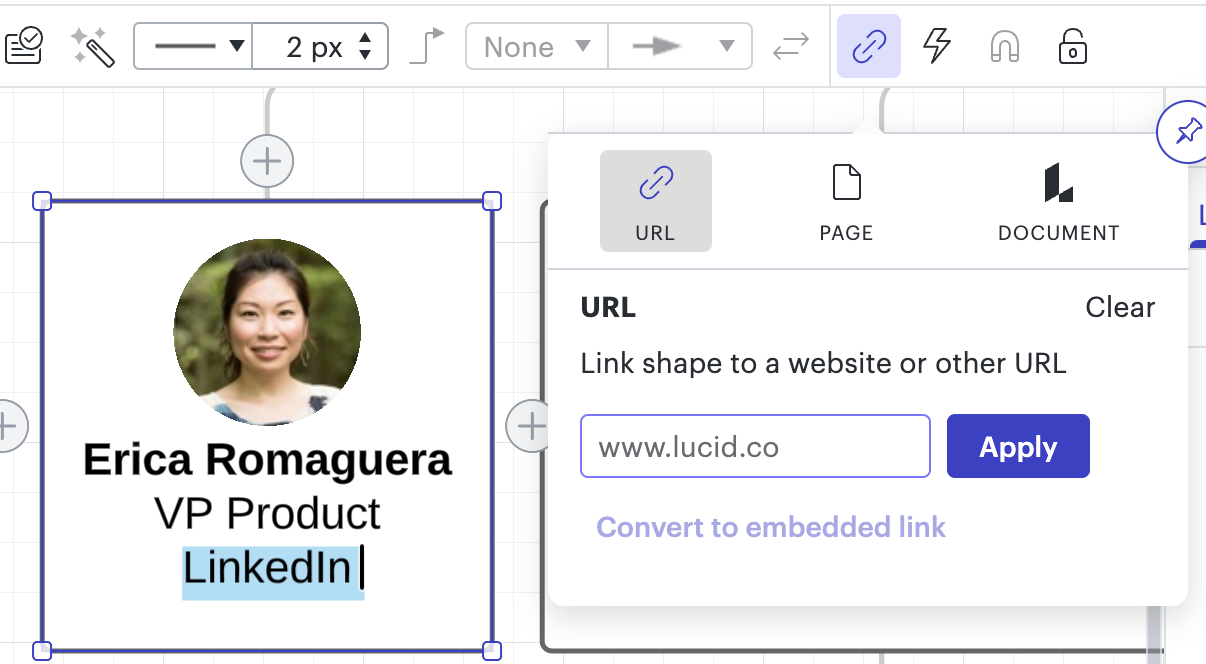
Finally after adding your field by either method to your employee shapes you can select an element of that shape (the URL the text "LinkedIn Profile" or "CV" the employee name or the entire shape itself then use the Actions tool to insert the corresponding link. After doing so anyone viewing your document can click to navigate to the linked website. For more detailed instructions on creating links like this please take a moment to review our Actions and Hotspots article from our help center.
Hope this helps! Please let me know if you have any additional questions.
Hi Nikolay! I know this is a very old thread, but I wanted to let you know that we are actively developing an Excel integration with Lucidchart. This feature will allow you to import spreadsheets from Office 365 business accounts, and have 2-way syncing between Lucid and your Excel spreadsheet.
If you (or anyone reading this) is interested, shoot me a DM. I can get you onboarded to our Excel beta. We’re actively looking for testers that can provide feedback and feature requests for this new capability.
Hi @k8rill, thank you for continuing this thread! Did you have a question about org charts in Lucidchart? Please feel free to let us know how we can help!
Writing with exciting news - the two-way Excel sync that Jimmy mentioned above is now available to all users in a public beta test! We’re still actively working on it and making improvements, so we’d love to hear your feedback. Learn more in this thread:
Thanks for posting in the community! You have several options to achieve this:
If you want the URL itself to display directly in the employee shape you can create an additional column in your Excel file (LinkedIn Profile CV etc.) and paste the link for each employee under it.Then after importing your Excel sheet you can add that field to display on your employee shapes under the shapes section of the org chart menu. For more information on importing your data please refer to our Org Charts article from our help center.
If you don't want the full URL to display you can simply add a field entitled "LinkedIn Profile" "CV" or whatever you want to link to then set that field to display that same text ("LinkedIn" "CV" etc.)
Finally after adding your field by either method to your employee shapes you can select an element of that shape (the URL the text "LinkedIn Profile" or "CV" the employee name or the entire shape itself then use the Actions tool to insert the corresponding link. After doing so anyone viewing your document can click to navigate to the linked website. For more detailed instructions on creating links like this please take a moment to review our Actions and Hotspots article from our help center.
Hope this helps! Please let me know if you have any additional questions.
@Micah could you create a video to explain what you did?
@omar I’m not able to provide a full video tutorial, but I’m happy to demonstrate the steps I described in my first response using the GIFs below. Please take a look and let me know if you have any additional questions!
Step 1: Adding a LinkedIn profile URL to your data set
Step 2: After importing your data, adding the LinkedIn profile URL to each employee shape
Step 3: Making the URL clickable by hyperlinking the profile URL to the employee shape
A Lucid or airfocus account is required to interact with the Community, and your participation is subject to the
Supplemental Lucid Community Terms.
You may not participate in the Community if you are under 18. You will be redirected to the Lucid or airfocus app to log in.
A Lucid or airfocus account is required to interact with the Community, and your participation is subject to the
Supplemental Lucid Community Terms.
You may not participate in the Community if you are under 18. You will be redirected to the Lucid or airfocus app to log in.



 Your privacy choices


