

Sort images by tags in Lucid 🏷️
In Lucid, you can add tags to objects to help categorize ideas and projects. These labels can be added to sticky notes, shapes, text boxes, and images.
This post serves as an example of using tags to gather and sort images. ⤵️
Let’s say you’re a brand designer tasked with creating and presenting logo options to a new client. You started with one core idea and ended up with loads of different images and logo variations. You’d like an easy way to sort through the options and present them to the client, so you turn to a Lucid board!
Start by importing your logos as PNGs to see all your options in one spot. After narrowing down a handful of options, you’d like to tag them with their logo type to illustrate the importance of specific logo variations and what they could look like. You decide to add the following tags:
- Primary
- Secondary
- Wordmark
- Submark
- Favicon
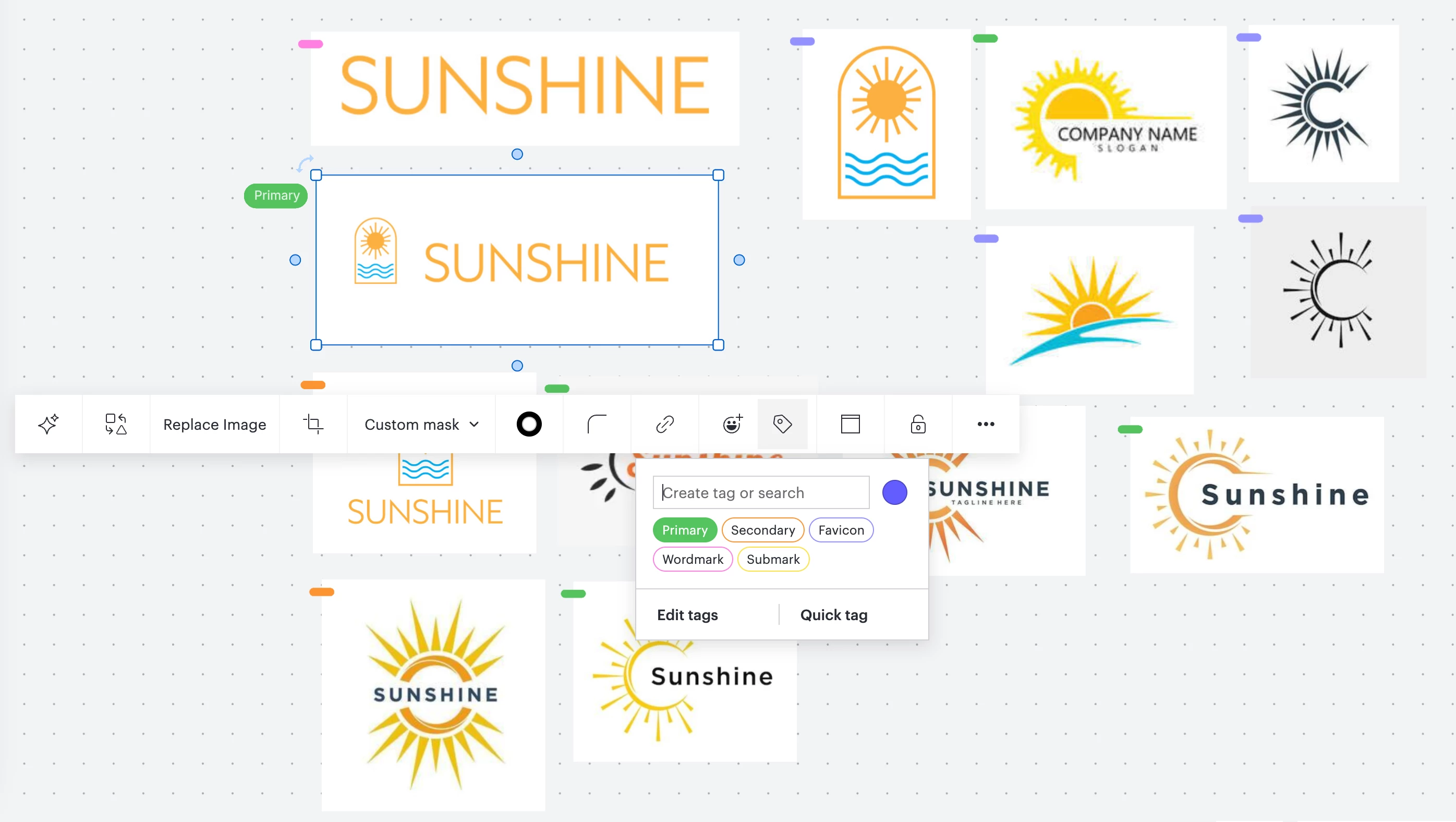
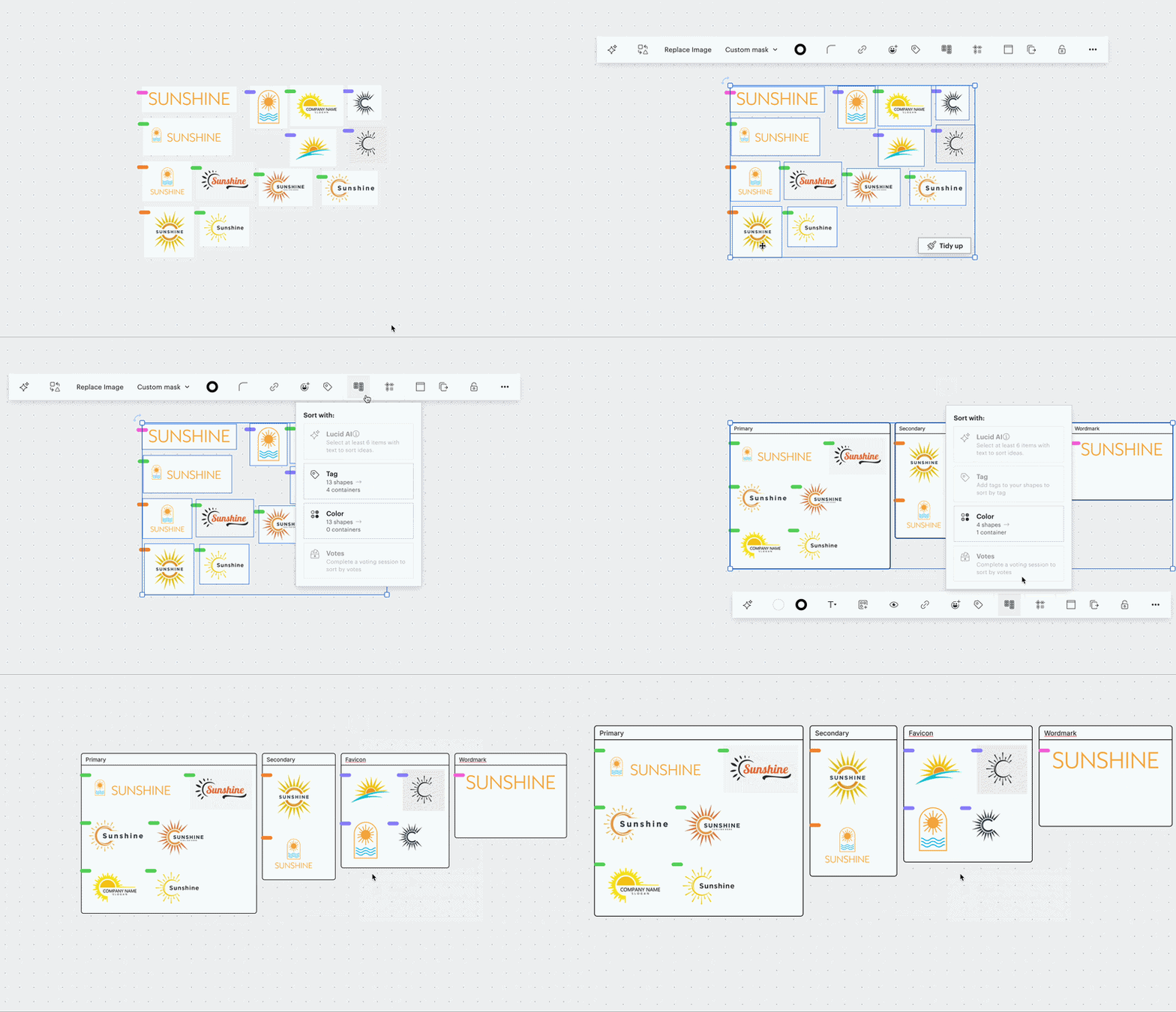
Instead of manually moving the images around the screen to show the various types of logos, you highlight all your logos and sort by tag.
All the options are automatically sorted into containers by logo type! You can easily present what variations of a favicon or secondary logo might look like. This also easily displays areas that you might want to revisit with additional options for the client!
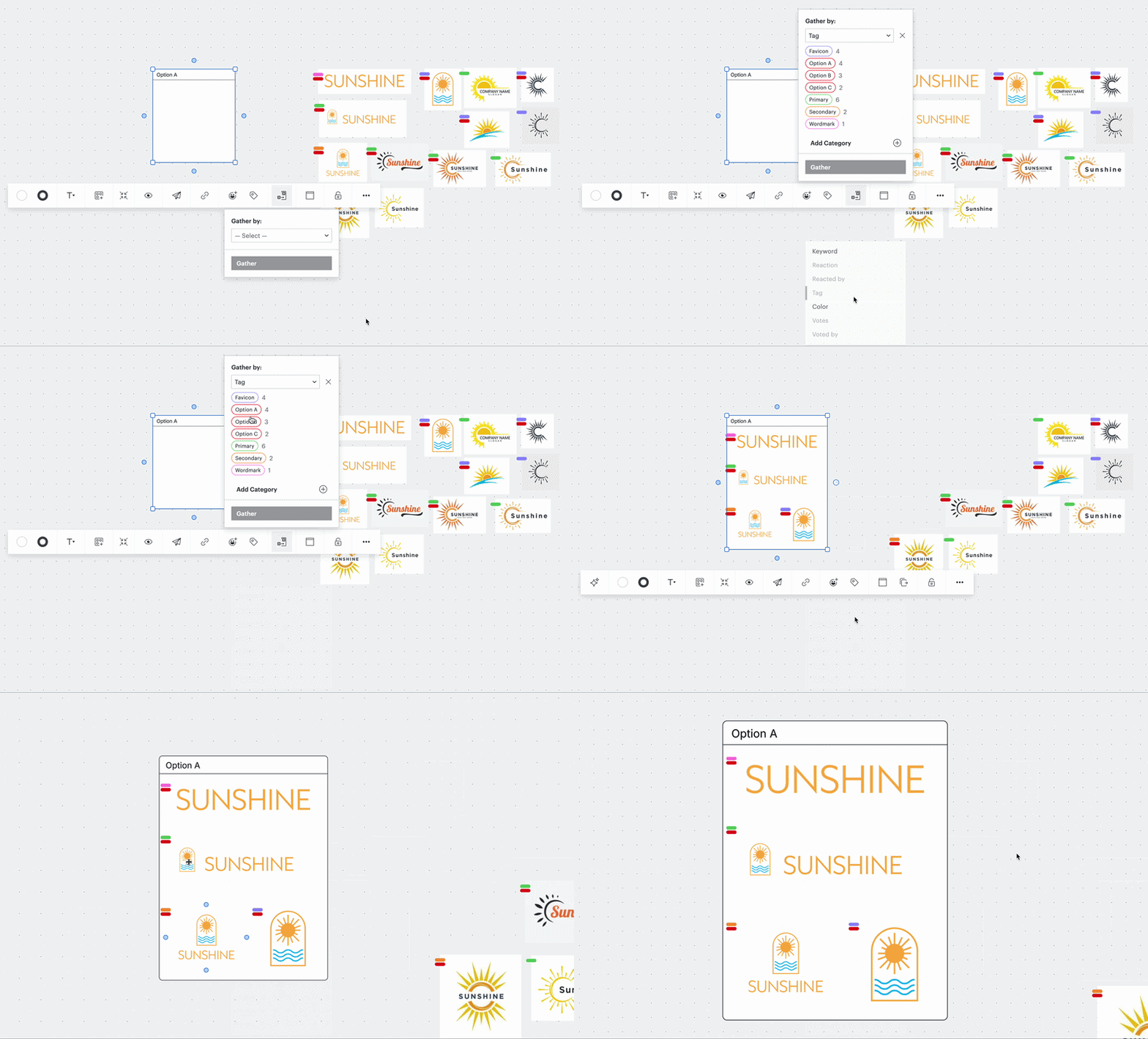
After final workshopping, you land on a great option and would like to show the client a comprehensive set of logos for their business. You add additional tags of Option A, Option B, and Option C as the three logo sets. In order to call attention to the set that you recommend, you can use the gather tool.
Gathering objects by the tag titled ‘Option A’ quickly adds all of the relevant logos into one container. Now you have a container showing the best set!
To learn more, I recommend checking out these resources from the Lucid Help Center.
This is just one example of how you can use tags in Lucid to organize your content! Let us know in the comments below:
- How do you use tags in Lucid?
- Do you sort or gather objects on your canvas?
- How do you see these features helping your workflow?
 Your privacy choices


