

Create unique views for stakeholders with shape sets
If you've ever found yourself wishing you could "toggle" parts of your flowchart on and off depending on who is in the room, shape sets are for you!
For a step-by-step guide on using shape sets, check out this Help Center article: Use shape sets to manage visibility in Lucidchart.
In this community post, we’ll show you how shape sets can be used in action! ⬇️
💡 Shape sets solution story
The Problem: Imagine you’re a project manager presenting a new product launch workflow. Your engineering team needs to see the technical API details, product leadership cares about the high-level milestones, and customer-facing teams need a go-to-market overview.
Usually this means maintaining three separate documents, which can quickly become a version control nightmare. The alternative is overwhelming stakeholders with details they don’t need- also not the outcome that you’re hoping for.
The Solution: With shape sets, you can create a single document as your ‘source of truth’ and simply manage what is visible at any given time.
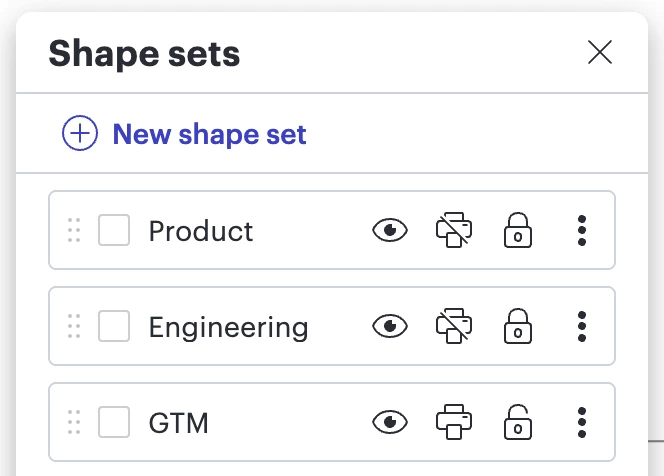
First, you create your flow and create three shape sets representing the various teams:
- Product
- Engineering
- GTM
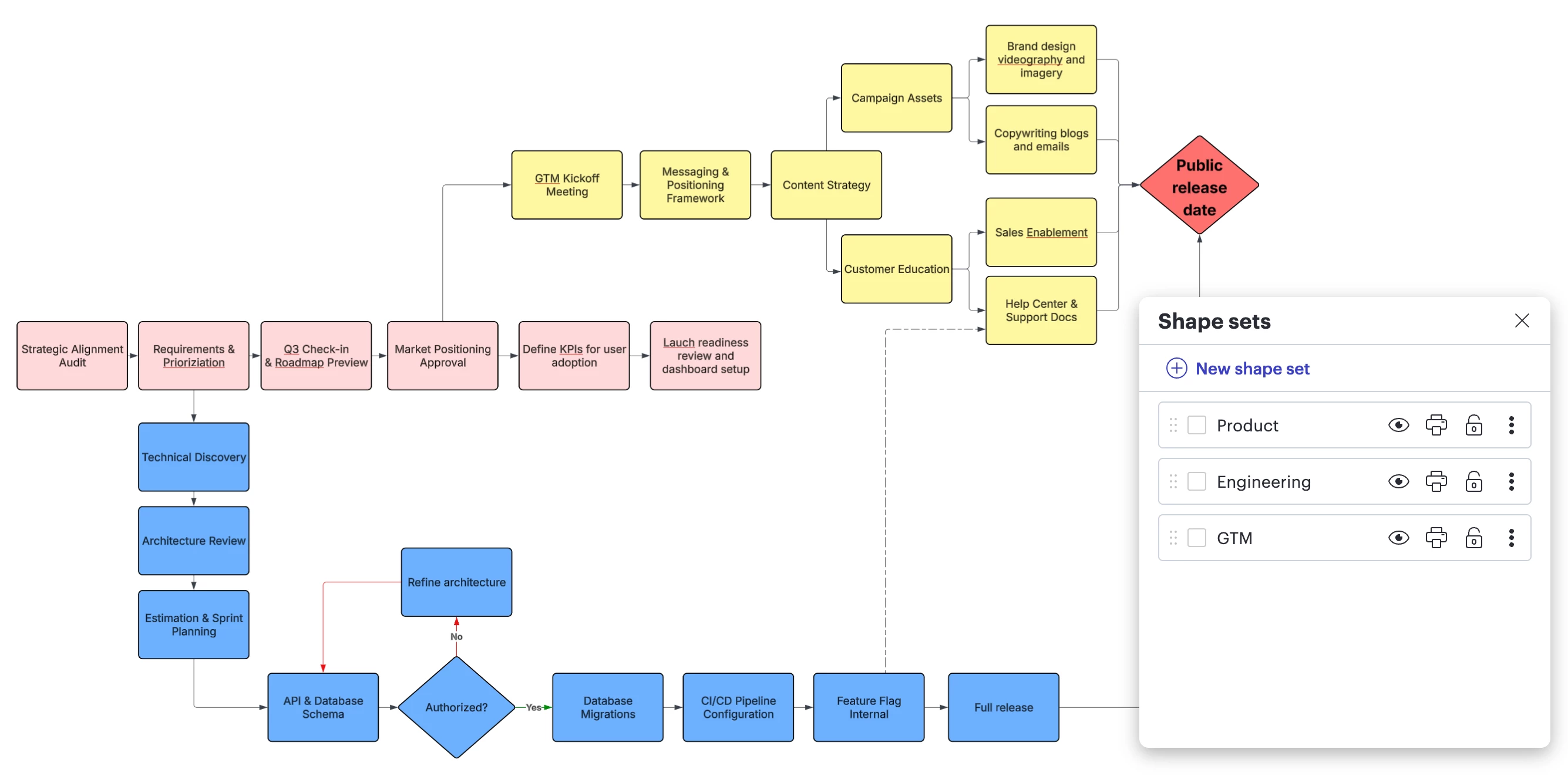
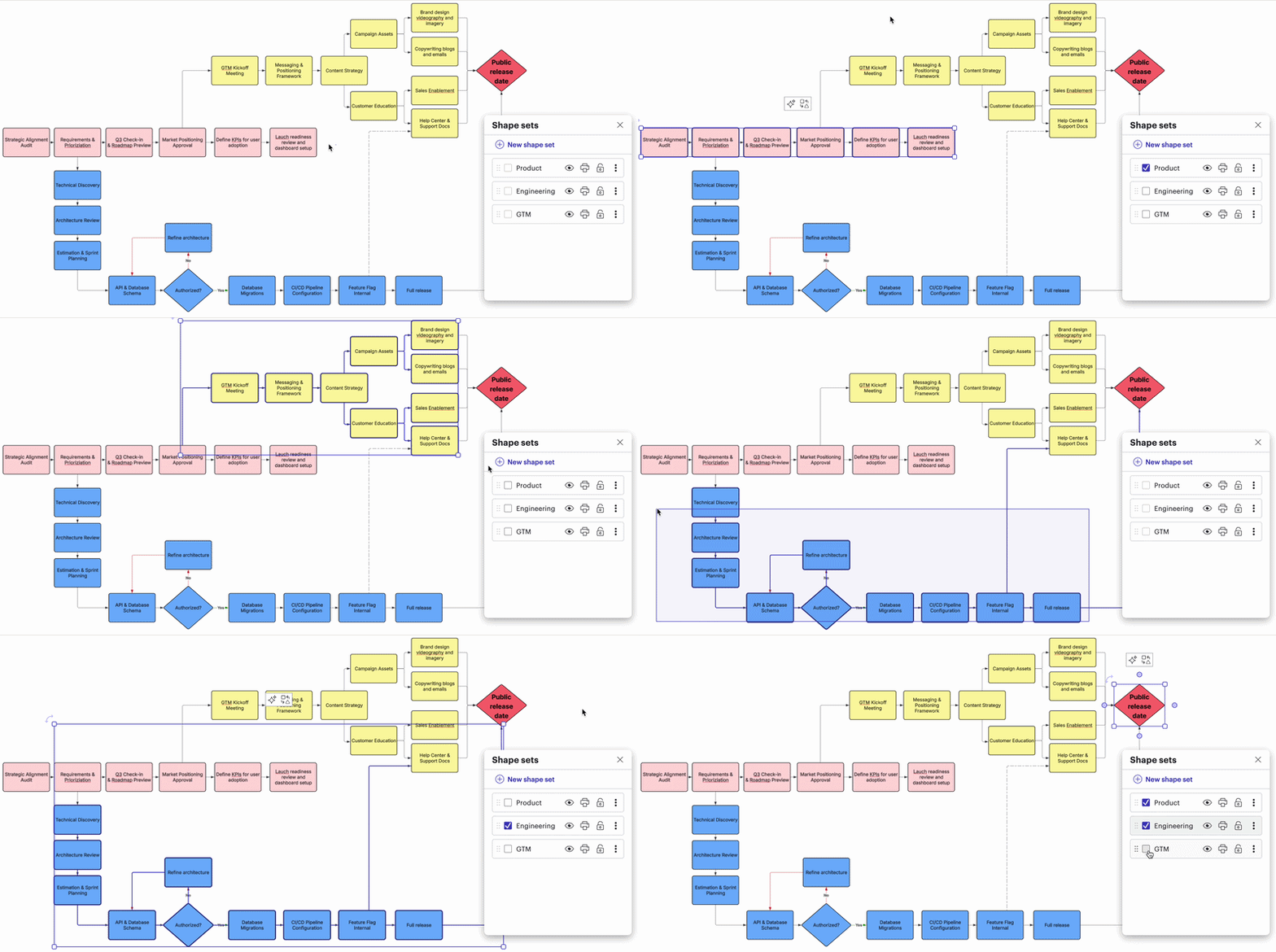
Next, you assign the relevant steps in flow to the specific shape sets by selecting the relevant shapes and checking the box next to each relevant shape set.
You add the ‘Public release date’ step to each shape set since it’s an important date for all teams.
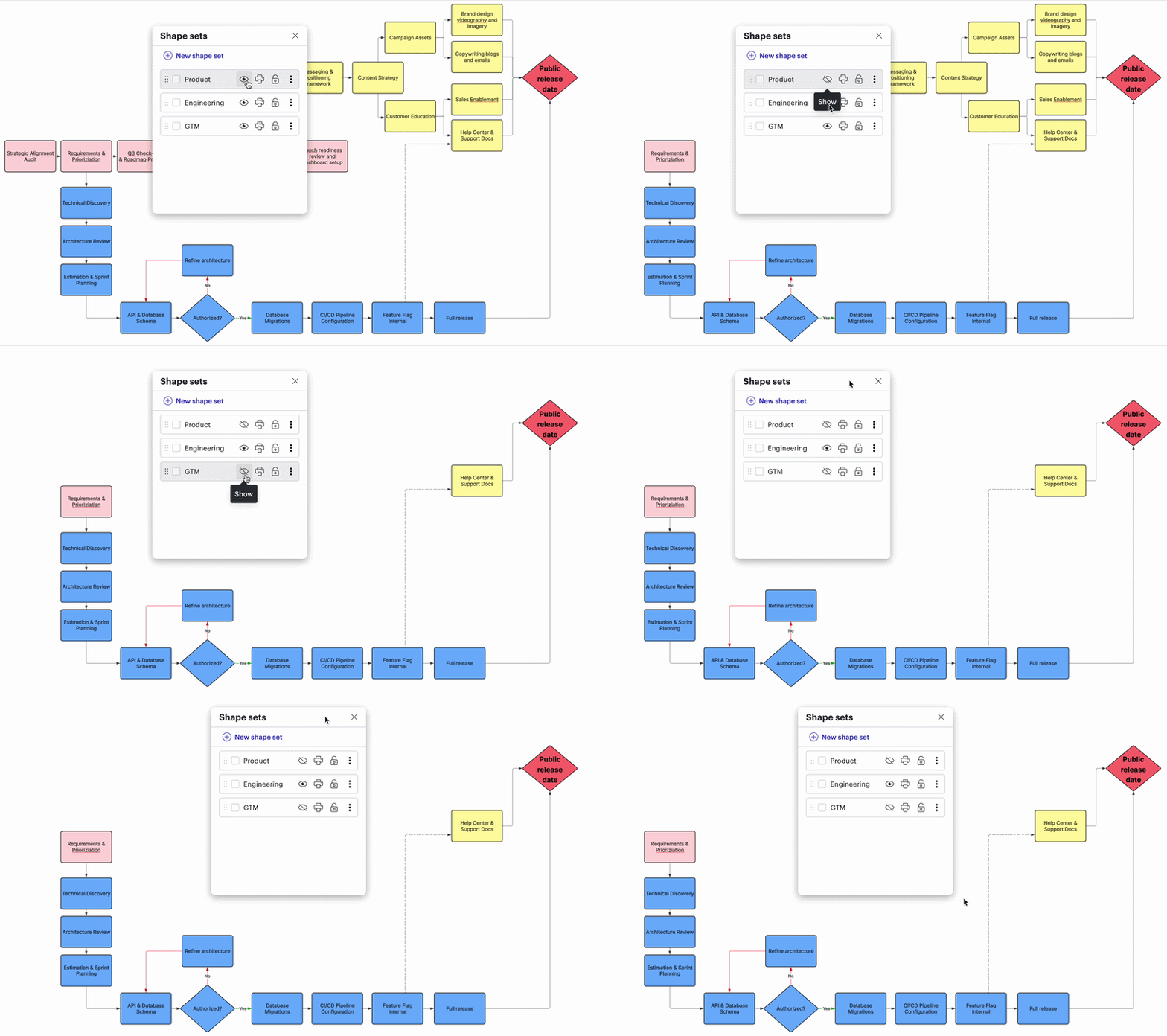
When it’s time to chat with the developers, you hide the Product and GTM shape sets, displaying only the steps that are relevant to the Engineering team.
Now it’s easy to keep the focus on the most important steps and keep the conversation on track during the engineering sync.
Now you’d like customer-facing teams to review the diagram and edit their workflows to reflect any changes to their work or dependencies that aren’t currently accounted for.
In an effort to keep things organized, you lock all shapes that are assigned to the Product and Engineering shape sets. Now customer-facing teams can move around and edit the GTM steps without accidentally changing the rest of the diagram.
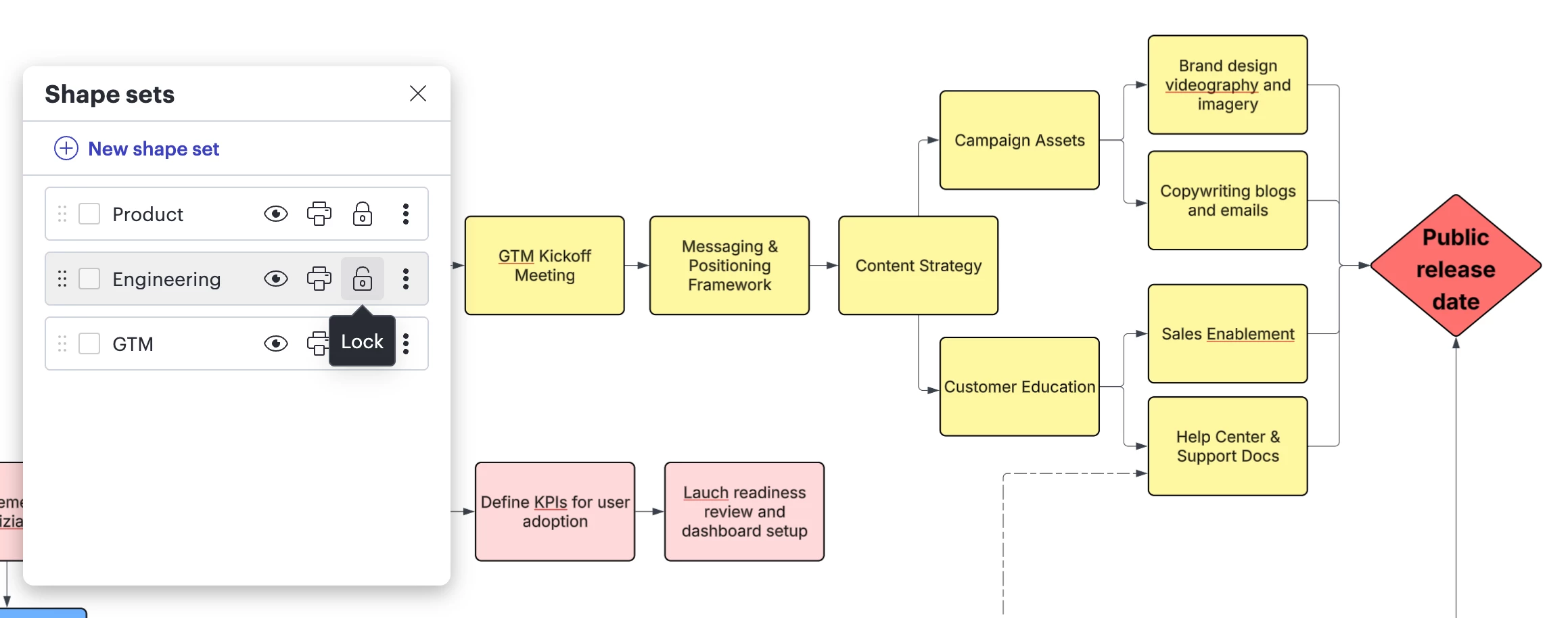
Marketing would like to print a copy of their plan to display in their next in-office planning session. They disable print for the Product and Engineering shape sets so that only the GTM steps are included in the printed document.
The Outcome: The steps in the diagram are organized into shape sets, leading to more clarity in cross-functional projects, visibility into the most relevant details, and easy editing and sharing. Instead of digging through multiple files, you have one document that is easily adjusted to show what matters most.
We’d love to hear from you!
How are you currently managing complex diagrams for different stakeholders?
Try using shape sets to organize your views! Drop a comment below or share a screenshot of your favorite use case!
 Your privacy choices


