Idea

Disable keyboard shortcuts for sticky notes

  • February 12, 2026
  • 5 replies
  • 21 views

Forum|alt.badge.img+1

When I select a sticky note from the shapes option and enter text it will automatically create another sticky note when I click enter or tab.
from the doc there seems to be an option to enter the text before the sticky note is added to my board by selecting the sticky note from the main left tool bar.  However, the sticky note is not on my toolbar.   I am in Lucid Chart.  How can I add it to the left toolbar 
(Yes I am new to Lucid Chart)

Comments

aparrish
Lucid Legend Level 7
Forum|alt.badge.img+15
  • Lucid Legend Level 7
  • February 13, 2026

@Kathy sticky notes are a standard shape. If you don’t see it right now, you can favorite it. You can favorite any shape you want by searching for it and starring it.

I don’t know if this helps, but here’s a relevant thread with screenshots so you can find document settings to insert sticky notes by double-click and a link to a document setting Lucid article: 


Forum|alt.badge.img+1
  • Author
  • February 17, 2026

thanks for the info ​@aparrish   but it does not address the issue.  I do not want it to create another sticky note when I enter one


Ambar D
Forum|alt.badge.img+10
  • Lucid community team
  • February 17, 2026

Hi ​@Kathy, thanks for posting in the Lucid Community and thanks ​@aparrish for you help here, I’m jumping in to provide additional support here! 


To create a new line of text on a sticky note:

When you are writing on a sticky note and need to create a new line of text, I recommend selecting Shift/Command + Enter/Return on your keyboard to create a new line. 


To drag sticky notes from the left-hand tool bar in Lucidchart:

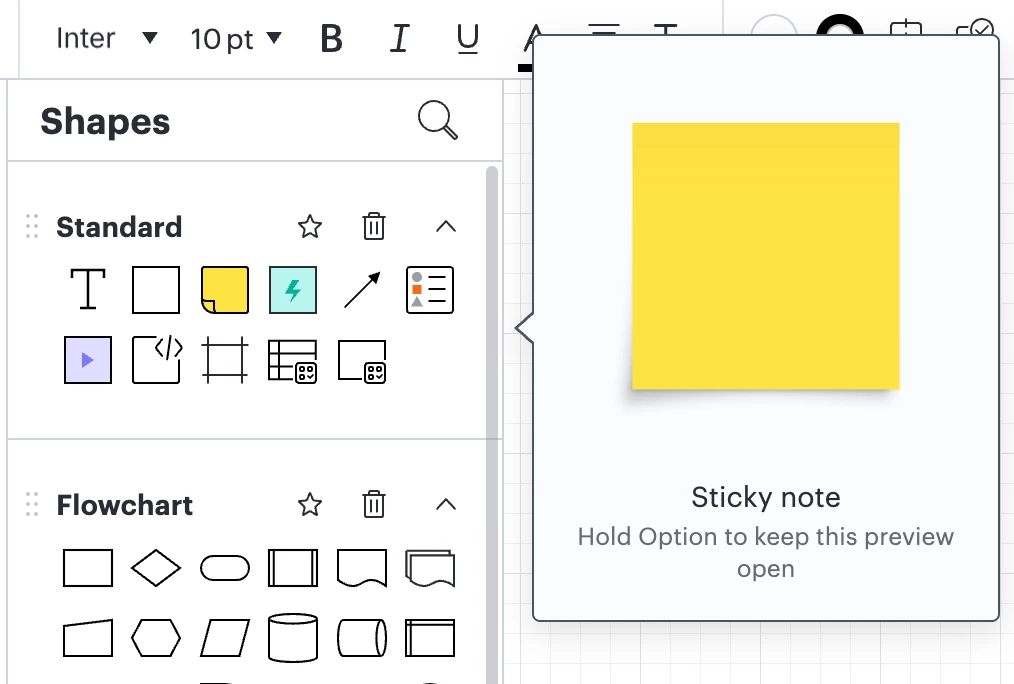
In Lucidchart, you can access sticky notes from the yellow sticky note shape in the Standard shape library as shown below.

In Lucidchart, select sticky notes from the Standard shape library

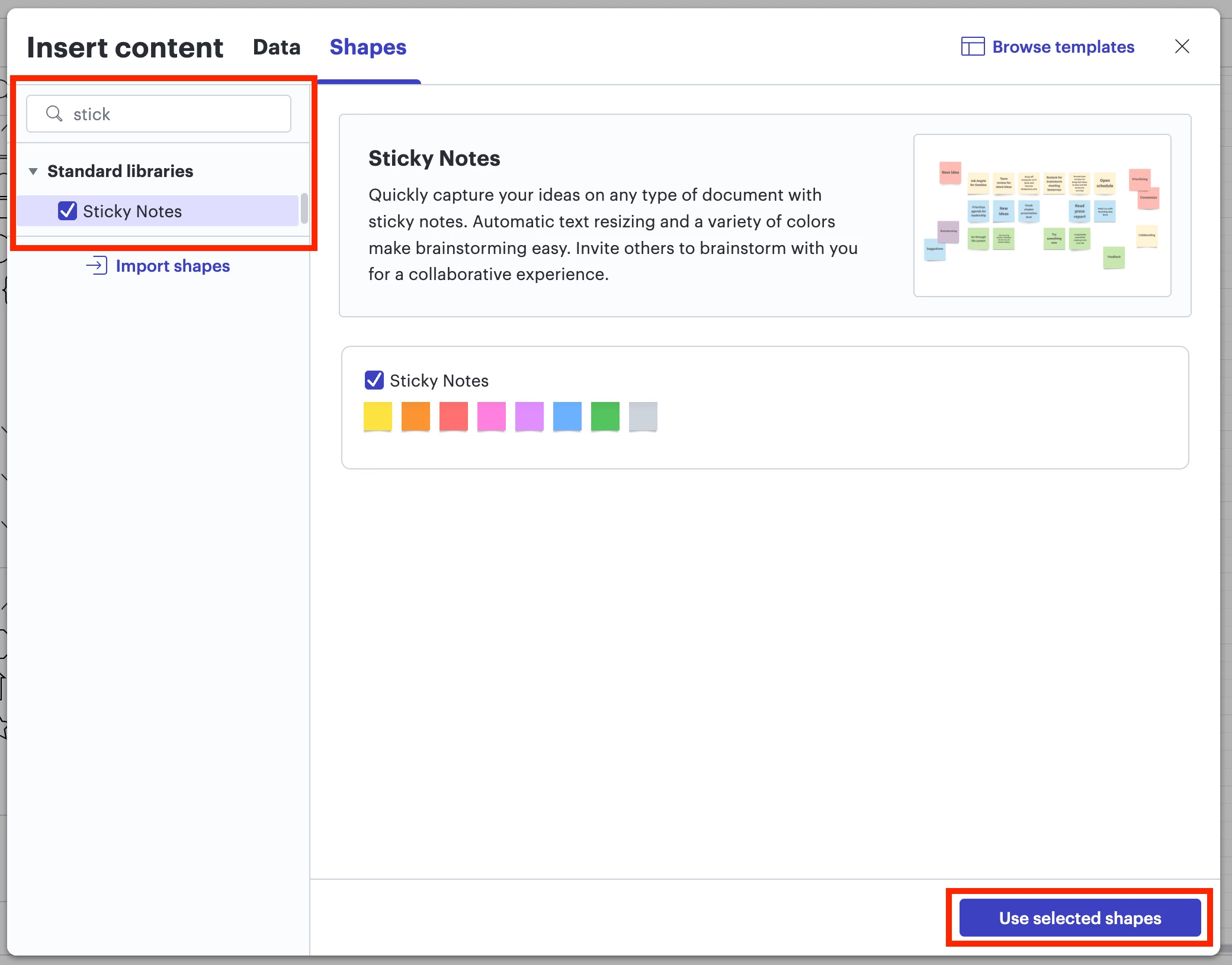
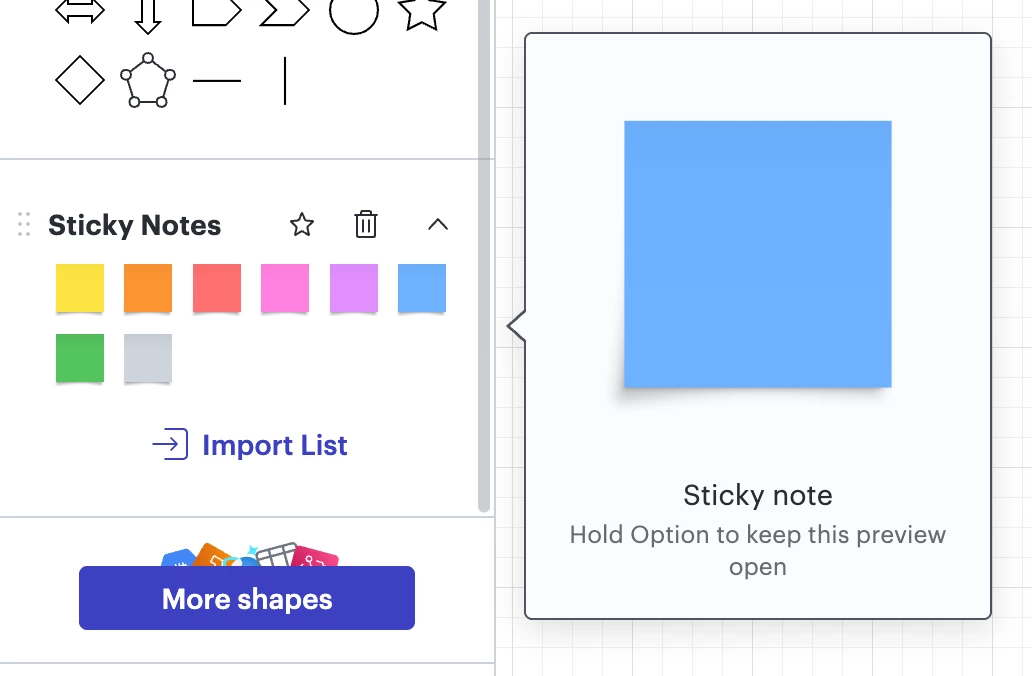
Alternatively, you can add the sticky note shape bank by opening the left-hand tool bar > clicking More Shapes > searching sticky notes and selecting the checkbox > clicking Use selected shapes. From there, you can drag sticky notes from the sticky note shape bank in the left-hand panel onto your canvas.

Add sticky note shape bank
Select and drag sticky notes from the sticky note shape bank in the left-hand panel


I hope this helps! If you have any further questions, please let me know and I’m happy to help further.


Forum|alt.badge.img+1
  • Author
  • February 18, 2026

Thanks ​@Ambar D   but I guess I am not explaining it properly
I can add a sticky note to the board and can enter text. the issue is what happens when a tab off the shape or hit Enter to end my work with the sticky note.
It automatically creates a new sticky note and I do not want that to occur.  How do I prevent it?
Thanks for your help


Ambar D
Forum|alt.badge.img+10
  • Lucid community team
  • February 20, 2026

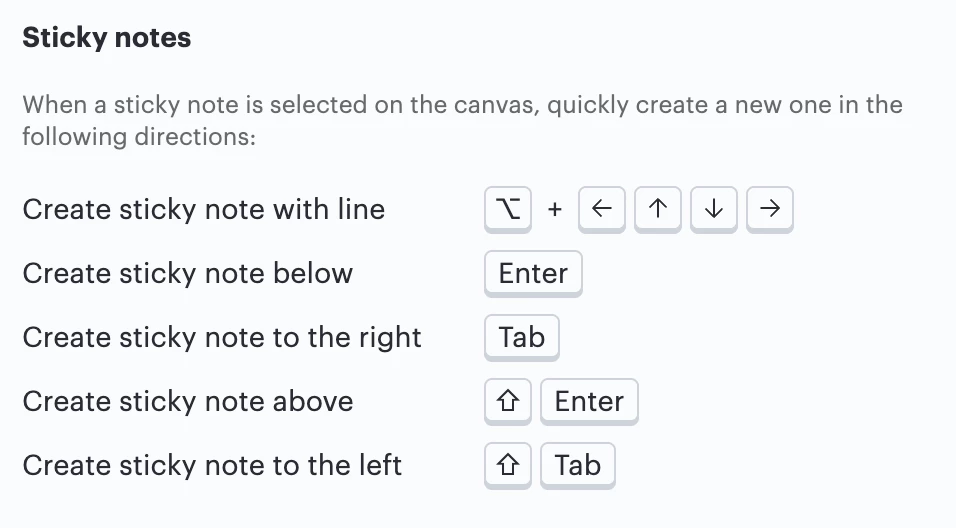
Hi ​@Kathy, sorry for my misunderstanding, thanks for the clarification! Indeed selecting Enter creates a sticky note below your current one, and selecting Tab creates a sticky note to the right of your current one.

At this time, this is expected behavior since these are keyboard shortcuts, and you can find the full list of available keyboard shortcuts at this post below:

We do support adjusting user settings to disable specific character key shortcuts, as described in more detail here, but at this time disabling the sticky note shortcuts shown below is not currently supported. 

If you’d like to create a new line within the same sticky note, without creating a new sticky note, I suggest selecting Command + Return/Enter.

We’re very interested in your feedback and committed to continually improving our products. If you’re willing to share, we’d love to hear more details about your use case or what you’d like to see in this experience within this thread.

I’ve converted this post to an idea so that it’s visible to others within the Product Feedback section of the community - from here, they can upvote it and add details of their own.

Finally, for more information on how Lucid manages feedback via this community, take a look at this post: