

Use the Insights agent in airfocus
The Insights agent processes new feedback items as they arrive. It creates insights: linking customer feedback to relevant product opportunities or ideas in your connected workspaces.
Prerequisites
Before setting up the Insights agent, make sure:
- airfocus AI is enabled for your team. An admin can turn this on in Team Settings > Features.
- The Insights app is installed on your workspace(s).
- You have full permissions on the feedback workspace. Members without full permissions can see the agent status but not edit the configuration.
Set up the Insights agent
The Insights agent is configured in the Insights app on your workspace.
To set up the Insights agent:
- Open your Feedback workspace in airfocus.
- In the action bar at the top of the workspace, click the Insights agent button
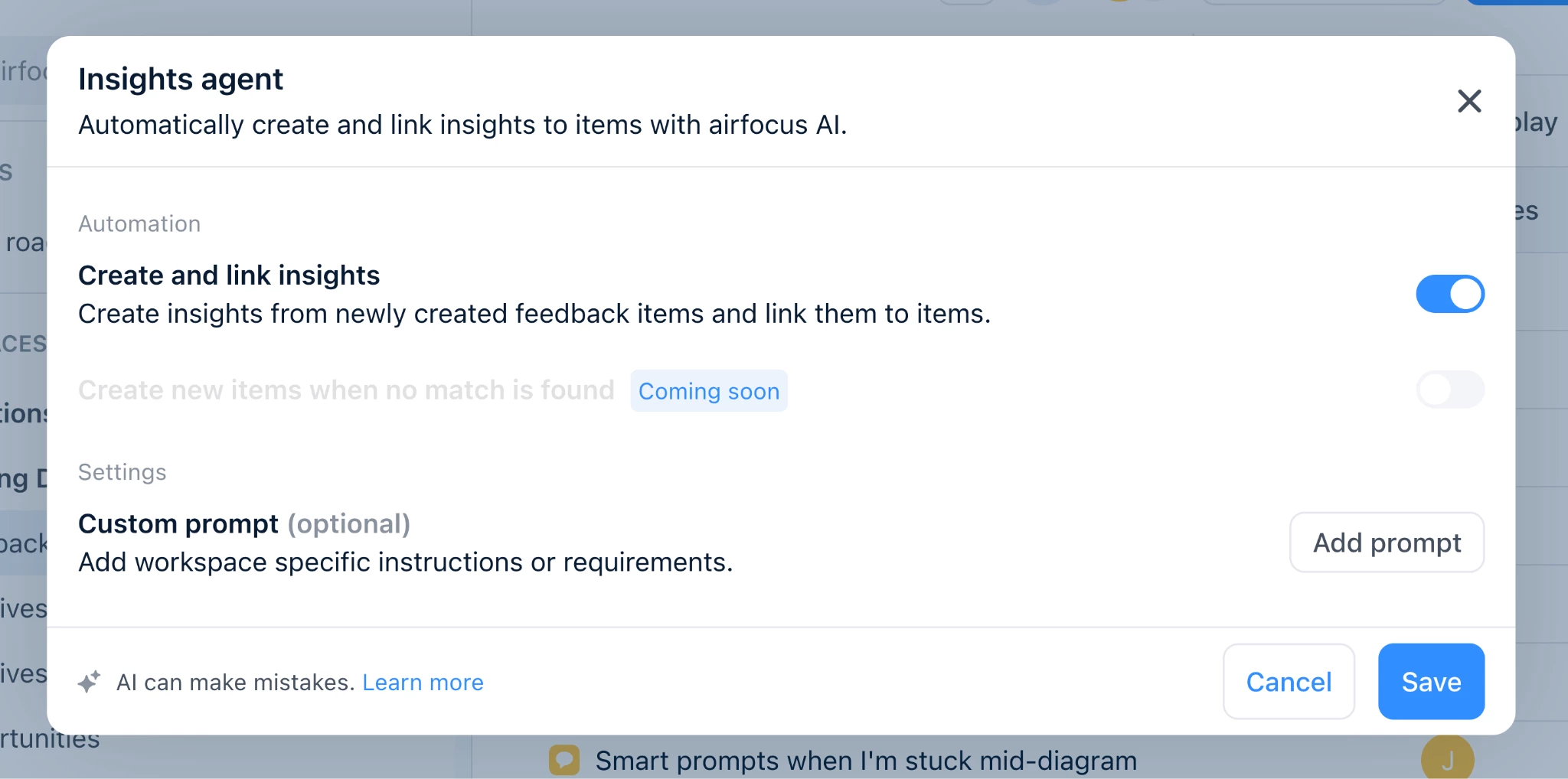
- In the Insights agent dialog, configure the automation and settings:
- Under Automation, turn on Create and link insights to automatically process feedback items when they are created.
- Optionally, add a Custom prompt to give the agent specific instructions (see Customize with a custom prompt below).
- Click Save.
Understand the agent status indicator
After setup, the Insights agent button in the workspace action bar reflects the current state of the agent:
| State | What it means |
| Active (sparkle, full color) 
| Automation is on. The agent processes new feedback items automatically. |
| Inactive (sparkle, dimmed) 
| The agent is configured but automation is turned off. |
| Working… (animated gradient) 
| The agent is currently processing one or more feedback items. |
Click the button at any time to see the current status, toggle automation on or off, or open agent settings.
What the Insights agent does
When the Insights agent runs on a feedback item, it follows these steps:
- Reads the feedback item: the full title and description.
- Checks if the feedback is actionable: if there's no usable content (e.g., the description is empty, test text, or only internal notes), the agent posts a comment explaining why it stopped and skips insight creation.
- Extracts insights: each insight represents a single signal: a pain point, a feature request, a use case, or a competitive signal.
- Searches for matching opportunities in two ways:
- It searches similar feedback items already linked to opportunities (human-validated references).
- It searches your connected opportunity workspace using semantic similarity.
- Links high-confidence matches: when both searches agree, or one gives a clear, specific match, the agent links the feedback item to the matched opportunity.
- Posts a reasoning comment: the agent posts a comment summarizing what it extracted and why each insight was linked or left unmatched.
Manually trigger the Insights agent
You can also run the Insights agent on a specific feedback item without waiting for it to trigger automatically.
To manually trigger the agent:
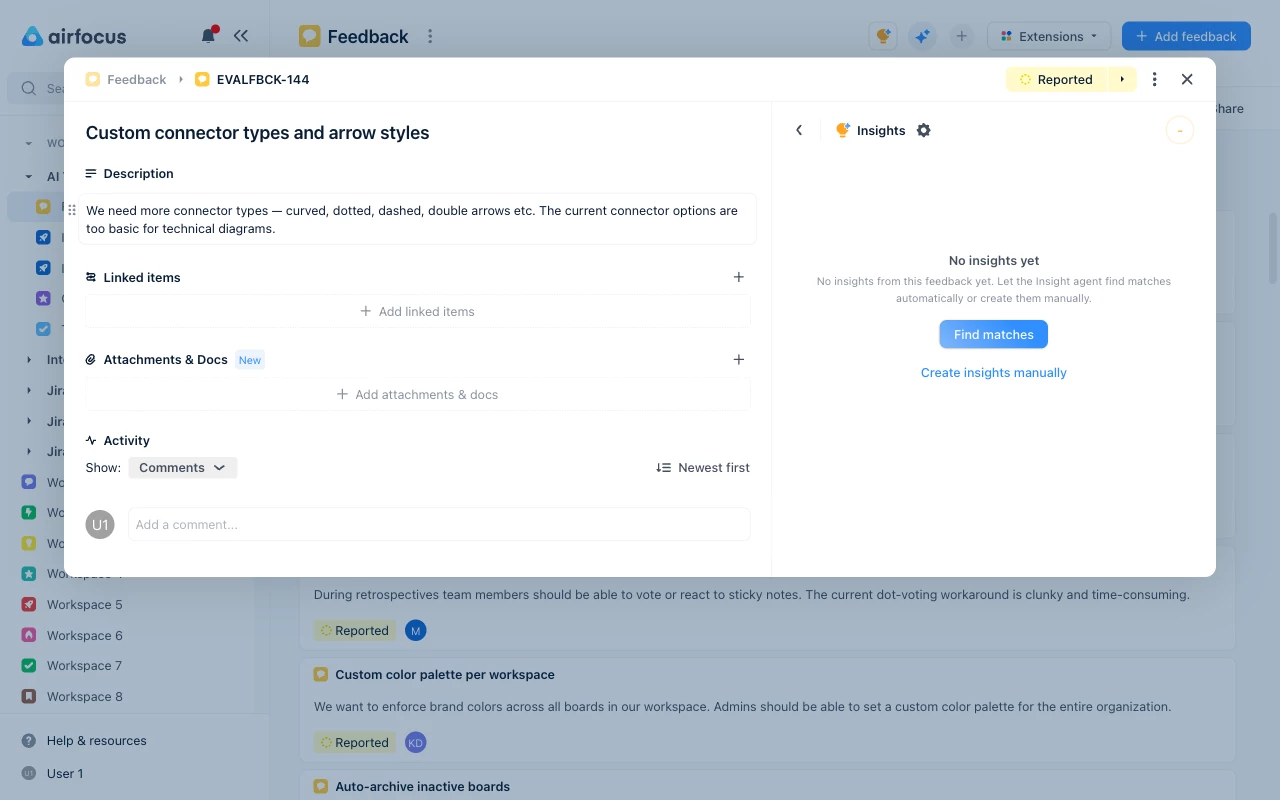
- Open a feedback item in your Feedback workspace.
- In the Insights panel on the item, click Find matches.
- The agent runs immediately. The sparkle icon animates while it works.
- When complete, the agent posts a reasoning comment and any new insight links appear in the Insights panel.
Customize with a custom prompt
You can add instructions to guide the agent's behavior such as context regarding your product domain, naming conventions, or how to handle edge cases. These instructions will be included each time the agent runs.
To add or edit a custom prompt:
- Click the Insights agent button in the action bar.
- Select Settings.
- Under Settings, click Add prompt (or Edit prompt if one already exists).
- Enter your instructions
- Click Save to apply.
 Your privacy choices


