

Reconstruct and Convert Images into Editable Lucid Diagrams with Lucid AI! 🪄
What’s new?
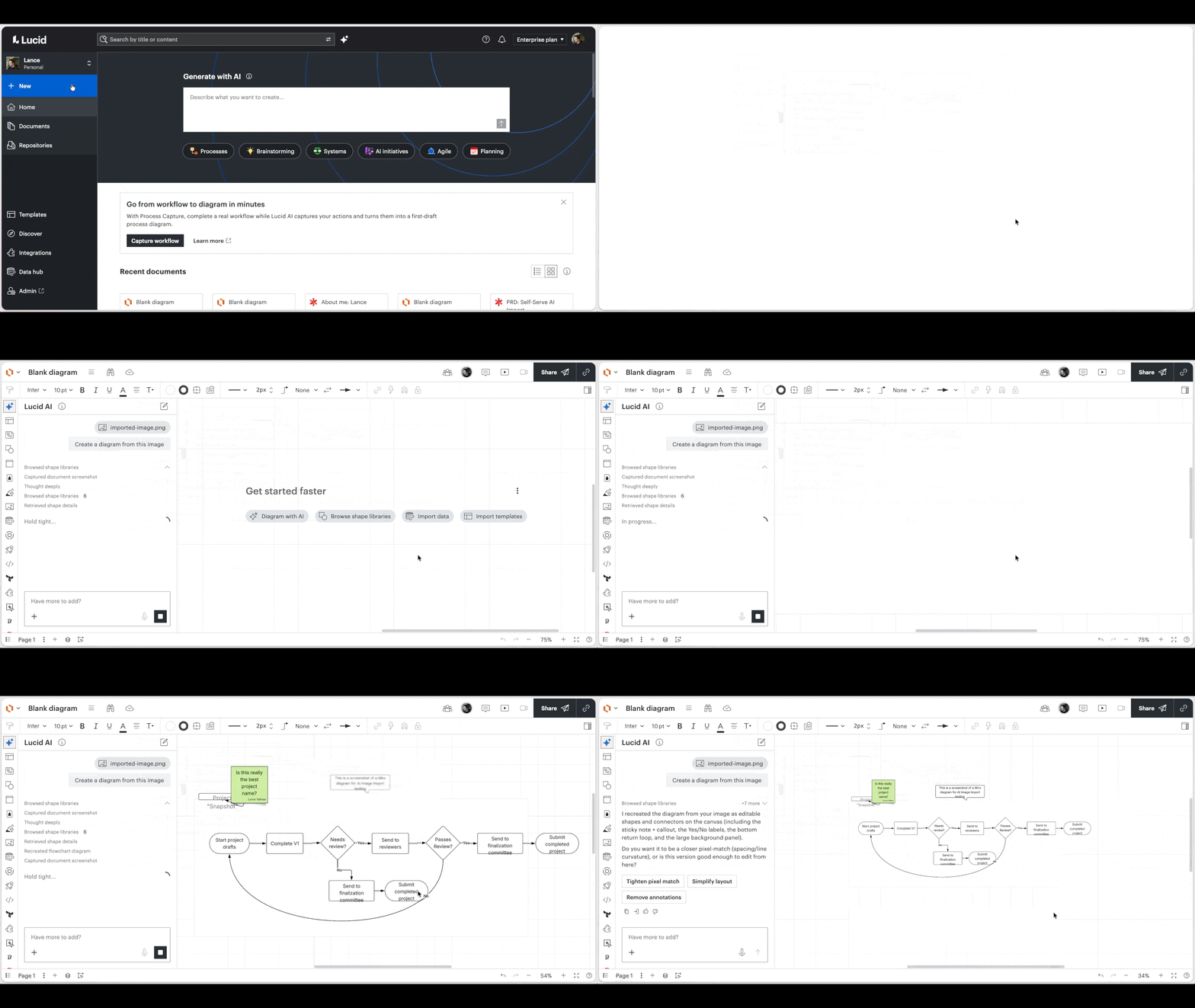
You can now upload a PNG or JPG file directly into Lucid, and Lucid AI will automatically recreate the image and convert it into a completely editable Lucid diagram right on your canvas!
Whether you are starting from a blank slate using our new document import option or enhancing a text prompt inside a current document, turning flat imagery into active, working diagrams has never been easier.
Why did we create this feature?
Recreating legacy diagrams or physical drawings is one of the most persistent operational bottlenecks our users face. Teams frequently waste valuable hours manually translating flat documentation or whiteboard sketches into interactive formats before they can actually begin collaborating.
By introducing this image reconstruction pipeline to Lucid AI, we eliminate this friction entirely. We want to drastically shorten your time-to-value so your teams can bypass the manual busywork and get straight to collaborating.
Let’s take a look at this with an example! ⤵️
Scenario 1: The Hand-Drawn Whiteboard Sketch ✏️
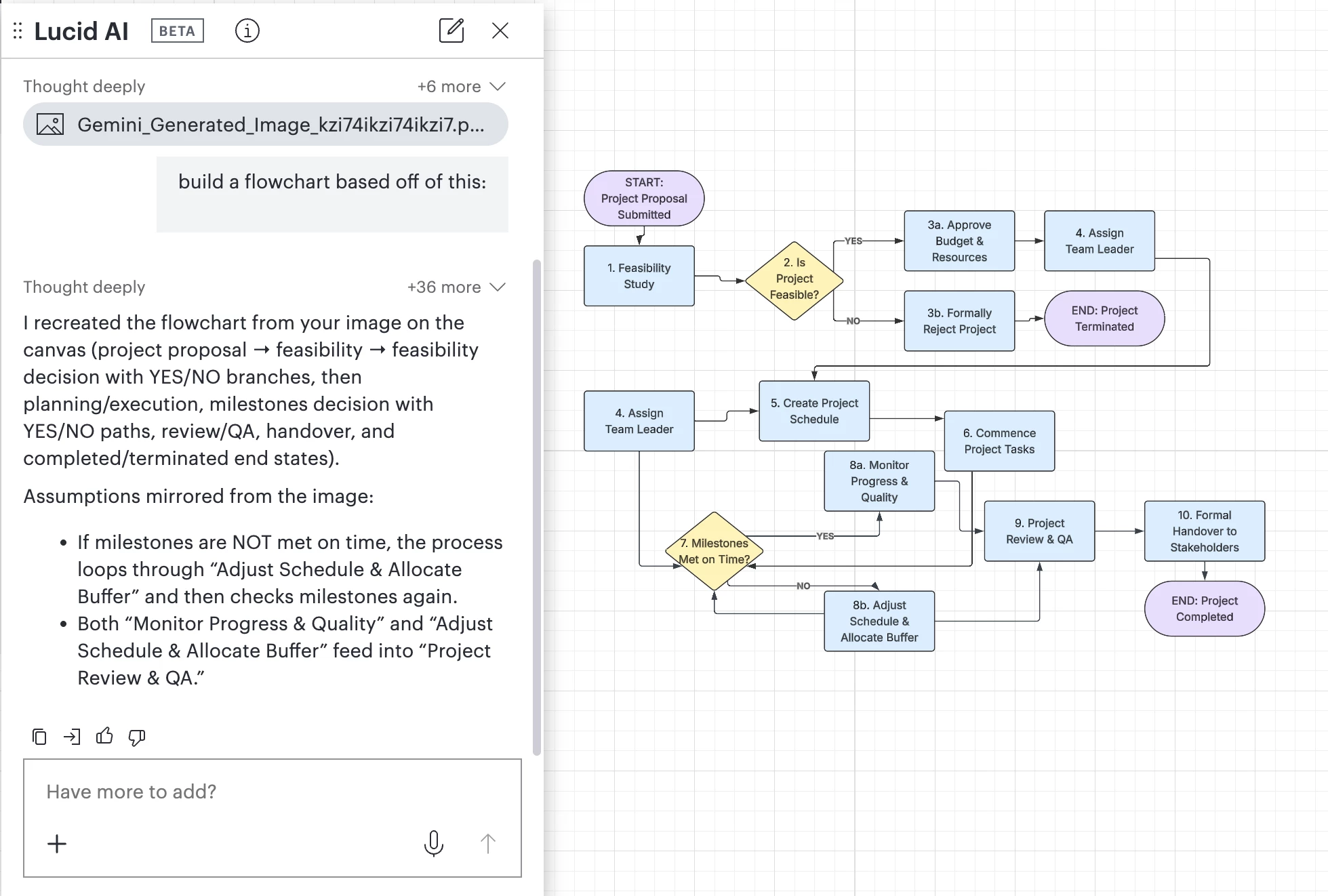
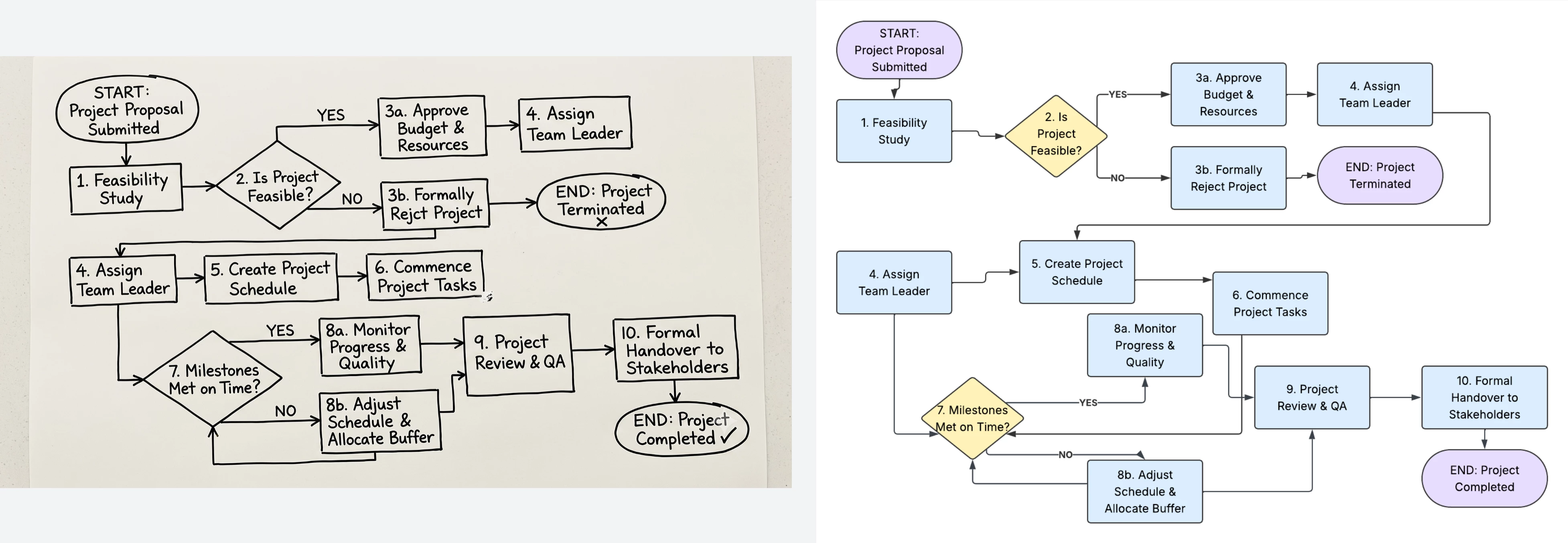
Let’s say you just wrapped up an intense in-person workshop or brainstorming session. You have a massive workflow drawn out on a physical whiteboard—but it's entirely static. Instead of spending an hour building it shape-by-shape in Lucid, you can simply snap a photo, upload the PNG or JPG, and watch it instantly transform into a clean, interactive diagram.
Scenario 2: Modernizing Legacy Infrastructure 🌐
For Enterprise Architects, you frequently have to review or update old systems where the only remaining documentation is a flat image of an old AWS or Azure architecture map. Now, you can upload that legacy image file, and Lucid AI will interpret the components. You can instantly start mapping out dependencies, updating infrastructure, and sharing a live, dynamic document with your engineering teams.
How do I use it?
Depending on your workflow, there are two quick ways to let Lucid AI reconstruct your images:
Option 1: Reconstruct Directly from the "Import Documents" Modal
If you have a standalone screenshot or photo and want to start a brand new document from it:
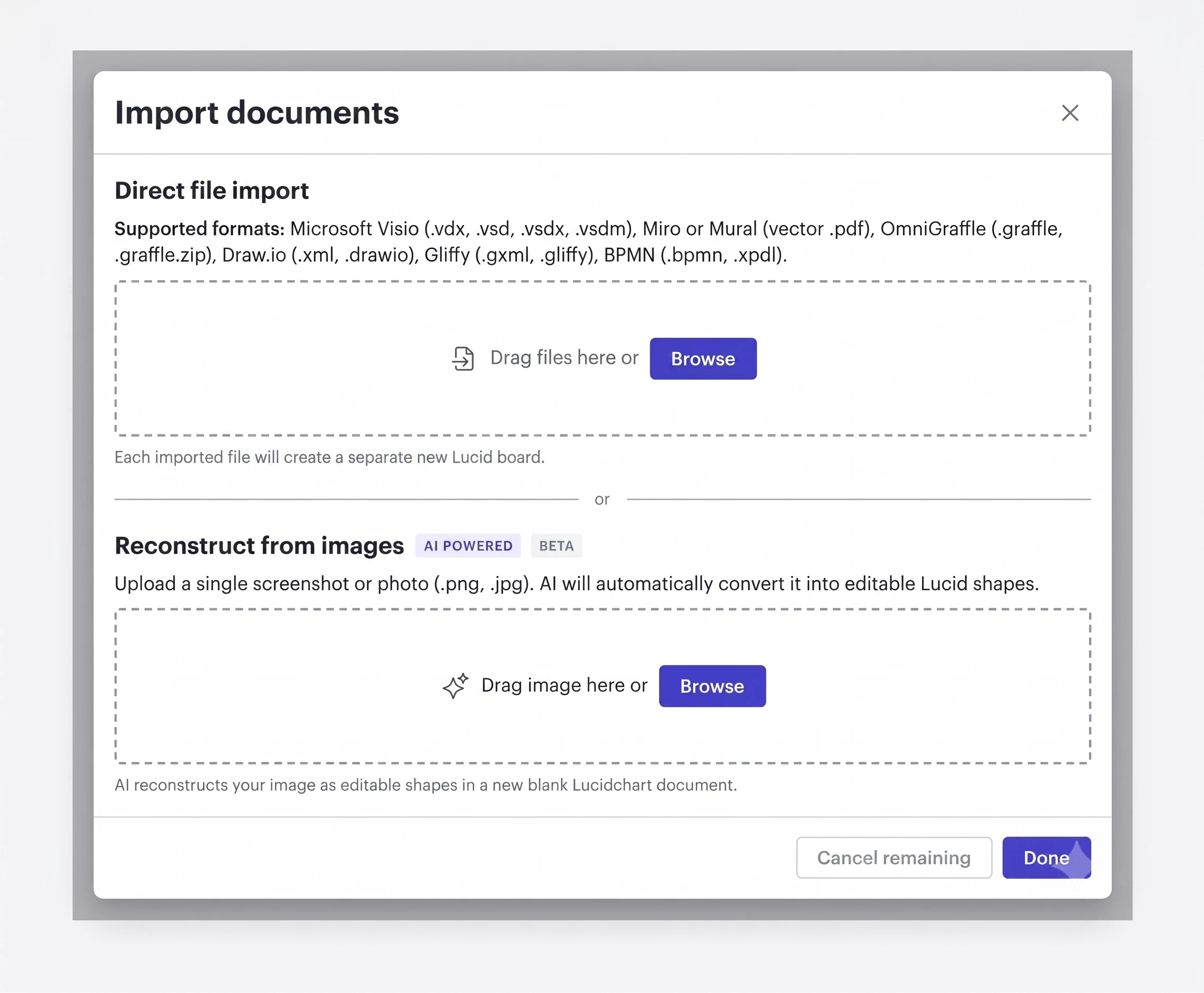
- Open the Import documents menu from your Lucid dashboard or document.
- Look for the new Reconstruct from images (AI POWERED | BETA) section at the bottom.
- Drag and drop your PNG or JPG file, or click Browse to choose your file.
- Click Done. Lucid AI will instantly reconstruct your image as editable shapes in a new, blank document!
Option 2: Use the Lucid AI Panel on Your Canvas
If you want to use text prompts alongside your files to generate a highly specific, context-aware diagram:
- Select the Lucid AI icon from the Primary Toolbar on the left side of your canvas.
- In the text-entry box, type a detailed description of the diagram you want to generate. (You can also quickly click options below the text box like Build a diagram or Design a process).
- Optionally, click the Attach file icon (paperclip) in the bottom-left corner of the text-entry box to attach one or more images, PDFs, or TXT files that Lucid AI can reference in addition to your prompt.
- Alternatively, you can upload a PNG or JPG file here to allow Lucid AI to recreate the image and convert it to an editable diagram.
- Press Enter on your keyboard or click the arrow in the bottom-right corner to submit. Your AI-generated diagram will appear right on the canvas!
To see the full breakdown of how to supercharge your workflow, head over to the Boost productivity with Lucid AI article in our Help Center!
Let us know what you think in the comments below! 👇
What legacy documents or messy whiteboard sketches are you going to reconstruct first? Try it out and drop a screenshot of your AI-reconstructed diagrams below!
 Your privacy choices


