

Lucid for VS Code is Here!
Bring visual documentation directly into your IDE with Lucid for VS Code!
Every time you leave your IDE for the browser just to update an architecture diagram, you lose a little momentum. Over time, that friction pushes many engineers toward static text or plain code snippets, and those quickly fall out of date.
With the Lucid extension for Visual Studio Code, you can create, preview, and edit Lucid diagrams alongside your codebase, with no browser tabs required. Every diagram you edit is backed by a real Lucid document, so it's durable, collaborative, and protected like the rest of your Lucid content.
Here is how engineering teams stay in the zone by using the extension to streamline their visual workflow:
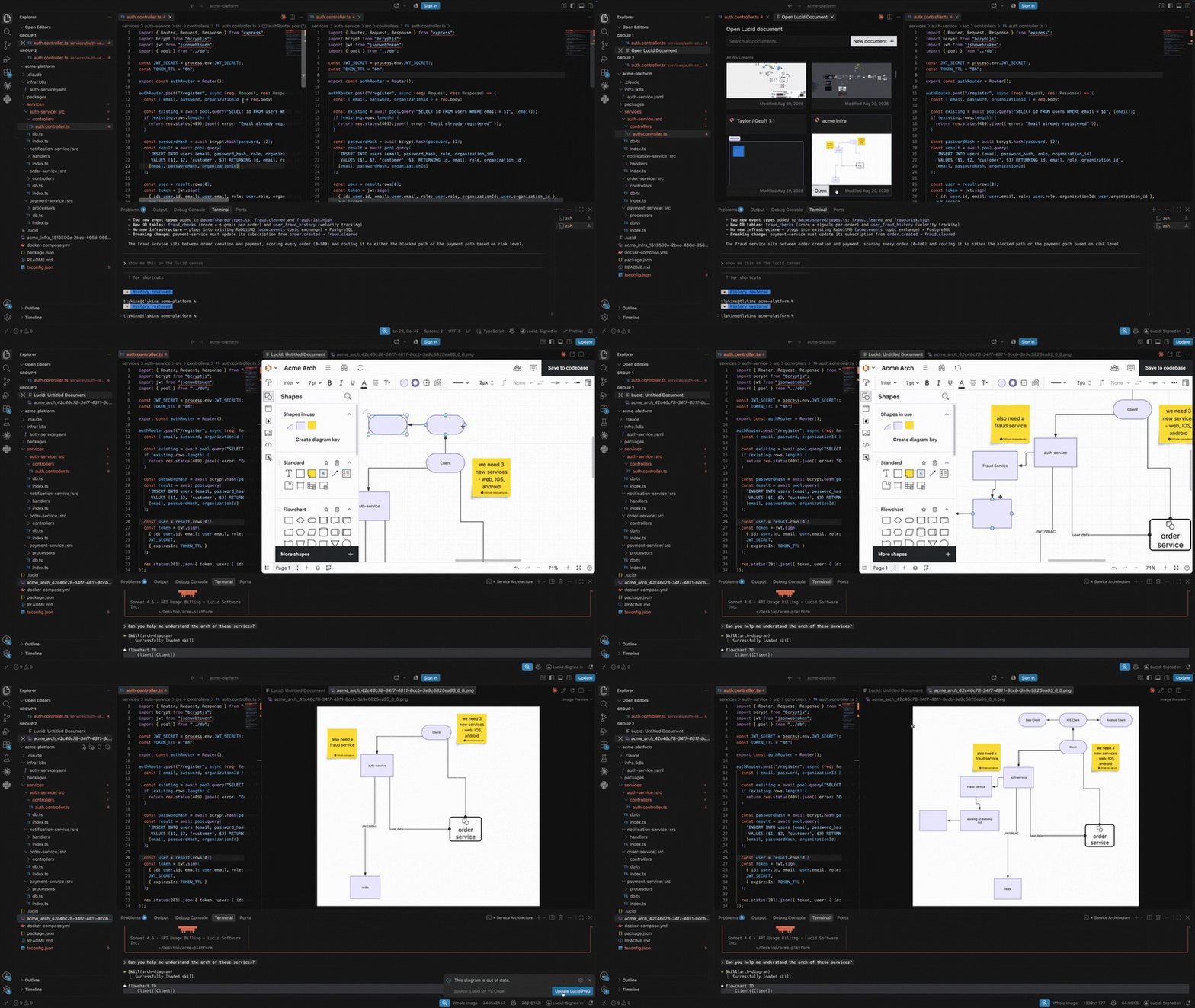
Open and edit diagrams in-IDE: Browse your documents with a built-in picker and adjust shapes, connections, or labels in a panel right next to your code.
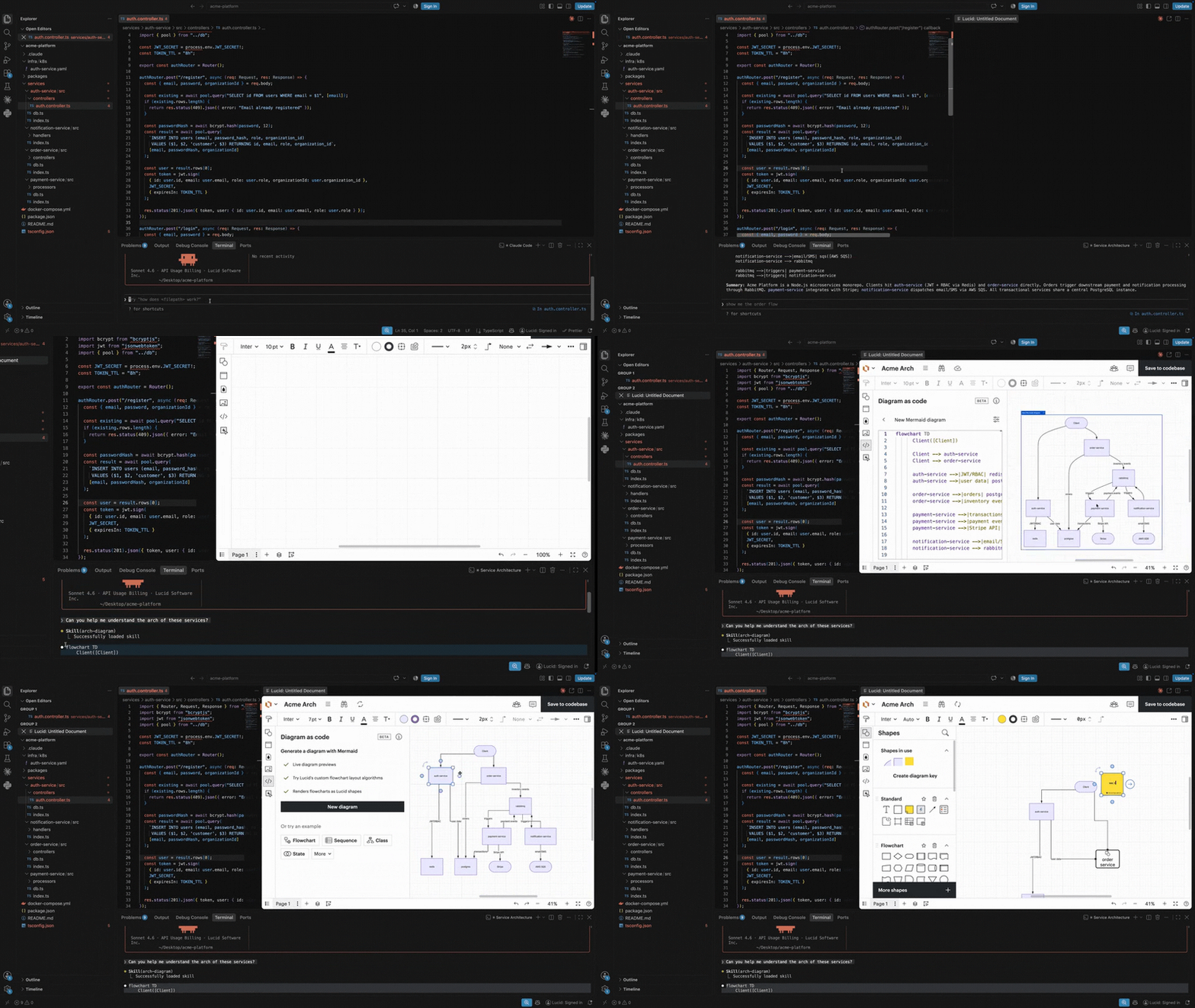
Convert Mermaid code instantly: The extension automatically discovers Mermaid code in your project and lets you convert it directly into a Lucid document with just a single click. You can also paste Mermaid syntax generated from Claude Code, Cursor, Codex, or anywhere else straight into the panel to generate fully editable Lucid shapes.
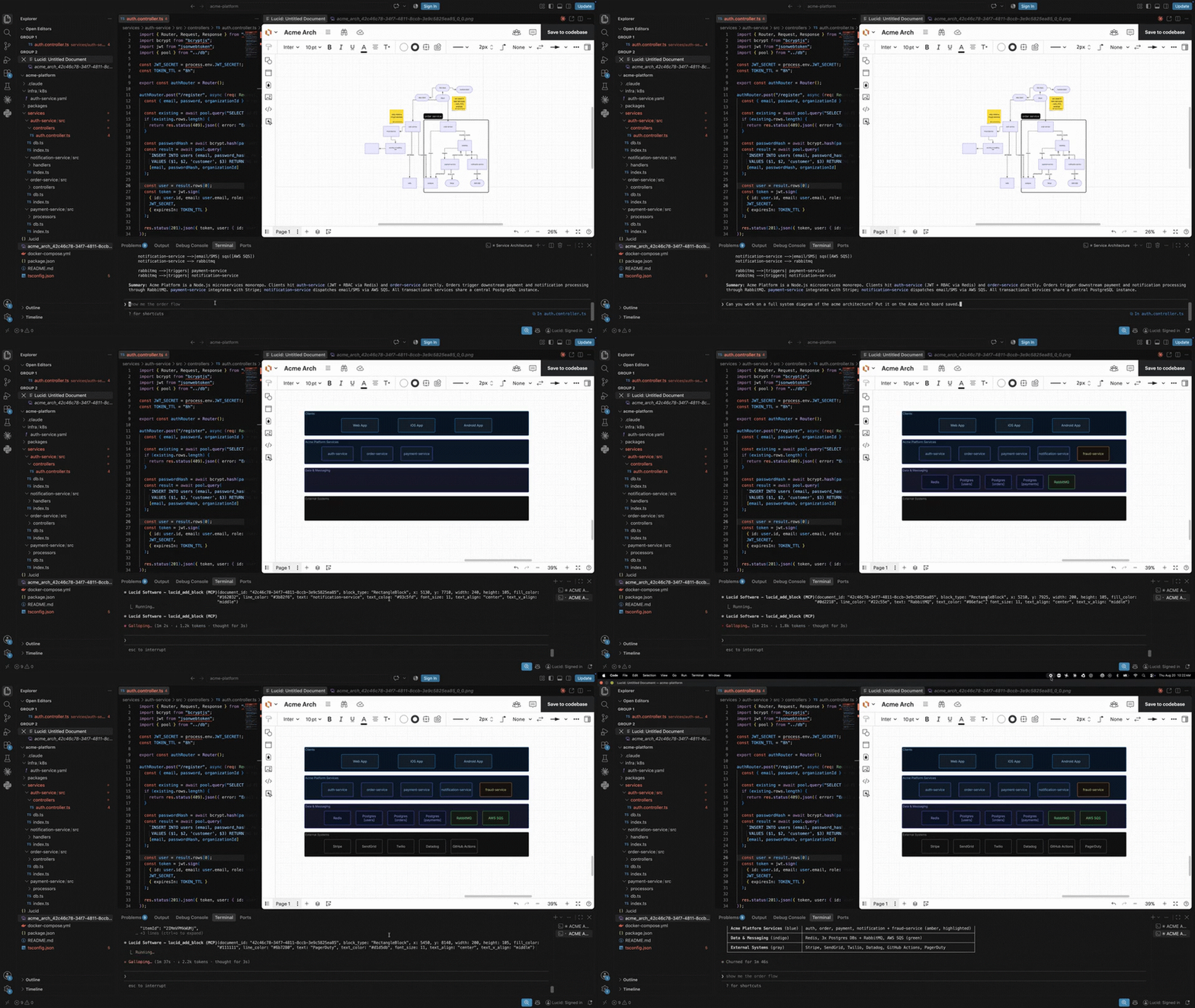
Save to codebase: Export a PNG and a linked reference file straight to your repository folder. Commit them with your next pull request so teammates get immediate visual context during code reviews.
Supply context for AI agents: Provide up-to-date visual architecture references directly to teammates and AI tools. AI coding agents can read the committed PNG directly or pull the live document using the Lucid Model Context Protocol (MCP) Server.
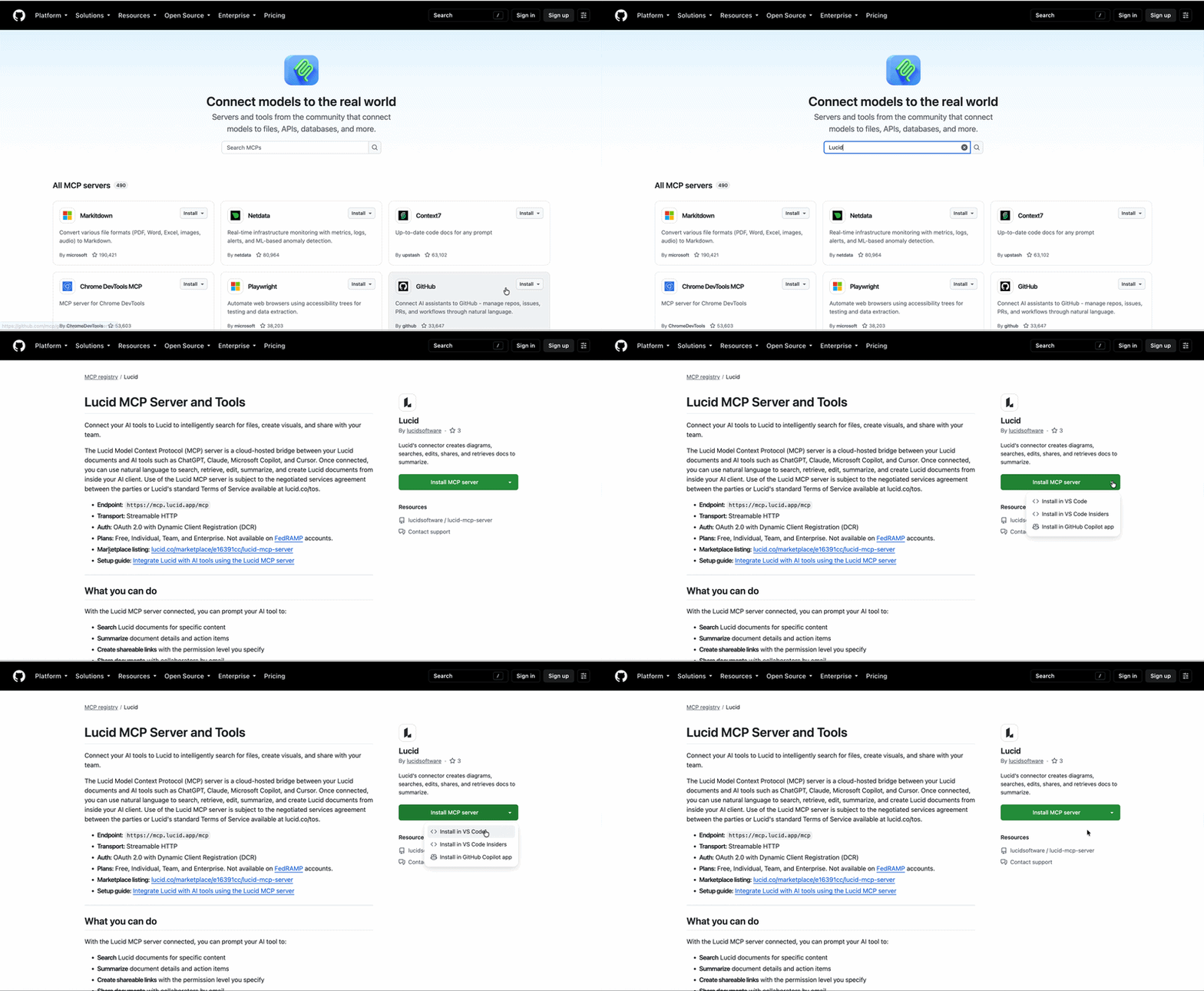
Install from the Github MCP Registry
Connecting the Lucid MCP Server gives your AI assistants live, structured architectural context right inside VS Code.
From the GitHub MCP Registry, search for Lucid to find and install the MCP Server directly to VS Code. For step-by-step connection instructions, check out this help center resource.
Install from the VS Code Marketplace
- Search for Lucid for VS Code in the VS Code Marketplace and click Install.
- Sign in to your Lucid account. (Note: You will need to sign in once inside VS Code even if you are logged in on the web, as VS Code runs in a cookieless environment.)
- Press Cmd/Ctrl + Shift + P, type Lucid, and select a command to open an existing document or create a new one.
- Edit inline, then use Save to Codebase to commit your diagrams alongside your code.
Good to know
- Focused in-editor experience: The extension is designed for quick inline edits and viewing directly in your workflow. For full web features—such as Lucid AI generation, native sharing modals, template libraries, or PDF/PowerPoint exports—click Open in Browser at any time.
- Enterprise Accounts: If your organization has disabled anonymous users in admin settings, extension access will be available following an upcoming enterprise authentication update.
Give the extension a try in your daily workflow and let us know what you think in the comments below!
FAQ: Should I install from the VS Code Marketplace or the GitHub MCP Registry? Either works. Both connect to the same Lucid MCP server and have the same features. Use whichever you prefer, but you only need one.
 Your privacy choices


