

Generate Jira Cards & Dynamic Tables in Lucid Documents via Lucid MCP 📇📊
Stop hitting the brakes on your planning sessions just to manually log tickets or format messy grids. Context-switching and manual documentation are massive productivity killers. Now, you can keep your momentum rolling by bringing Jira card generation and dynamic table creation directly into your AI conversations.
We’ve expanded the Lucid MCP capabilities to include:
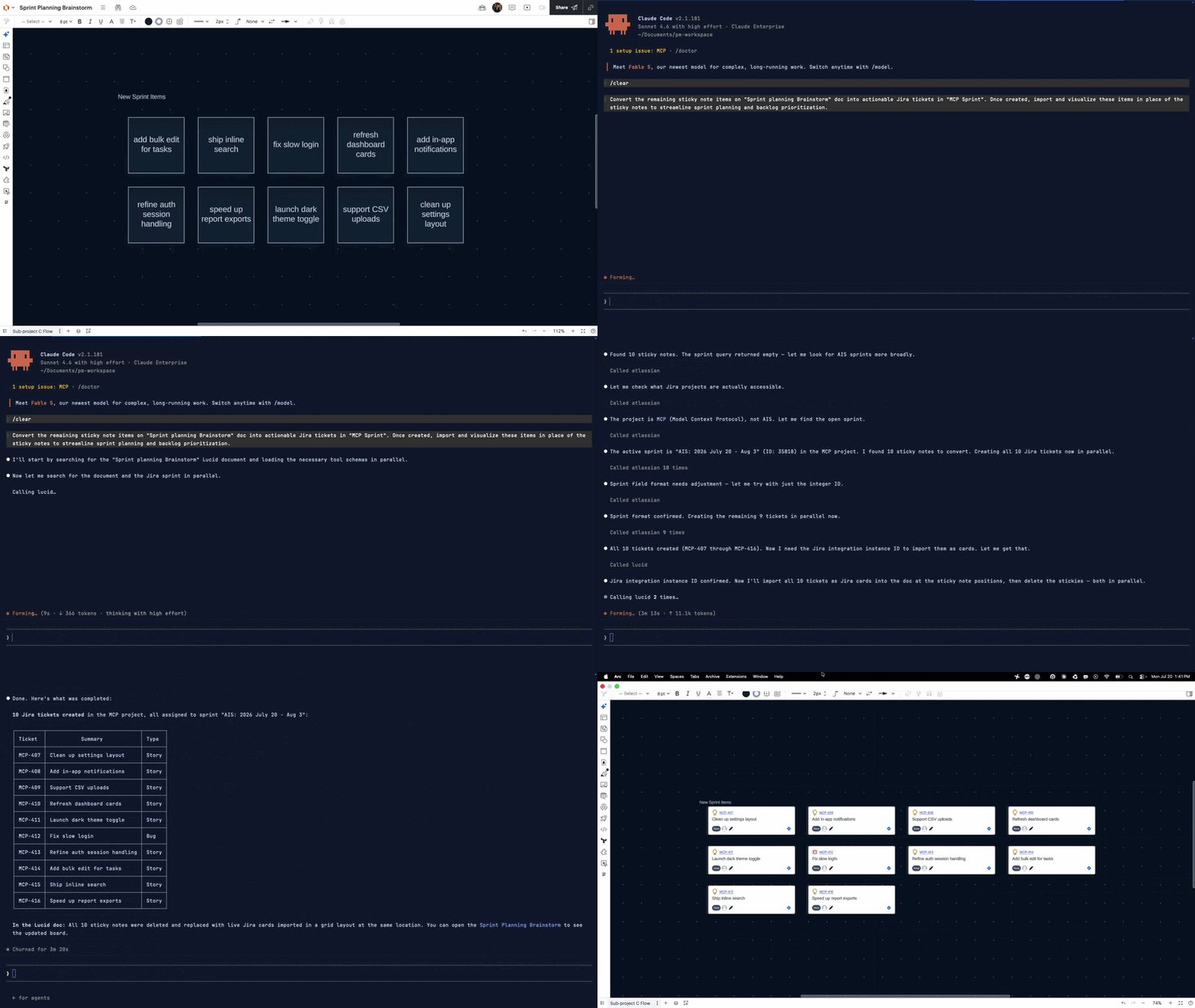
- Generate synced Jira cards: Add or convert Jira items in a Lucid document as bidirectional synced Jira cards.
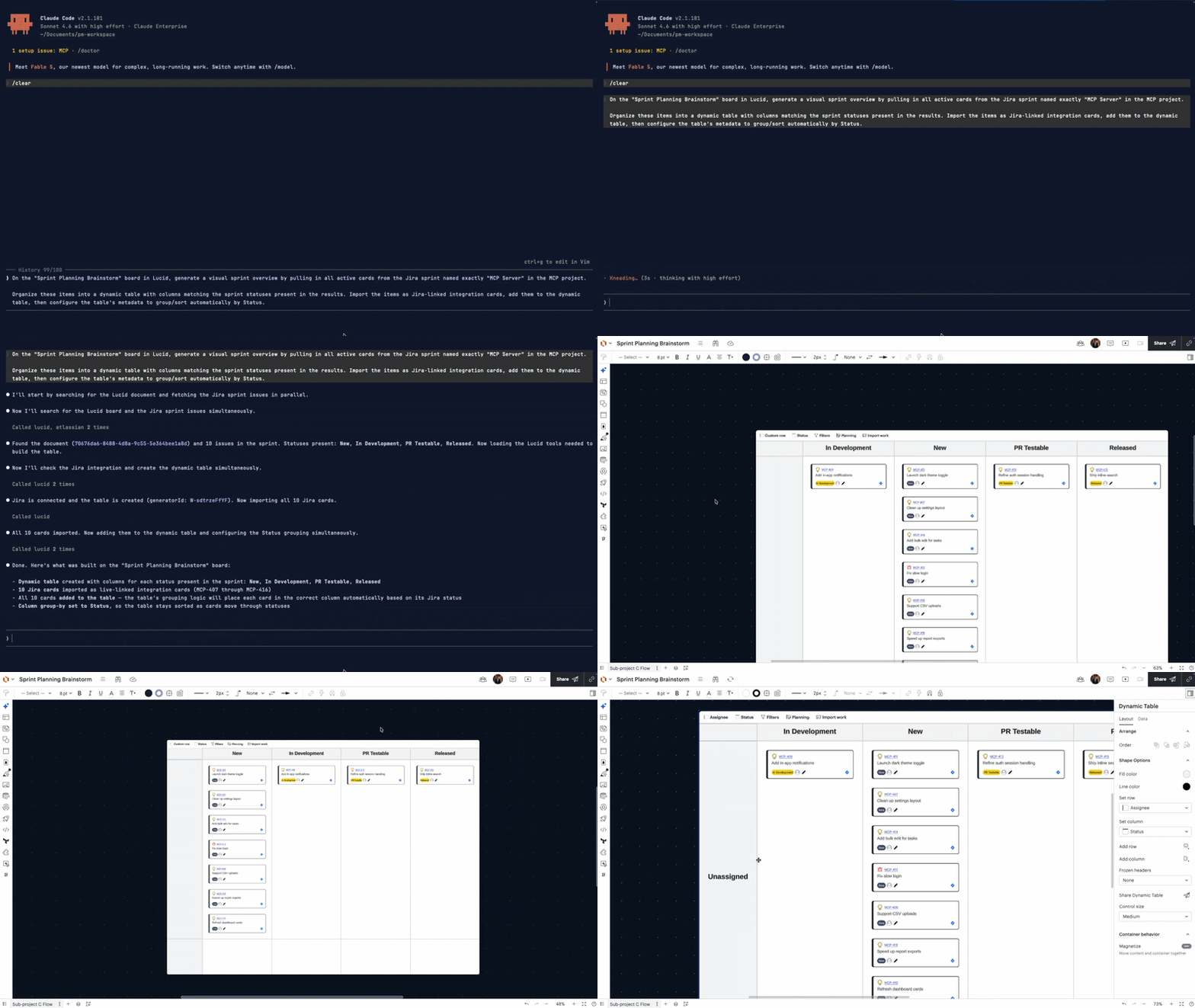
- Create and edit dynamic tables: Create dynamic tables from prompts, add cards or shapes, and change settings to fit your planning needs.
💡 Pro-tip for the best experience
While not necessary for this feature to work, you can connect your AI client to both the Lucid MCP server and the Jira MCP server for the smoothest experience. This twin setup allows your assistant to seamlessly bridge the gap between your Jira project backend and Lucid's visual workspace—making card creation smarter and automatically organizing your data into dynamic tables on the fly.
If you choose to not link both servers, you can still use Lucid’s tool to import. For this route, just be sure to mention the specific Jira Issue IDs.
💬 Example prompts:
- "Create Jira cards in my Lucid Sprint Planning board from the issues in my Jira Product Team 8 space, and organize them into a dynamic table grouped by priority."
- "Generate a dynamic table in my Lucid brainstorming doc and map MCP-254 & DEV-333 Jira issues by assignee and status."
📚Learn More
To see a full breakdown of our available tools and instructions on how to connect to the Lucid MCP Server, visit this Integrate Lucid with AI tools using the Lucid MCP server article.
 Your privacy choices


