

Action required: Updating your Lucid SCIM connection and transitioning to Lucid teams
Determine whether action is required for your account:
Before proceeding, check your admin panel to confirm whether action is needed. If you don’t see a banner at the top, or you see the "You are all set" confirmation (see examples below), another admin has already completed the required steps.


If your admin panel doesn’t look like the examples above, and the migration banner or survey is still visible, continue reading this post for more information about action required for your account.
If action is required:
An account admin must complete the following:
- Complete the SCIM migration survey: If you or another admin haven’t already, navigate to the Lucid admin panel and complete the two-question survey regarding your current configuration. The survey is located in a banner at the top of the admin panel overview page:
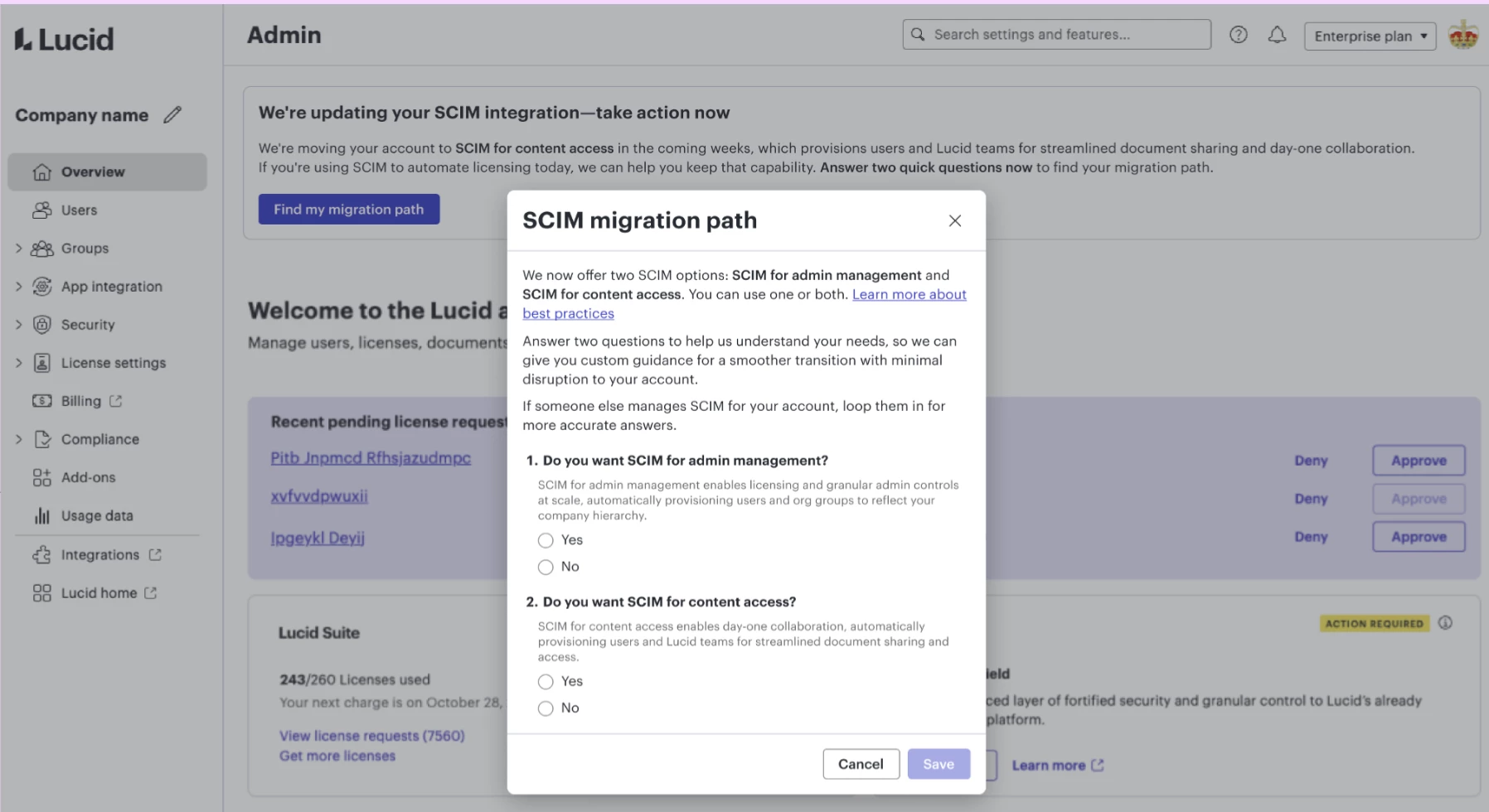
Once the survey is submitted, a self-serve SCIM migration path will appear. Account owners and account admins can respond to the survey. Only one response is required.
- Inspect and reconfigure IdP groups as needed: To ensure a smooth migration and to prevent access disruptions, please review and update your Identity Provider (IdP) group configurations before connecting your chosen Lucid SCIM apps.
- For SCIM for Content Access: Remove all nested or child groups within your IdP. Lucid will reject requests to create group hierarchies when using SCIM for Content Access. Adjusting nested groups prior to migration guarantees that your users maintain uninterrupted access to their groups and content.
- For SCIM for Admin Management: Enforce unique membership (users can only belong to one group).
Note: Nested IdP groups for Entra ID are flattened upon import to Lucid teams, but Lucid org groups can be nested. Entra will create the corresponding org groups and teams in Lucid, but their memberships will be blank unless the child groups are explicitly assigned to the Lucid app in Entra.
How your groups will migrate to teams:
SCIM-enabled accounts feature a few distinct behaviors designed to protect your provisioned data:
- User roles: All users will be added as team members with “Edit and share” permissions by default.
- Flattened nested groups: Lucid teams do not support nested sub-teams. Consequently, any child groups from the legacy experience will be converted into standalone Lucid teams, and their original parent-child relationships will be removed. While groups will still sync individually, membership inheritance is no longer supported. Users who previously accessed parent groups via a child group will lose access and must be assigned to those teams directly.
- Naming conflicts favor your IdP: If a legacy group being migrated has the same name as an existing team already in your account, the existing team will be renamed ("Team" becomes "Team (1)"). This ensures the newly migrated team perfectly matches the group name coming from your SCIM sync.
- Empty and inactive groups: All empty and inactive groups will be migrated as active teams to ensure they remain fully aligned with your current IdP sync configurations.
- Salesforce User Group: The Salesforce User Group will maintain existing users and permissions but will now link to Lucid teams instead of Groups (sharing), appearing under the teams tab in the admin panel. This will not affect your current Salesforce integration or team folders, and all associated content and permissions will remain intact.
As part of moving from sharing groups to teams, your account will also have organizational groups turned on automatically. This applies to every migrating account, regardless of whether you use SCIM for admin management (licensing/org structure), SCIM for content access (teams/sharing), or both together. Organizational groups allow admins to apply group-specific licensing and security settings, as well as delegate user management to organizational group admins.
[Optional post-migration] Clean up duplicate teams:
Migrating your IdP groups alongside existing teams may create duplicates if they share the same name. There are two ways to quickly clean these up if desired:
- Bulk archive duplicate teams
- Merge duplicate teams into one
Bulk archive
Use the bulk archive option by following these steps from the Lucid admin panel:
- Click Groups from the navigation menu on the left.
- Select Teams.
- Check the box next to each duplicate team you want to remove.
- Click Bulk actions from the top-right of the list.
- Select Archive teams.
- Review the information and click Archive.
You can restore archived teams by following the steps in our Lucid admin panel: Group management article.
Merge teams
Merge duplicate teams by following the steps below from the Lucid admin panel (also documented in this article). Merging teams moves team members and content to the destination team and permanently deletes the original team in Lucid. After merging, deleted teams cannot be retrieved.
- Click Groups from the navigation menu on the left side of the admin panel.
- Select Teams from the dropdown menu.
- Click the three-dot menu to the right of the team you want to merge another team into.
- Select Merge team.
- Use the dropdown to select the team you want to merge with.
- Click Merge teams.
Note: If you use an IdP, it remains your source of truth for teams. This means that merging a team into a different SCIM-managed team transfers content only, and will not transfer membership. The original team in Lucid is then automatically deleted. Team members cannot be manually merged into a SCIM team, as the IdP must remain the source of truth. If you need to update team membership, you must do so in your IdP.
Questions or feedback?
If you have any questions about these steps, let us know in the comments below! If you are a user on a FedRAMP account, please reach out directly to our support team using this form.
 Your privacy choices


