Question

How can you make the Ethernet Shape longer?

  • December 23, 2025
  • 1 reply
  • 8 views

Forum|alt.badge.img

I’m trying to make network diagrams.  The ethernet symbol doesn’t let you make it longer.  Only larger while maintaining aspect ratio.  This is maddening.  Is there a workaround or fix?  I either need a tiny little ethernet symbol or a giant one that’s longer.

Thanks!

Comments

alison cheney
Forum|alt.badge.img+1
  • Lucid community team
  • December 24, 2025

Hi ​@Bmax1985, thank you for posting in the Lucid Community!

I’m sorry you’re having trouble with this but I’m happy to help. Unfortunately there is no option to adjust the length of the lines directly on the ethernet symbol in Lucidchart. If you are using an icon from the Network Infrastructure library, it is likely an SVG that won't stretch or scale proportionally.


Here is the best workaround we recommend: (see screenshots attached)

Create the Main Line

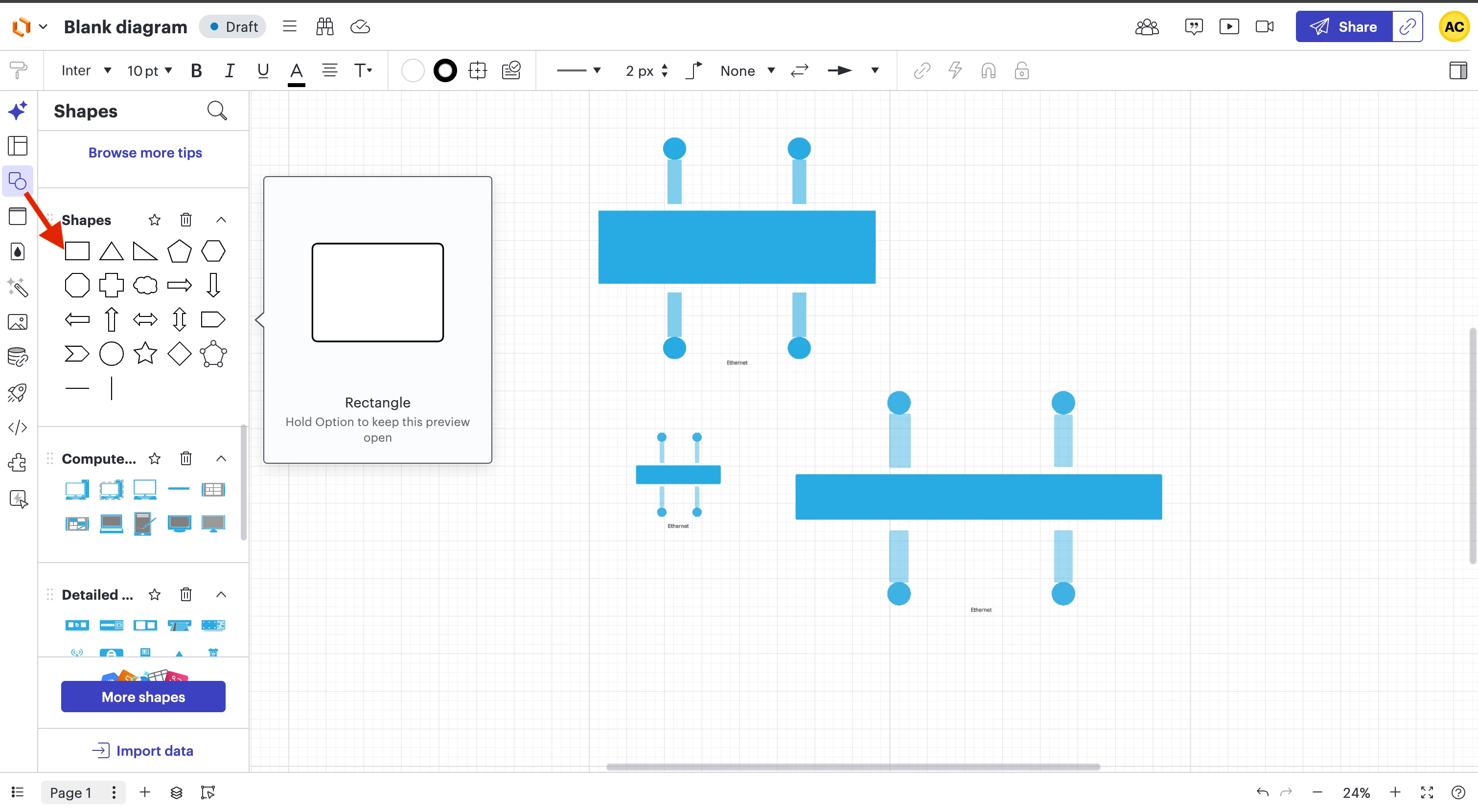
  • Drag a Square or Rectangle onto the canvas from the Standard Shapes library.
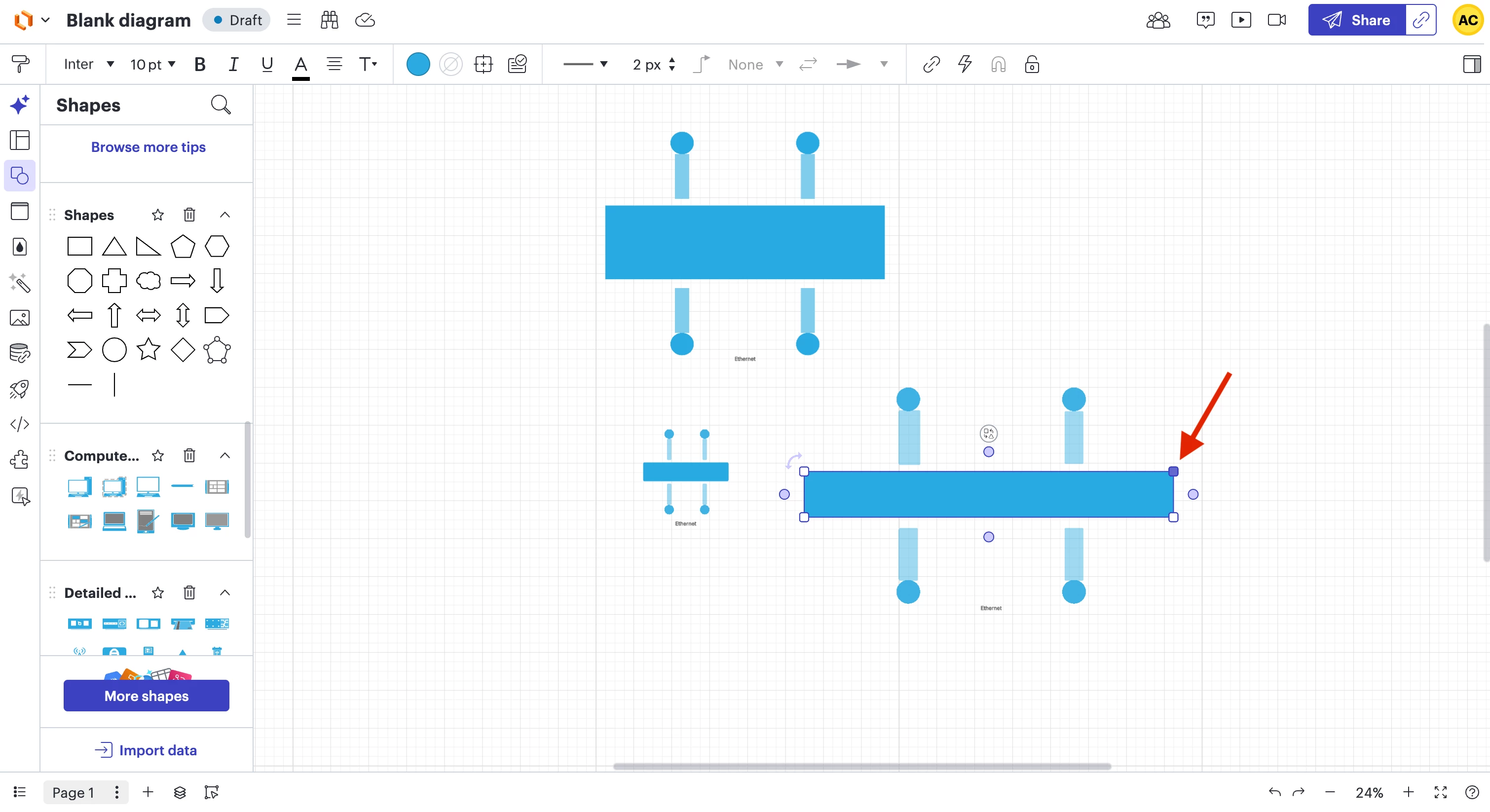
  • Flatten it down until it is a thin horizontal bar.
  • Unlike icons, rectangles can be stretched horizontally as far as you want without increasing their vertical height.

Add the Node "Circles"

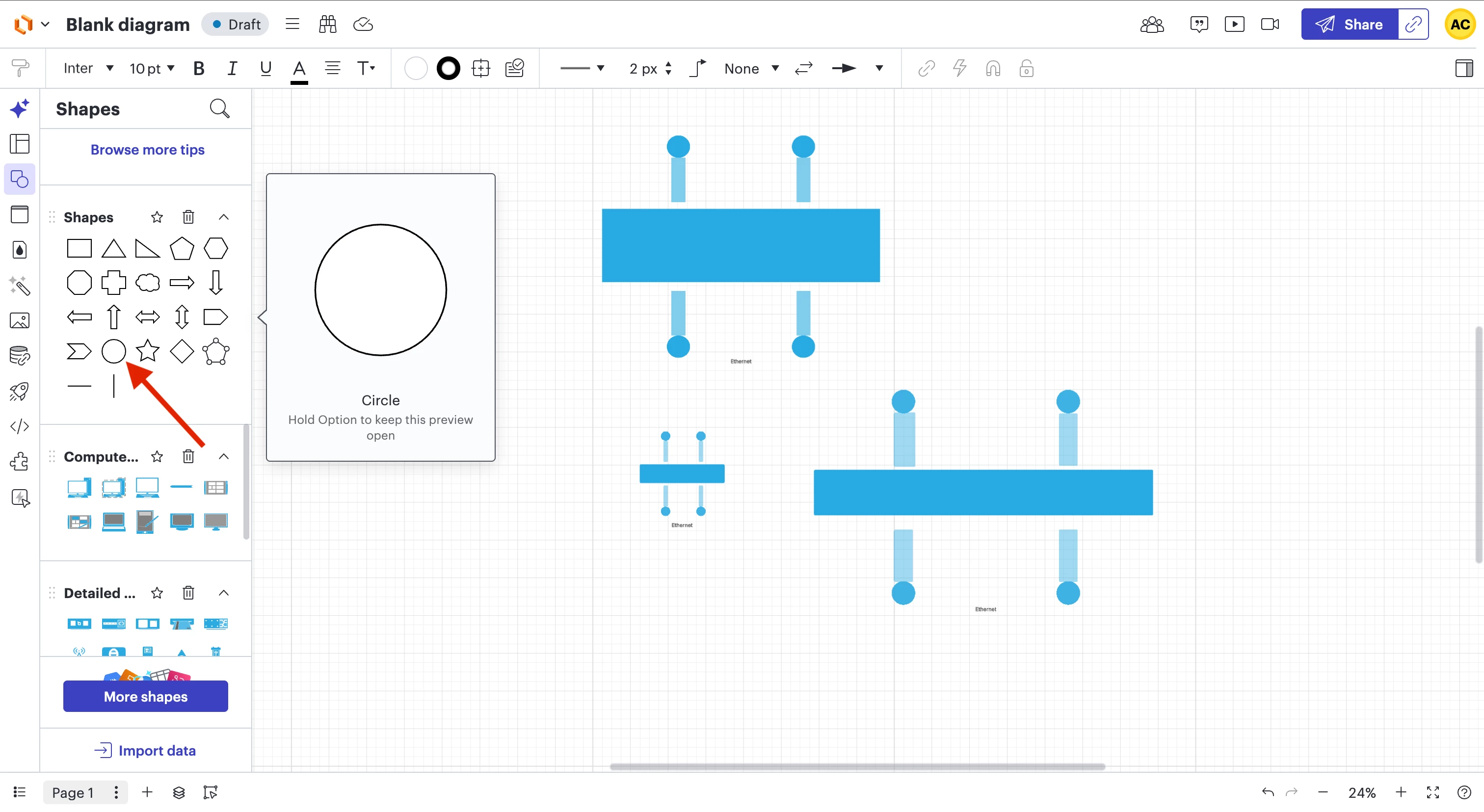
  • Drag a Circle (Oval) from the Standard library.
  • Shrink it down to a small size and place it at the ends or along the line to represent connection points.

Group the Shape

  • Once you have your line and circles positioned, highlight all of them and press Ctrl+G to group them.
  • Now you can move your custom Ethernet shape around the canvas as one single object.

Please let me know if you have any further questions!

Click Shapes in the Standard Shapes Library


Select Rectangle shape
Add Circles
Adjust length of Rectangles