Question

Diagram Key: Change Size of shapes

  • January 29, 2026
  • 2 replies
  • 16 views

Forum|alt.badge.img

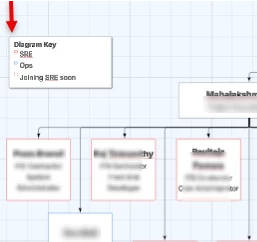
Is there a way to edit the shape size in the Diagram Key? The way my large diagram is scaled and the font size of the text in all of my objects (not just the diagram key), the shapes deserve to be much larger. I need to increase the size of these objects be in scale with the entire diagram but haven't been able to find a solution in my search.

 

Comments

aparrish
Lucid Legend Level 7
Forum|alt.badge.img+15
  • Lucid Legend Level 7
  • January 31, 2026

@MrBell here is what I could find on the diagram key: https://help.lucid.co/hc/en-us/articles/15056691992980-Add-a-diagram-key-in-Lucidchart


alison cheney
Forum|alt.badge.img+4
  • Lucid community team
  • February 2, 2026

Hi ​@MrBell,

Thank you for posting in the Lucid Community, and thank you ​@aparrish for your help here!


The Diagram Key is a specialized object, so it can be a bit finicky compared to standard shapes. To get those shapes to scale better with your large diagram, you can try these steps:

  • The key usually inherits the scale of the shape when it was first added. Try resizing a shape on your canvas to the specific size and scale you want first. Then, drag that resized shape from the canvas directly onto the existing item in the Diagram Key to replace it.

  • Click the Diagram Key container and use the blue corner handles to pull the entire box larger.

  • While the key is selected, use the formatting bar at the top to increase the font size or set it to "Auto" so the text scales dynamically as you resize the container.

  • If the whole diagram feels off, check the Page Settings (right-hand panel) and adjust the Content Scale. This will resize all objects on the canvas proportionally, including the key.

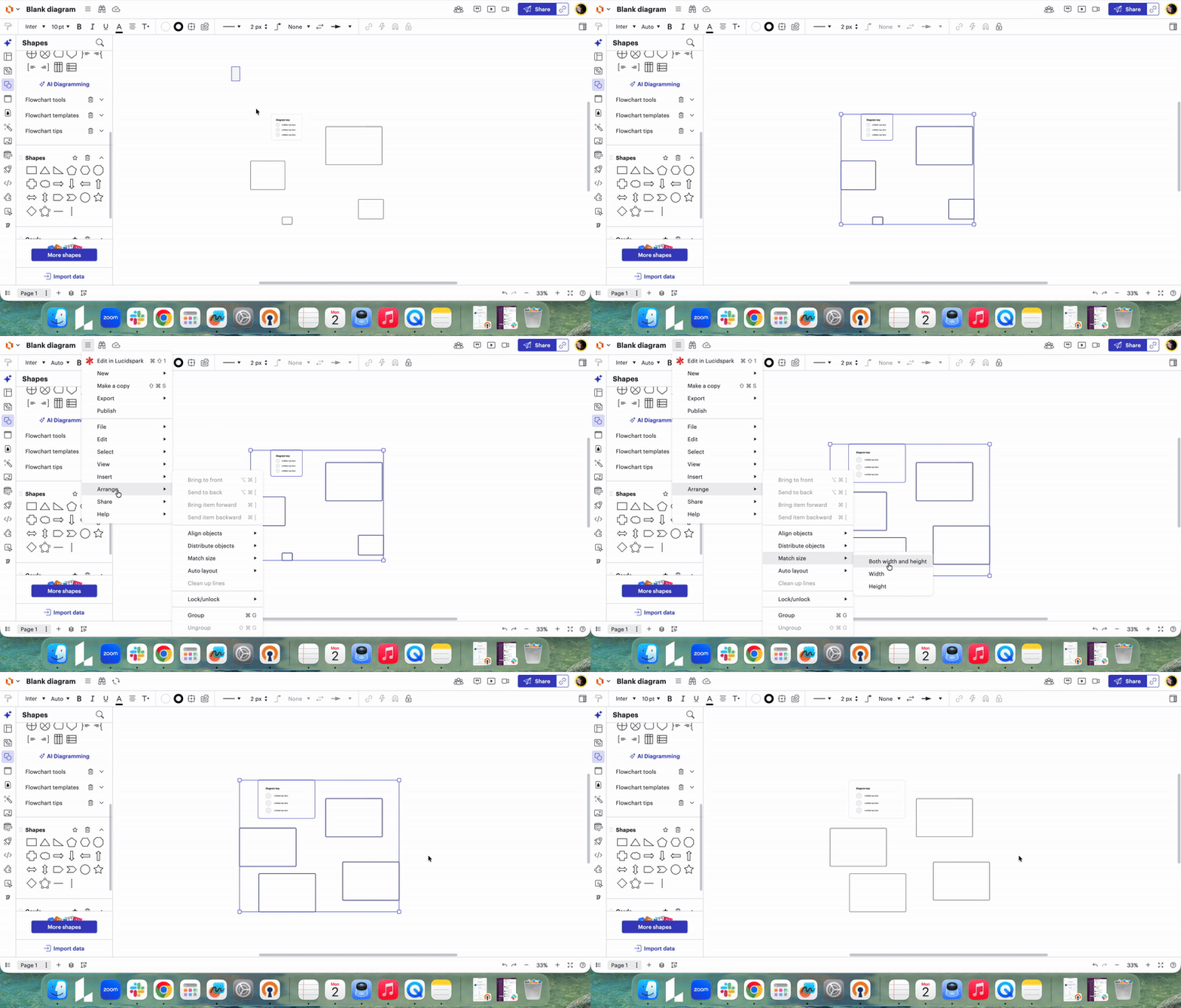
  • You can use the Match Size tool. Simply select all of your content (including both your shapes and the diagram key), then select the hamburger menu > select “Arrange” > “Match size” and choose “Both width and height.” This will instantly snap everything to the same scale (see the gif below for a quick walkthrough).


If you continue to run into issues after trying the steps above, could you share a temporary Document Support PIN for this document? This will help me take a closer look at what’s going on. This PIN is safe to post in this thread because it is only accessible by members of the Lucid support staff. You can find steps for generating a Support PIN in this Lucid Help Center article: Generate a Lucid Support PIN. Thank you for your help and patience!