Question

Cannot Edit AI Generated Charts - even though AI chat bot says I can

  • January 30, 2026
  • 3 replies
  • 16 views

Forum|alt.badge.img+2

Hello used lucid AI to create a sequence diagram, but I cannot edit it - change the names, move the arrows around, add new arrows and text, etc.  The AI chatbot says it made it editable for me.  How can I edit a lucid AI generated diagram?  this seems to just be an image, not the individual elements, not very useful IMHO.

If the answer is “it’s not possible now”, please tell me when it will be possible.


Comments

aparrish
Lucid Legend Level 7
Forum|alt.badge.img+15
  • Lucid Legend Level 7
  • January 31, 2026

@dude of life what was the prompt that you gave to it? It is important to be very specific with AI, so instead of saying to “Generate a diagram” it should be “Generate a diagram. The output should be in [JPEG, PNG, BMP, PPTX, etc.].” Do not ask for it as a PDF as that is not editable. When working with AI, always remember to give it the actor, background, objective, style, and stipulations then add examples of what you want. That’s 6 different things that should be in every prompt.


Forum|alt.badge.img+2

Thanks well I want it to draw shapes on the canvas and then I want to edit it. I told it to do this - does lucid ai chat bot not do this properly?


alison cheney
Forum|alt.badge.img+4
  • Lucid community team
  • February 2, 2026

Hi ​@dude of life,

Thank you for posting in the Lucid Community! And thank you, ​@aparrish, for providing those great insights on generating diagrams with AI.

I wanted to jump in and add a few thoughts here:

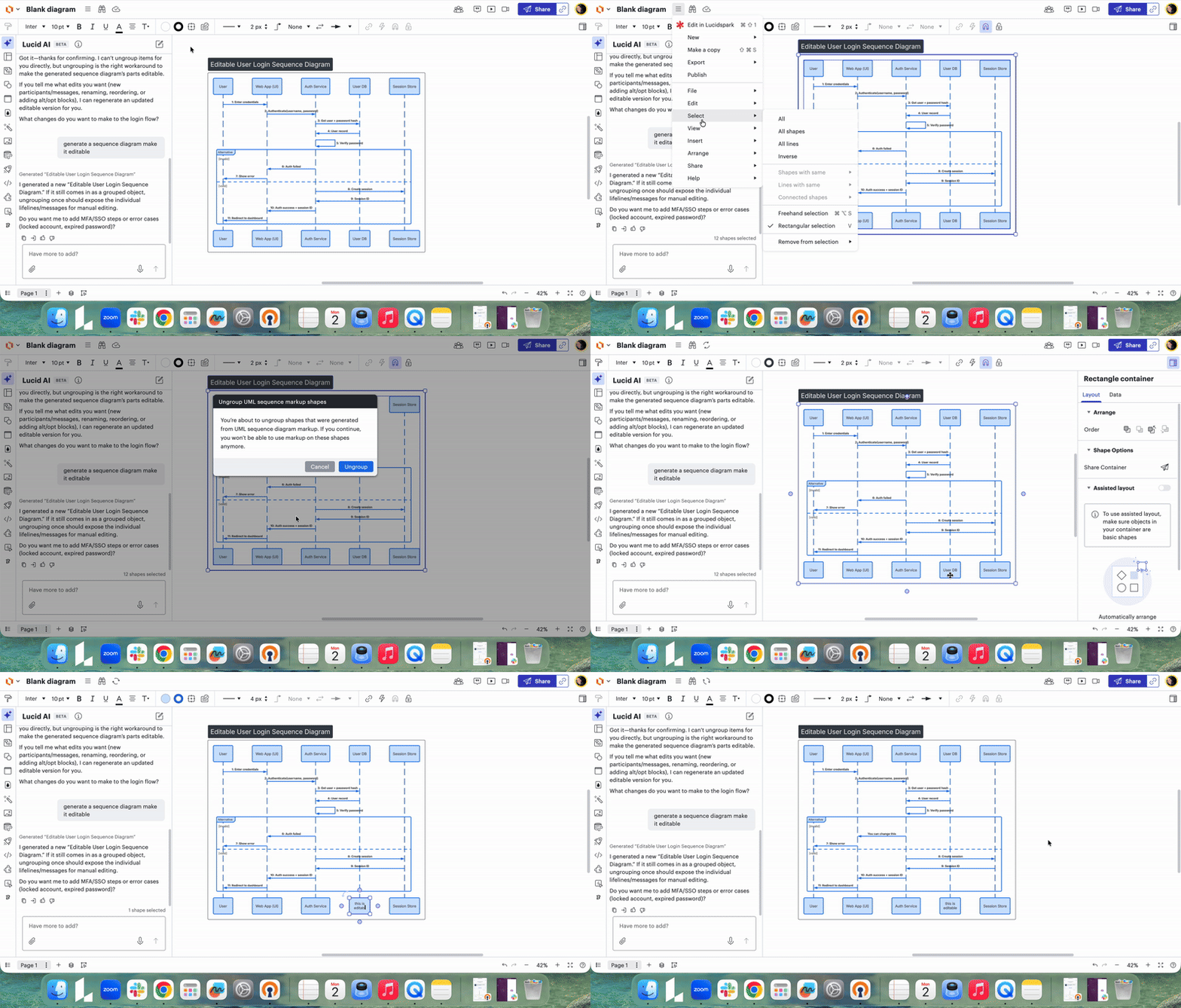
I’ve experienced the same issue where a sequence diagram created by AI wouldn't let me edit individual elements. The trick is that these diagrams are often generated as a grouped markup object. You can unlock them by following these steps once you are finished using the AI/UML markup tool: (see gif below)

  • Step 1: Select the entire diagram.

  • Step 2: Click the three horizontal line (hamburger) menu in the toolbar.

  • Step 3: Select Arrange.

  • Step 4: Click Ungroup.

Note: This will disconnect the diagram from the AI editor, meaning you can no longer make changes via prompts. However, it gives you full manual control to move arrows, change text, and style the shapes however you like. For more details, feel free to check out this help center article on Generating Diagrams with AI.

If this doesn’t fit your workflow or you’re still having trouble, could you share a temporary Document Support PIN for this document? This will help me take a closer look at what’s going on. This PIN is safe to post in this thread because it is only accessible by members of the Lucid support staff. You can find steps for generating a Support PIN in this Lucid Help Center article: Generate a Lucid Support PIN. Thank you for your help and patience!