Answer

Azure template shape transparency

  • February 4, 2025
  • 4 replies
  • 52 views

Forum|alt.badge.img+2

Hello,

this is going to sound stupid, but I cannot find anything in the help, so asking here. I’ve got a lucidchart diagram. I’ve added an azure virtual network shape. When at the front of other objects, you can see them through it. How do you stop that happening ?

I would like to be able to have in literally on top obscuring things, not like a pane of glass. It’s already set to 100% opacity but you can see through it. I’ve resorted to putting a solid filled box under it.


Many thanks,

Ian

Best answer by Kelsey Gaag

Hi ​@ian.brown

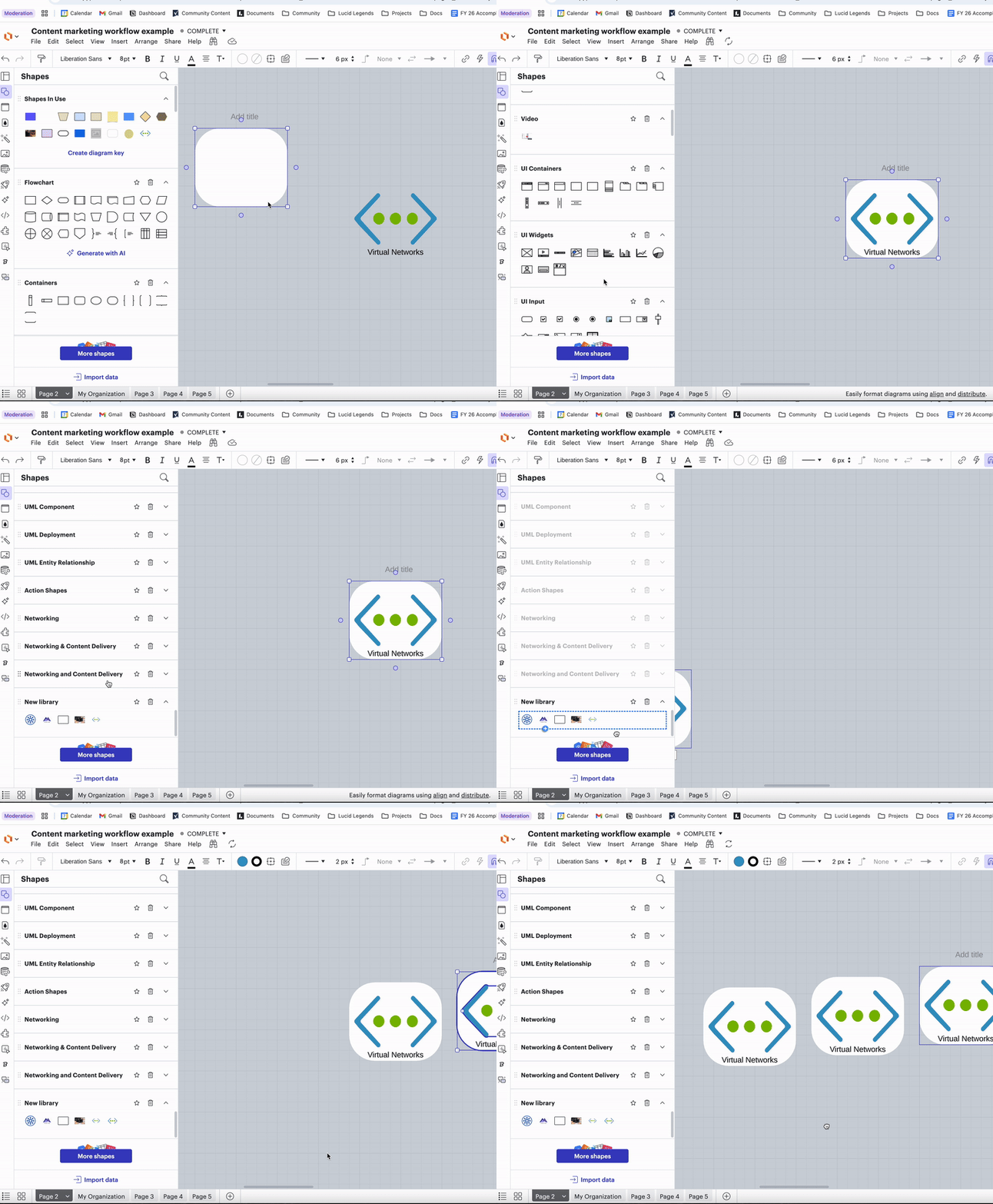
Thank you confirming! There is currently not a way to change the opacity on a shape’s background, additionally the transparent background for this shape is intended. However, as a workaround, you can place a shape behind this shape (like you mentioned you’ve done), and then add this new shape to your library. This way, you don’t have to continually add a new background to each new shape you use. You can do this by going to More Shapes > My Libraries > Add/select a Library > Drag your shape into the selected library. 


Comments

Kelsey Gaag
Forum|alt.badge.img+16
  • Lucidite
  • February 6, 2025

Hi ​@ian.brown

Thanks for posting in the community! What is the name of the shape you are using?


Forum|alt.badge.img+2
  • Author
  • February 7, 2025

Hi Kelsey, it’s in ‘Networking’ and called ‘Virtual Networks’


looks like this

thank you.


Kelsey Gaag
Forum|alt.badge.img+16
  • Lucidite
  • Answer
  • February 7, 2025

Hi ​@ian.brown

Thank you confirming! There is currently not a way to change the opacity on a shape’s background, additionally the transparent background for this shape is intended. However, as a workaround, you can place a shape behind this shape (like you mentioned you’ve done), and then add this new shape to your library. This way, you don’t have to continually add a new background to each new shape you use. You can do this by going to More Shapes > My Libraries > Add/select a Library > Drag your shape into the selected library. 


Forum|alt.badge.img+2
  • Author
  • February 10, 2025

Hi Kelsey, that is an awesome answer and the video clip really helps.  I am glad it’s not me and that is the way it works, like it or not.


Many thanks for this.

Ian