

Dark Mode is here in Lucidchart! 🎉
Introducing Dark Mode in Lucidchart
We’re thrilled to share that Dark Mode is now available in Lucidchart! You can now customize your Lucid experience by switching between Light and Dark mode to match your visual preferences and create a more comfortable viewing experience.
Below is a quick guide on how to toggle Dark Mode across your entire account or on an individual document canvas!
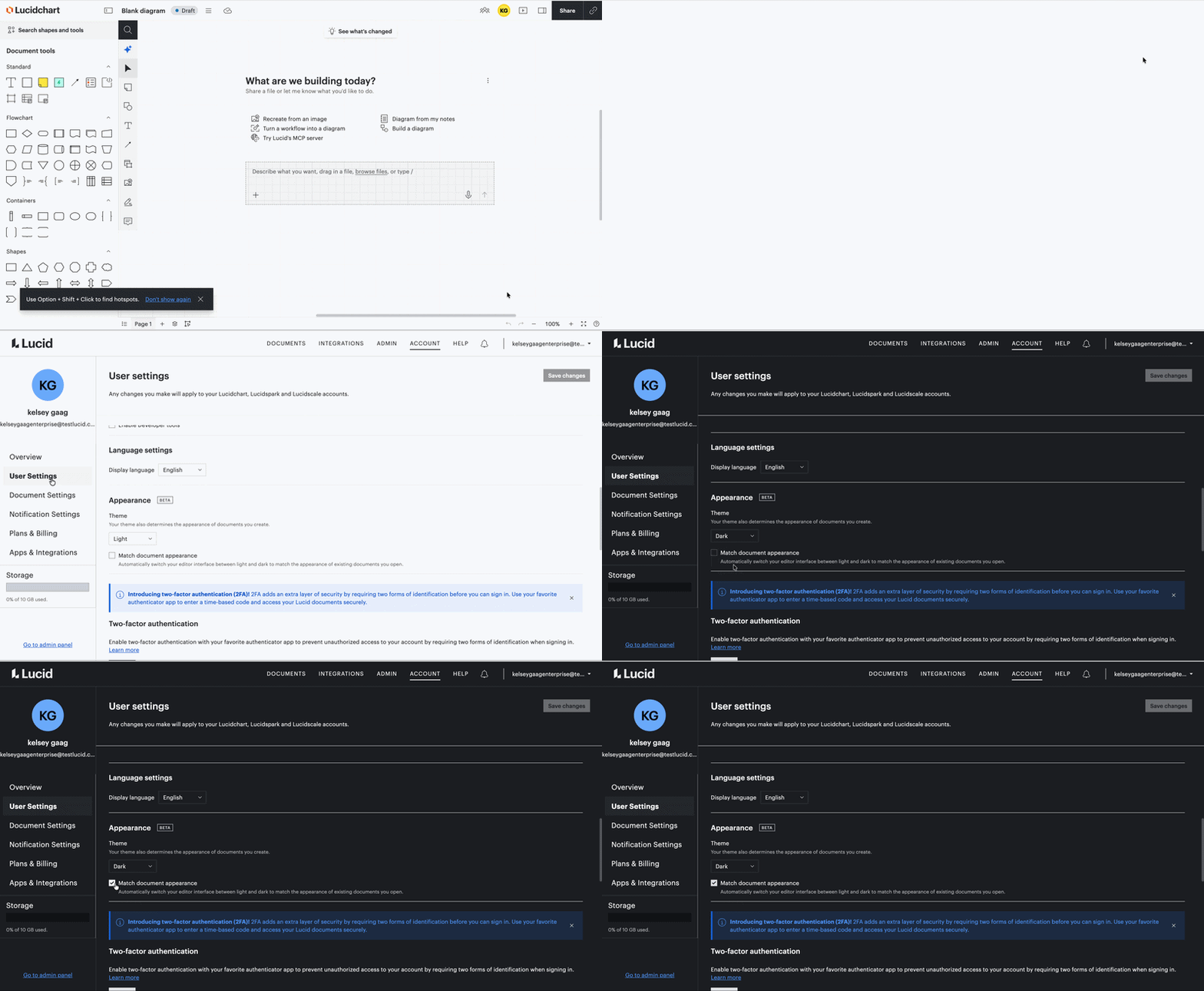
Enable Dark Mode for Your Entire Account
Updating your account appearance sets your default theme across all your workspaces and documents.
From within a Lucid document, click your profile dropdown at the top-right to open account settings. Change your preference under user settings. For full instructions, check out this resource.
Enable Dark Mode for a Specific Document
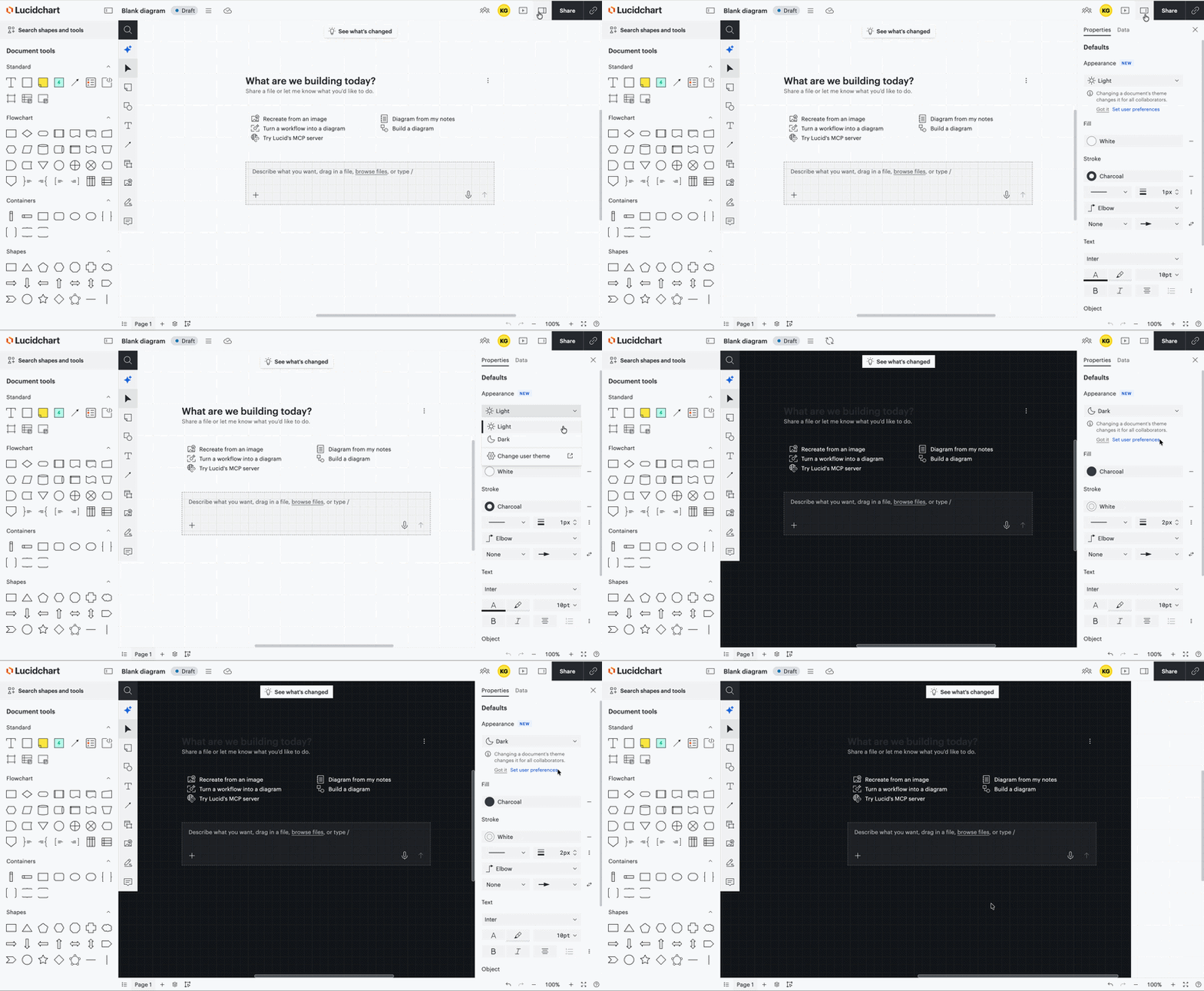
If you only want to change the appearance of a single canvas without altering your global account settings, update the individual document properties:
Open the right panel and select your preference under appearance.
Note: Updating a specific document only affects that canvas—it will not change your editor tools or any other documents.
For complete documentation and additional tips, check out our Help Center article: Enable Dark Mode in Lucid.
 Your privacy choices


