Luisa Mejia
Lucid product team
April 9, 2026
Seeking Feedback

Paths and presentations feedback

Related products:LucidchartLucidspark
  • April 9, 2026
  • 5 replies
  • 104 views

Hello! My name is Luisa Mejia, and I am a product manager here at Lucid.

My team is working on improving the Paths and Presentations experience. If you or your team use these features regularly, we want to hear from you! 


Sign up here: https://calendly.com/lmejia-lucidchart/30min


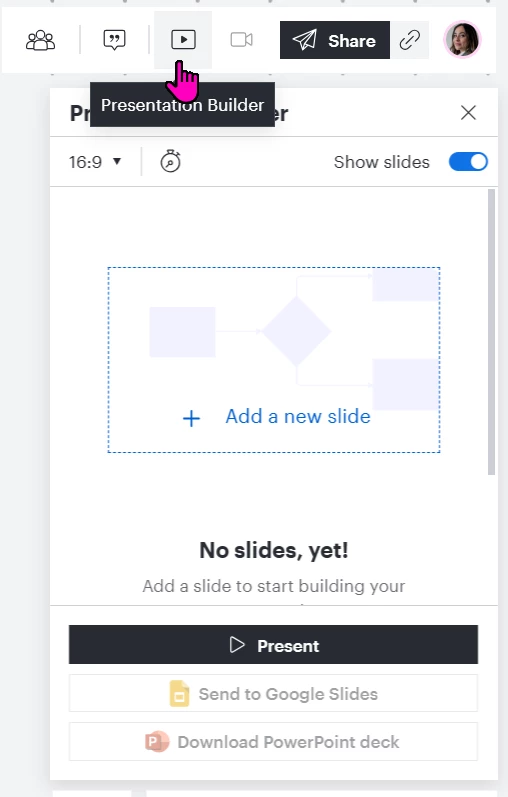
Presentations:


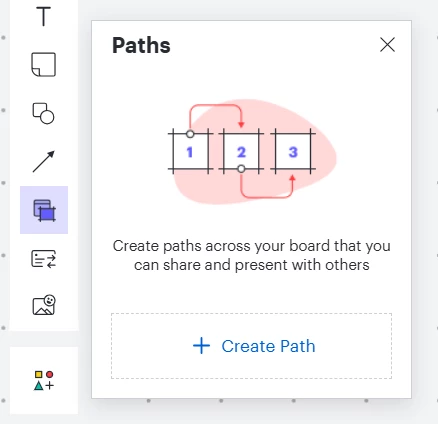
Paths:
 

Comments

Micah
Lucid community team
April 9, 2026
Idea→Seeking Feedback
August 31, 2026

Something changed with the presentation button. It no longer defaults to the whole of the current page/diagram and the graph lines are still visible in the presentation where previously these would be ignored. I’m having to go to the extra effort to export an image just to present without the gridlines. Please change it back. thanks

Zuzia S
Lucid community team
September 7, 2026

Hi ​@markofmelb, thanks for chiming in and for sharing your feedback in the Community! 

In order for grid lines to not be visible when presenting, you can disable them in the Document settings.

For that, please head to the hamburger menu > File > Settings > Document settings > Grid and snapping, and then disable the “Show grid” option. Once this is disabled, the grid does not show up in the document as well as in the presentation.

Once again, we appreciate your feedback as it helps our product teams researching and improving our product.

Cheers!

September 18, 2026

Hi Zuzia,

Yes, while that effectively turns off grid lines when presenting, I frequently switch between diagramming and presentation mode. Having to go into Document settings and turning grid lines globally off is becoming hindering and quite time consuming on a daily basis.


I also noticed that now one has to create and define a slide to even be able to present. Previously it was possible to click the present button at the top top open the flyout, followed by clicking “Present” and the screen went fullscreen, no grid lines and the whole diagram was fitted onto the screen.


How can I enable the previous way to present?

Happy to have a call and share more detailed feedback if you want.