Idea

Change the default behavior of selecting objects in Lucid

Related products:Lucid Suite
  • March 27, 2023
  • 11 replies
  • 563 views

Andy B101

In both Visio and Draw IO if I have smaller boxes inside of a larger box I can quickly select just the smaller objects to move and adjust them in lucid it always selects the larger boxes as well this drives me insane and I end up having to lock or hide layers just to work on a chart. Please tell me if there is an easier way to work around larger background objects without hiding them or manually deselecting them each time. 

April 12, 2024

Hi @saw123 , thanks for adding to this thread!

Unfortunately, changing the selection box's behavior in this way is not supported, but we’re very interested in your feedback and committed to continually improving our products. If you’re willing to share, we’d love to hear more details about your use case or what you’d like to see in this experience within this thread.

We’ve updated our Product Feedback process, so I’ve also converted this post to an idea so that it’s visible to others within the Product Feedback section of the community - from here, they can upvote it and add details of their own.

Finally, for more information on how Lucid manages feedback via this community, take a look at this post:


Comments

Micah
Forum|alt.badge.img+20
  • Lucid community team
  • March 27, 2023

Hi Andy thanks for posting in the Lucid Community! You should be able to select smaller objects within a larger object and move it independently without issue - to do so simply single-click on the smaller object then drag to move it. If you click-and-drag to create a selection box that touches both the larger and smaller objects both will be selected. I've demonstrated both of these behaviors in the GIF below: 

Please let me know if you're experiencing different behavior or if I've misunderstood what you're hoping to do!


Andy B101
  • Author
  • March 27, 2023

Hi I would like to select all 3 objects like you selected the purple diamond shape without it selecting the larger box as well. in the other products you must select the full shape for it to be selected in lucid if your selection touches any part of the object it becomes selected forcing me to deselect it after by holding the shift key which can sometimes become very tedious. I was hoping there was a way to change that behavior either with a modifier key or an option. 


Micah
Forum|alt.badge.img+20
  • Lucid community team
  • March 27, 2023

Hi Andy thanks for clarifying! Unfortunately changing the selection box's behavior in this way isn't currently supported in Lucidchart. However I understand how this could be useful and I've logged your feedback for review by our development team which utilizes requests like this when prioritizing improvements to Lucidchart. If you'd like to share additional details about your use case or what you'd like to see in this experience we'd love to hear more via this thread. Thanks for your feedback and apologies for any inconvenience. Please let me know if you have additional questions!


Andy B101
  • Author
  • March 28, 2023

Thank you


Forum|alt.badge.img
  • April 12, 2024

I have this same problem.  Selecting shapes in Lucidcharts on a complex diagram with many layers of objects inside of objects is terrible.  Works fine when there are like three things in a diagram.  Fails when a diagram has hundreds of objects.  


Amelia W
Forum|alt.badge.img+9
  • Lucid support team
  • April 12, 2024

Hi @saw123 , thanks for adding to this thread!

Unfortunately, changing the selection box's behavior in this way is not supported, but we’re very interested in your feedback and committed to continually improving our products. If you’re willing to share, we’d love to hear more details about your use case or what you’d like to see in this experience within this thread.

We’ve updated our Product Feedback process, so I’ve also converted this post to an idea so that it’s visible to others within the Product Feedback section of the community - from here, they can upvote it and add details of their own.

Finally, for more information on how Lucid manages feedback via this community, take a look at this post:


Forum|alt.badge.img
  • April 14, 2024

What is painful is IT architecture diagrams when there are many layers of objects inside of objects.   For example ALL IT Systems has a box.  Inside that box is Systems running in AWS.  Inside that box is systems running data analytics workloads.  Inside that is a box representing Compute.  Inside that is a box that says Redshift.  Inside that is a box for Prod, Dev, Test.   Inside those are icons and names of environments.   Go on and I dare you to try to click on one of those environments and rename it.  Can’t do it.  You will be clicking all various outer boxes for 5 minutes.  Moving them around.  So painful.  


Forum|alt.badge.img
  • April 8, 2025

I have the same issue. I try to select individual shapes, icons and cannot.  I think. it has to do with them being technically “behind” the other shape I have them in.  I want an experience like Powerpoint where everything “within” the selection box is selected, not everything “touched” by the selection box.  I’ll probably stick with PPT for my needs unfortunately.


Forum|alt.badge.img
  • April 8, 2025

Also, a shape/icon hierarchical view would be nice.


Forum|alt.badge.img
  • December 22, 2025

A very simple use case: I am working on a flowchart and missed a step quite at the beginning of the flow - everything else has to move to the right, sometimes without connections or lines. It’s quite a nuisance to push every single shape - or shapes within one swimlane - separately


Ambar D
Forum|alt.badge.img+10
  • Lucid community team
  • December 22, 2025

Hi ​@usr, thanks for adding to this thread with your feedback and use case! Can you provide a screenshot example of your diagram?

You should be able to move multiple shapes in your diagram with ease by selecting multiple shapes and dragging them across your canvas, even if they’re not connected with lines as you mentioned.

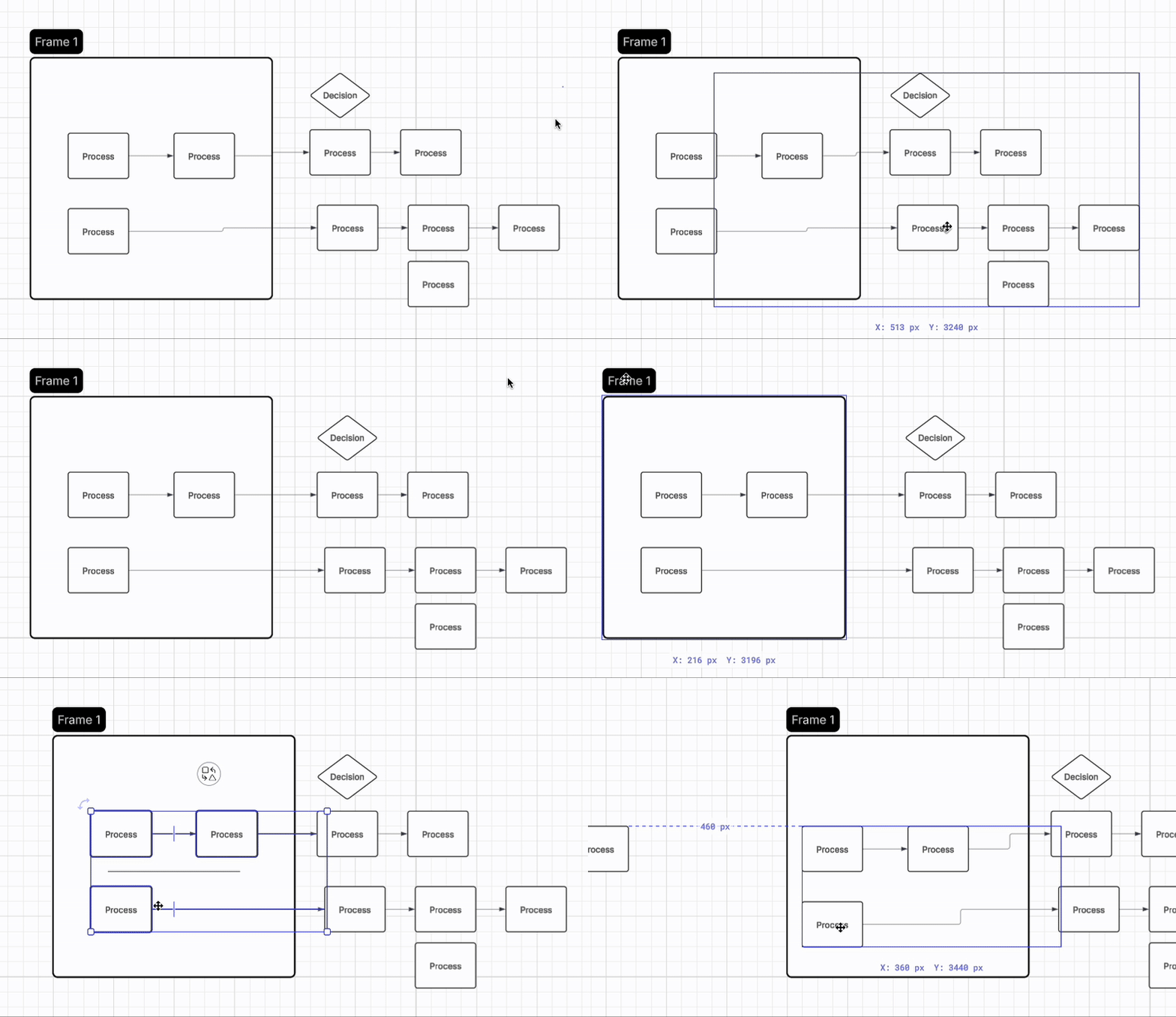
In the GIF below, notice how I can:

  • Select all the shapes outside the frame and move them freely
  • Select the frame and move it freely, which also moves all the shapes within the frame
  • Select all the shapes within the frame independently of the frame and move them around freely


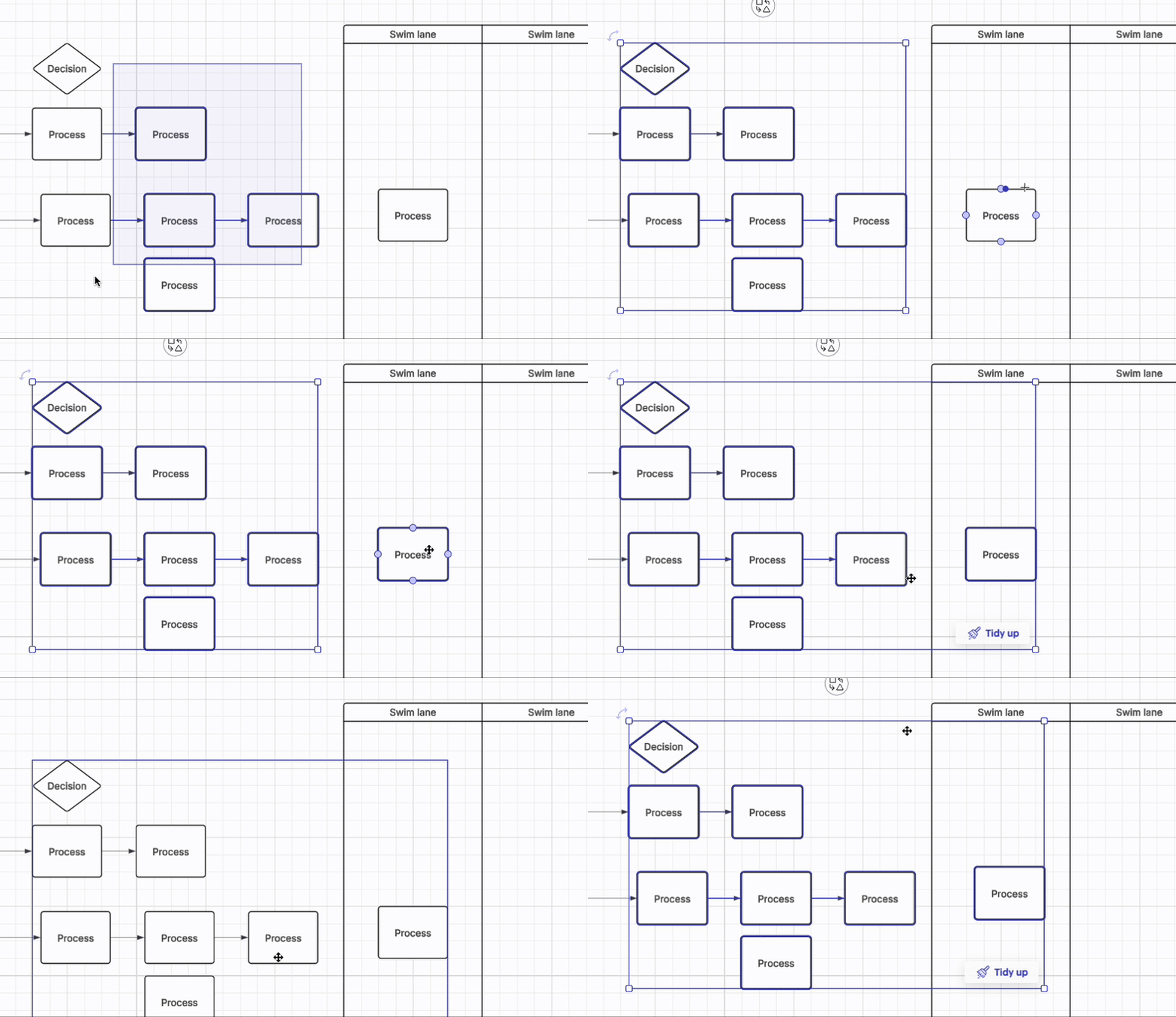
One last item I wanted to mention was that you can move specific shapes outside of a container and within a container at the same time by following these steps:

  1. Select all shapes outside of a container
  2. On your keyboard, select COMMAND or CTRL
  3. Select shapes within a container

This applies to containers, frames, and swim lanes. Notice in the GIF below that I first select all shapes outside the swim lane, then hit COMMAND, and select the shape within the swim lane to move all shapes independently of the swim lane.