

Solved
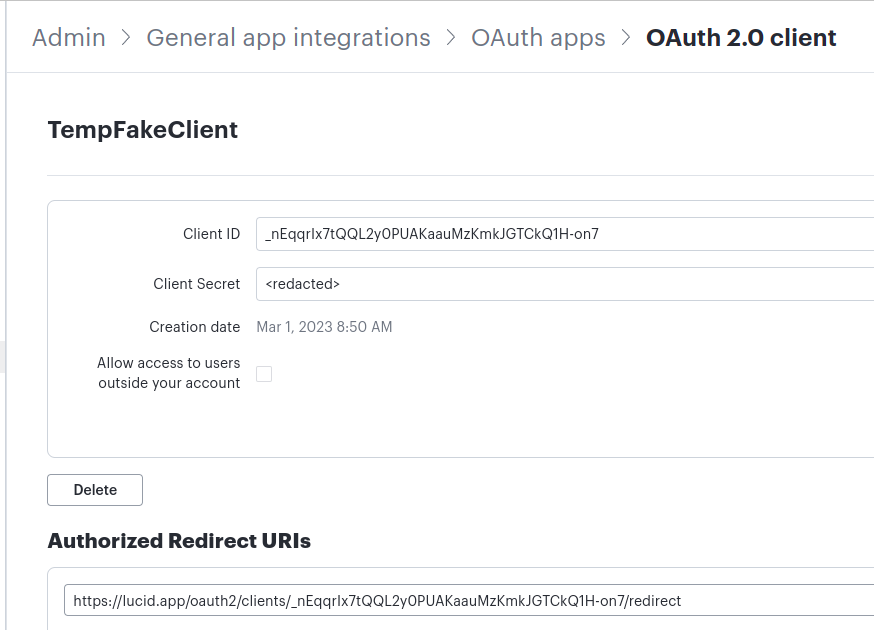
Lucid OAuth URL not working
Hi Team
Below url not working
https://lucid.app/oauth2/clients/{client id}/redirect
Getting
We couldn't find the page you're looking for.
Hi Team
Below url not working
https://lucid.app/oauth2/clients/{client id}/redirect
Getting
We couldn't find the page you're looking for.
A Lucid or airfocus account is required to interact with the Community, and your participation is subject to the Supplemental Lucid Community Terms. You may not participate in the Community if you are under 18. You will be redirected to the Lucid or airfocus app to log in.
A Lucid or airfocus account is required to interact with the Community, and your participation is subject to the Supplemental Lucid Community Terms. You may not participate in the Community if you are under 18. You will be redirected to the Lucid or airfocus app to log in.
Enter your E-mail address. We'll send you an e-mail with instructions to reset your password.

 Your privacy choices


