Question

ID gets assigned to other objects

  • August 1, 2025
  • 1 reply
  • 10 views

Forum|alt.badge.img+4

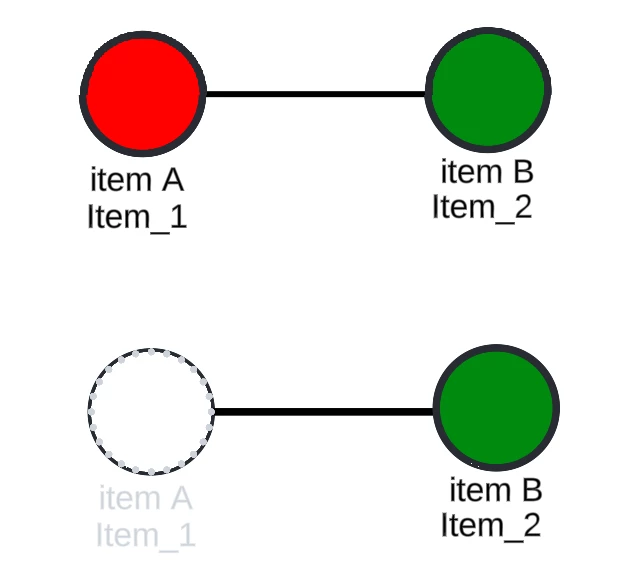
Hi, provided an illustration for reference. I am developing a diagram that has objects that has data linking. It is constantly changing, so there are times where I need to delete an item in my google sheets (source of data linking) so that it wouldn’t appear in my appsheet. However, when I do this in Lucidchart the assignment of ID for the succeeding object is changed. For example, using the diagram above I have two items A and B. Item A gets deleted in the lucidchart and in the google sheets (the blank row is maintained). Any suggestions to avoid this as I have numerous objects to maintain in my Lucidchart document and reassigning their data or data linking seems tedious. 

Edit: I don’t usually delete the blank row because I have a separate sheet that has formulas based on the result of the value of those specific rows.


Comments

Ria S
Lucid Legend Level 8
Forum|alt.badge.img+19
  • Lucid Legend Level 8
  • August 1, 2025

Hi ​@afc 

Thanks for providing the illustration. It was helpful in understanding the issue.

You are absolutely right! When using data linking from Google Sheets in Lucidchart, deleting a row (even if it appears blank) can affect the indexing and ID assignment of the objects tied to that dataset. This happens because Lucidchart maintains a dynamic connection and will re-map the object bindings based on the current row order, and not the static cell IDs.

To help maintain stable object mapping, you can try these:

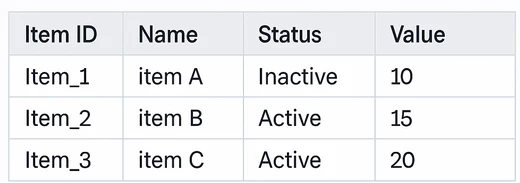
  1. Avoid deleting rows in the source Google Sheet. Instead, consider marking them as "inactive" (e.g., use a status column with a value like "Archived" or "Do Not Display"), and then filter them out using the Linked Data filter within Lucidchart. This preserves the row's position and prevents reindexing. I included an example below:


  2. Use a Unique Identifier column. Ensure each object has a persistent ID field (e.g., Item_001, Item_002), and in Lucidchart, link objects by this ID rather than by row order. This helps maintain the link even if rows are added, hidden, or filtered.

  3. Maintain a static range in Google Sheets for Lucidchart linking. You could create a helper sheet that uses formulas (like FILTER, QUERY, or ARRAYFORMULA) to pull only active rows into a defined range (e.g., A1:E50) that never shifts, even when items are "removed" in the main sheet.

  4. If you often need to "hide" objects (like in your image where Item A becomes white and semi-transparent), you could use Lucidchart layers or conditional formatting (based on data values) to visually hide inactive elements without deleting them.

While it may be tedious to re-link many objects, especially when maintaining diagrams over time, these methods have helped me manage my dynamic data sources more efficiently in Lucidchart.

Hope this helps.