

Quickly import and organize your presentations with Lucid AI
As educators we all have a ton of presentations already created in PowerPoint and Google Slides that we want to enhance with active student engagement opportunities. With Lucid AI, this just got easier! Watch this quick video or review the steps below.
1. Add the presentation to Lucid

2. Import slides onto the Lucid board
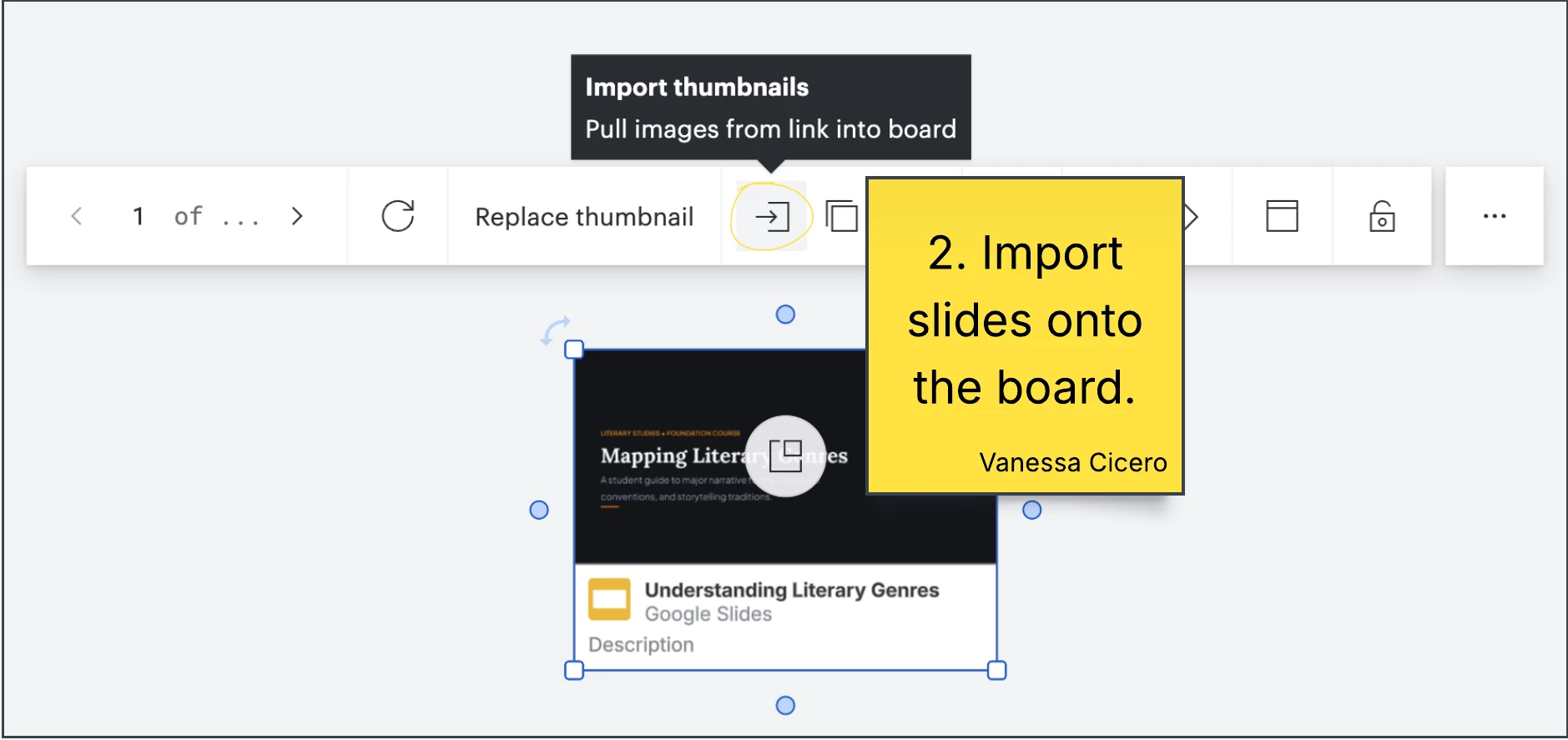
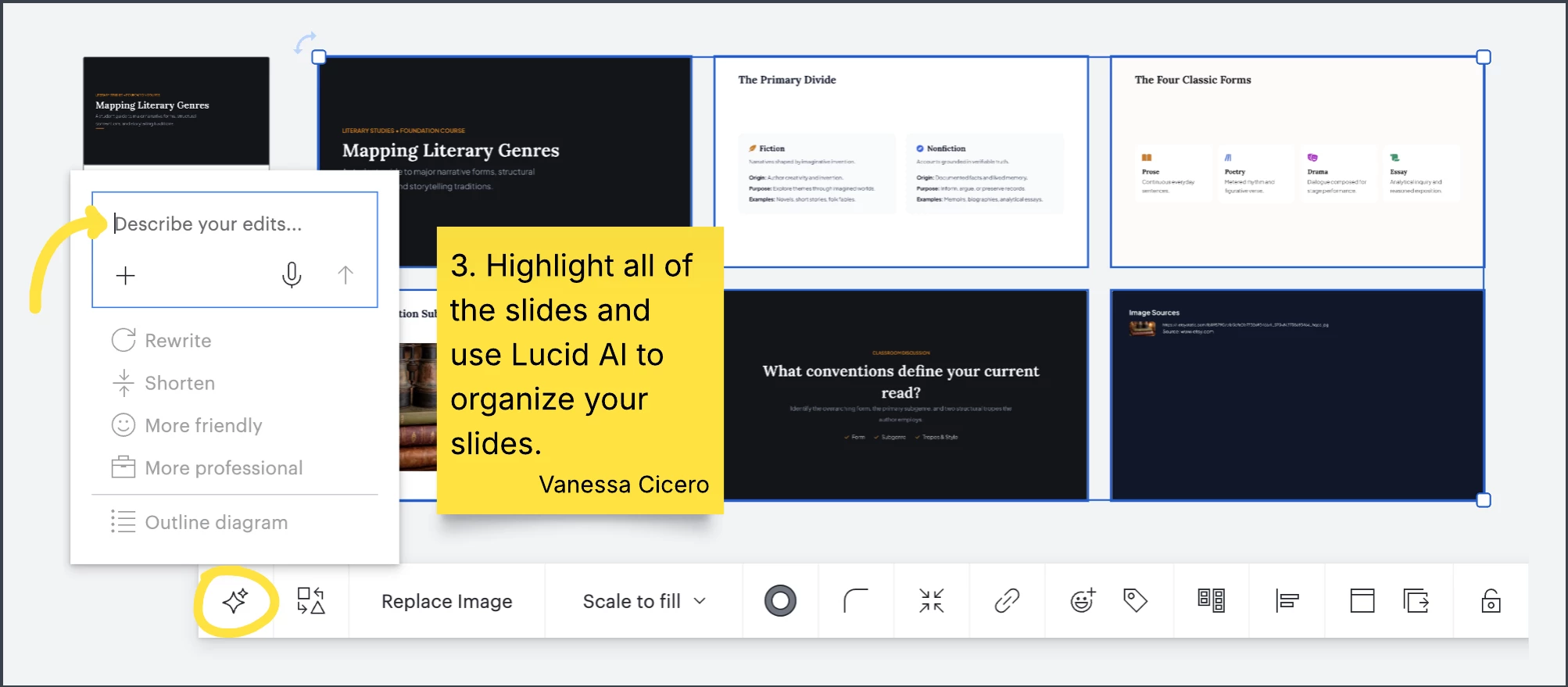
3. Highlight slides and use Lucid AI to organize the slides
AI Prompt:
Rearrange the images into a top-to-bottom vertical flow linked by sequential arrows.
- Padding: Increase space between images to 6 times the current amount.
- Framing: Place each image inside a centered frame sized 1,595.23 × 811.79, enlarge the image to fill the frame, but not go outside of the frame.
- Titles. label each frame sequentially at the top (Slide 1, Slide 2, etc.), starting from the original upper-left image.
- Layout & Flow: Arrange the framed slides vertically from top to bottom in order, adding a down-arrow connecting each slide to the next.
4.Use the table of contents to navigate to each slide.

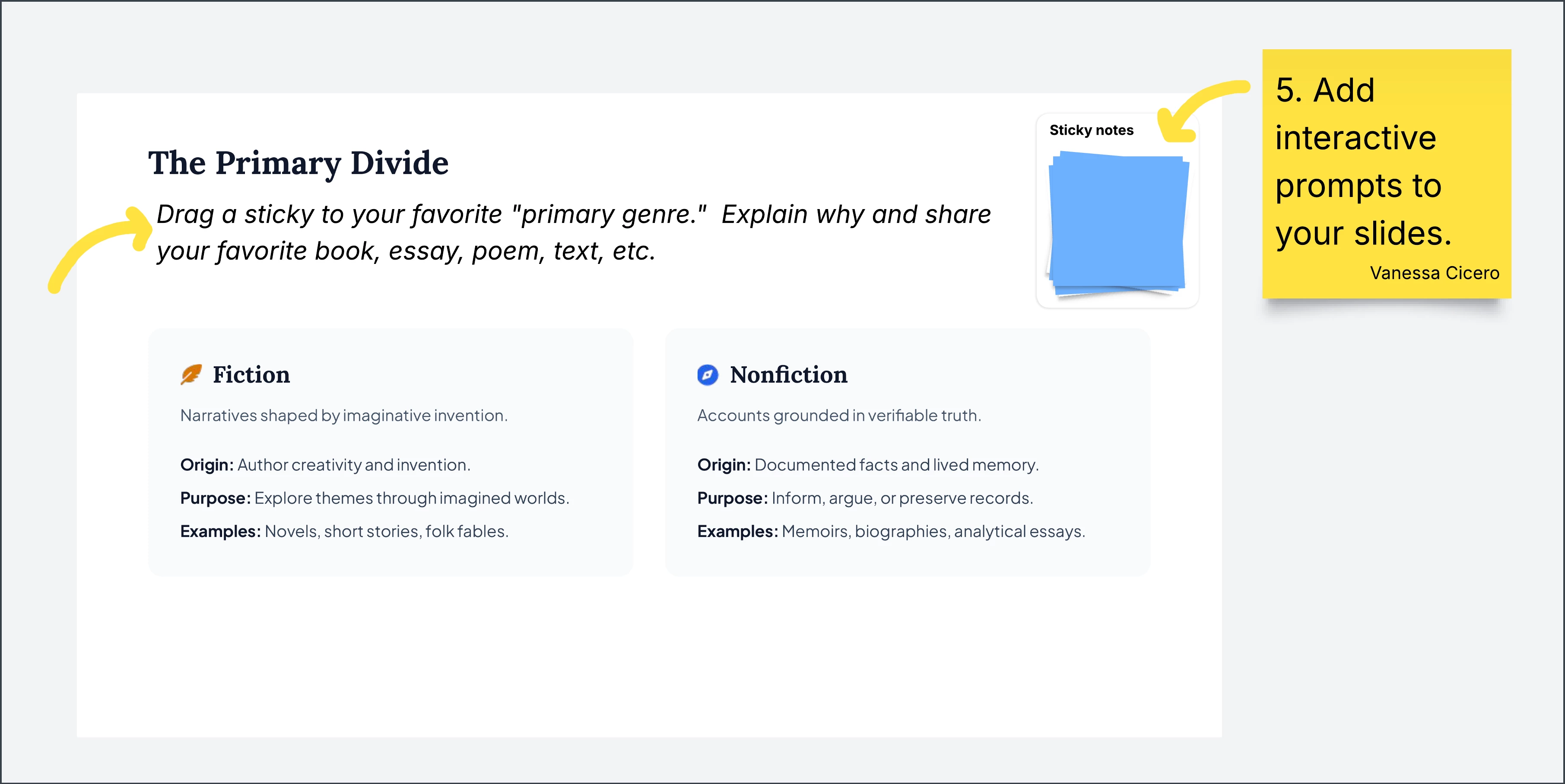
5.Add interactive engagements throughout the presentation.
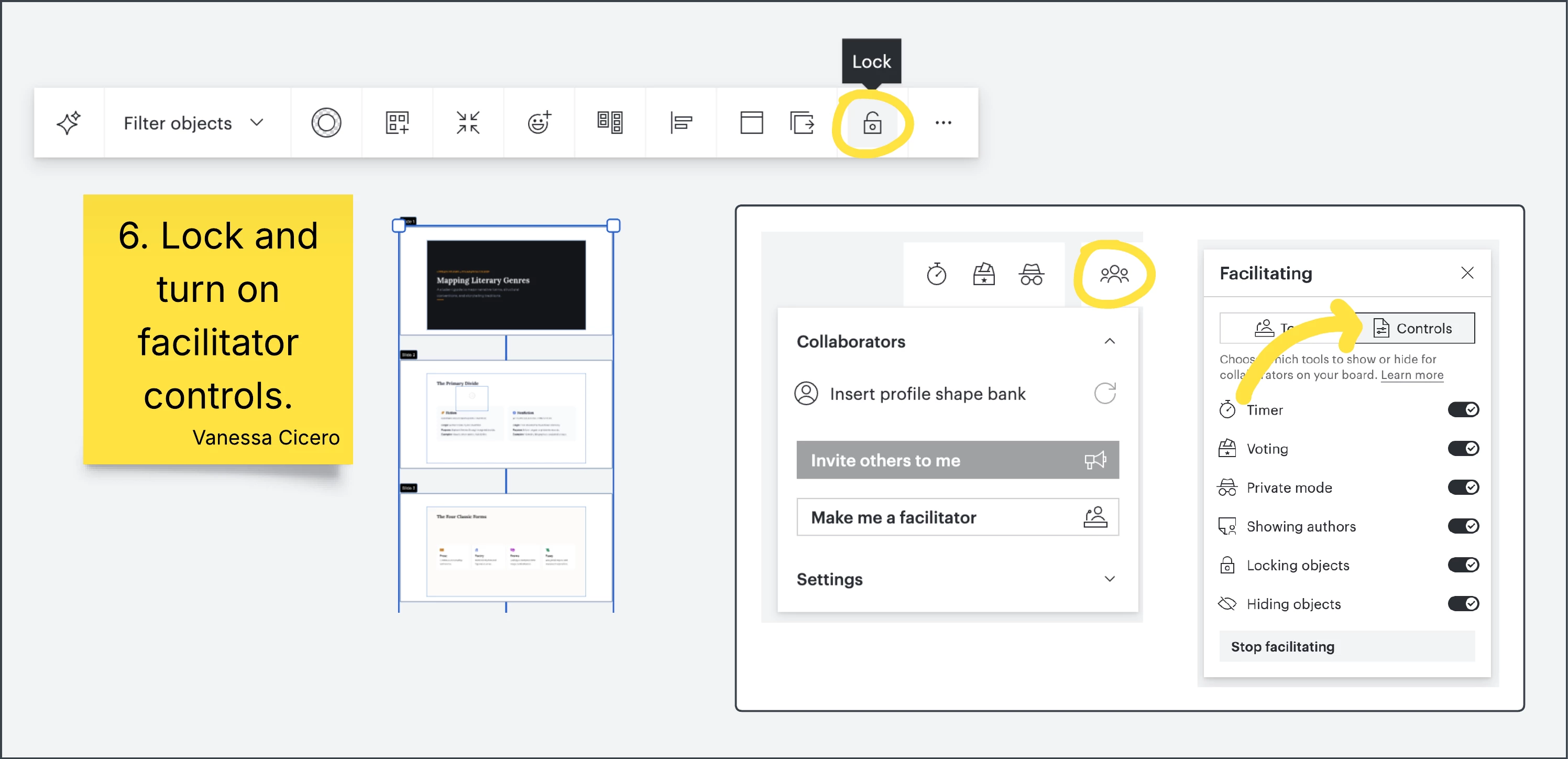
6. Lock, make yourself a facilitator and turn on board controls.
7.Send students an “edit share-link” or embed in Canvas.
 Your privacy choices


