

Paths: New Location, Same Great Tool
As many of you have noticed Paths has a new home under presentations, but don’t worry you can still structure your interactive presentations in the same way you did before. Watch the Video Walkthrough or go through the steps below.
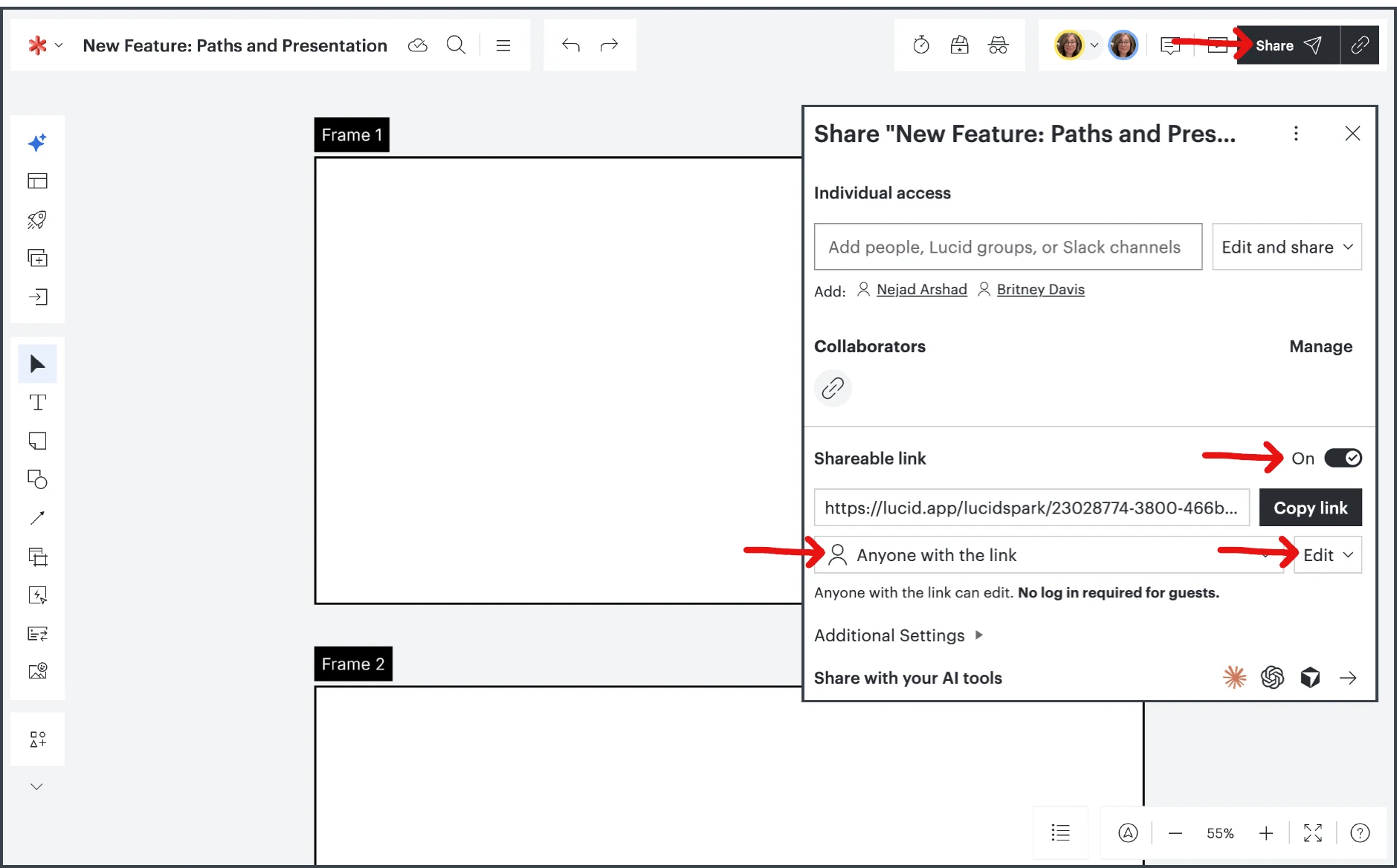
Step 1: Set the collaborative share settings you want for your board.
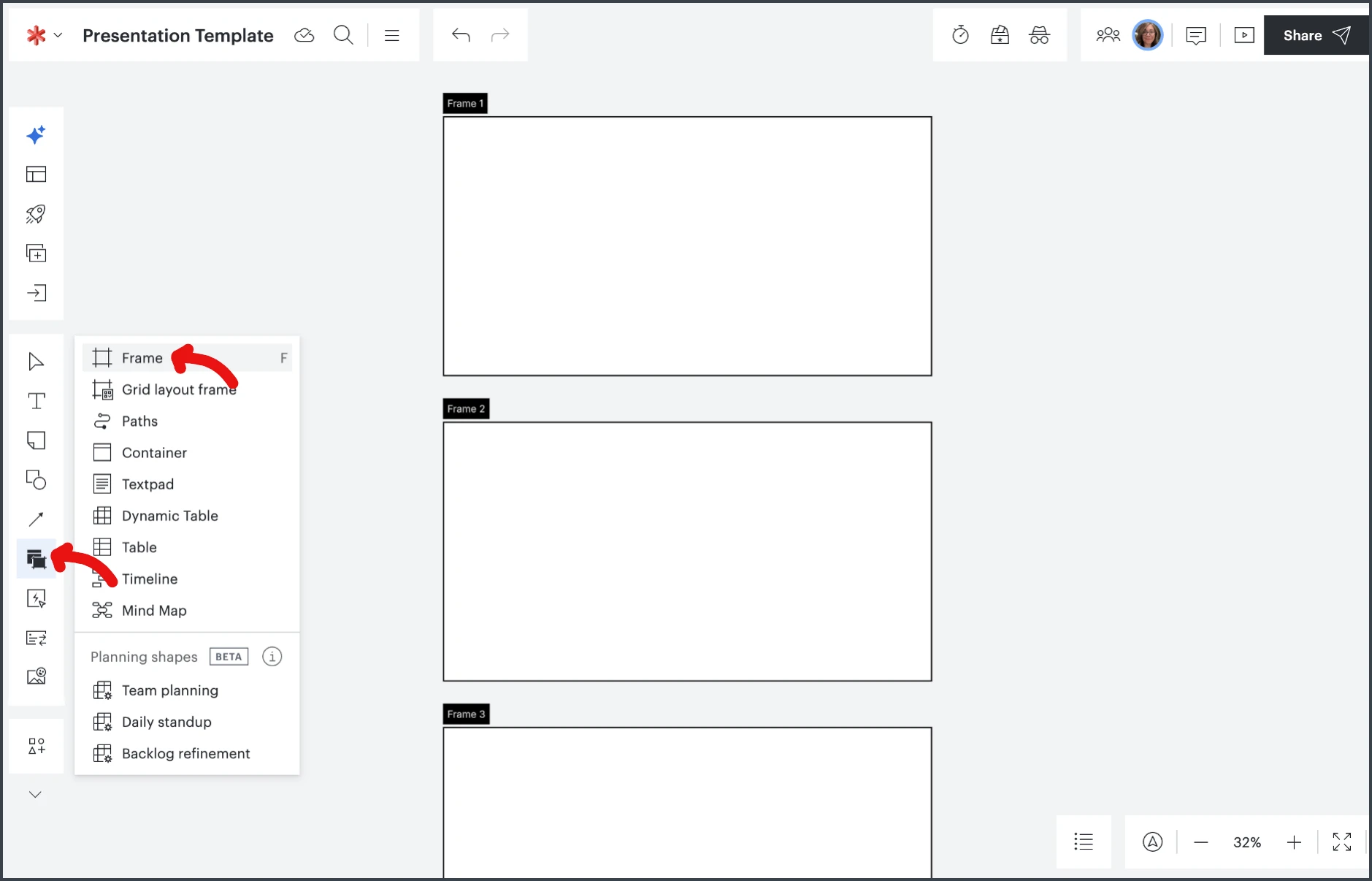
Step 2: Create your interactive presentation using frames.
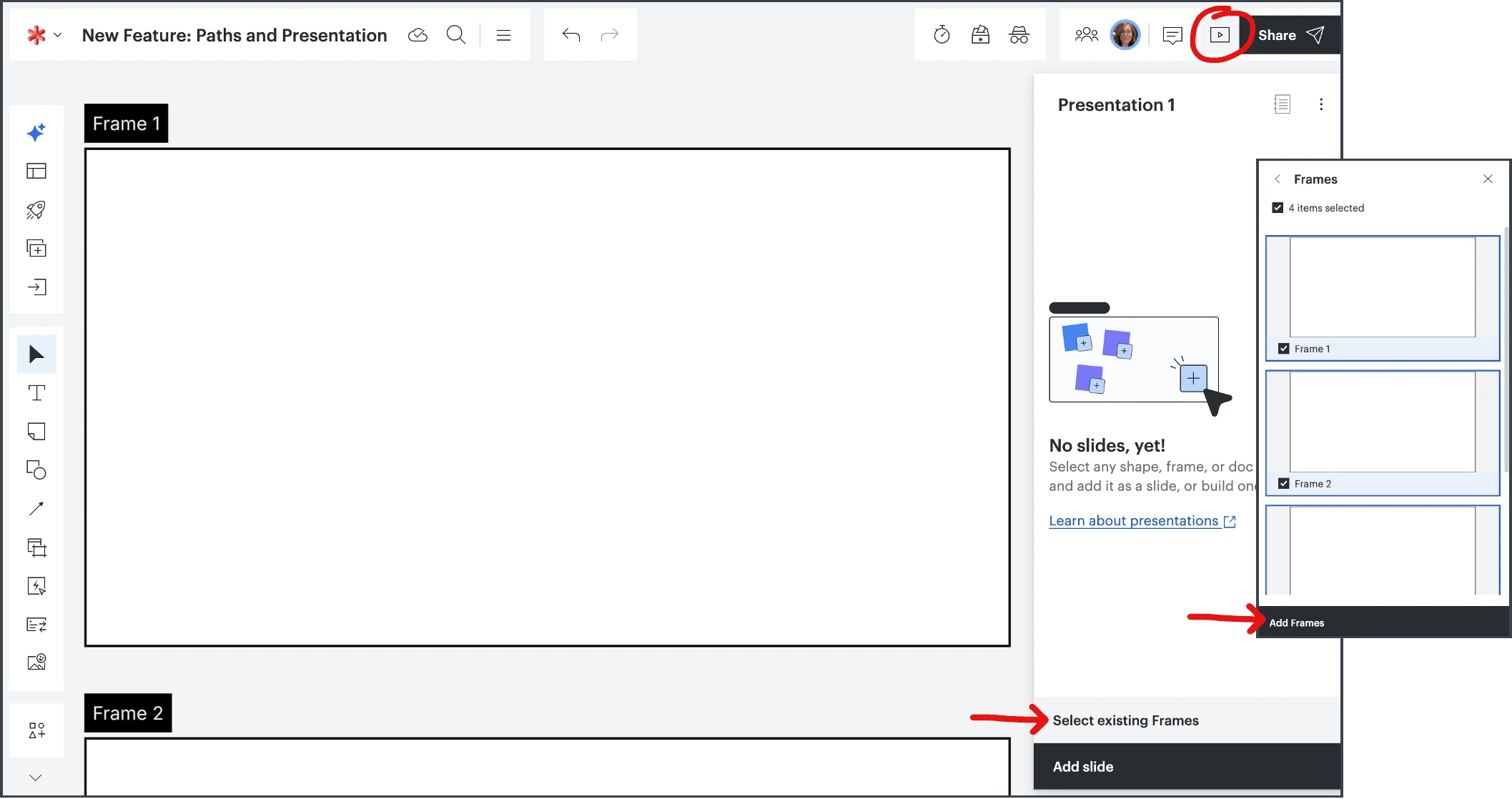
Step 3: Organize your presentation by choosing “Select existing Frames.”
Step 4: Choose “Start Path” and then copy the path link.
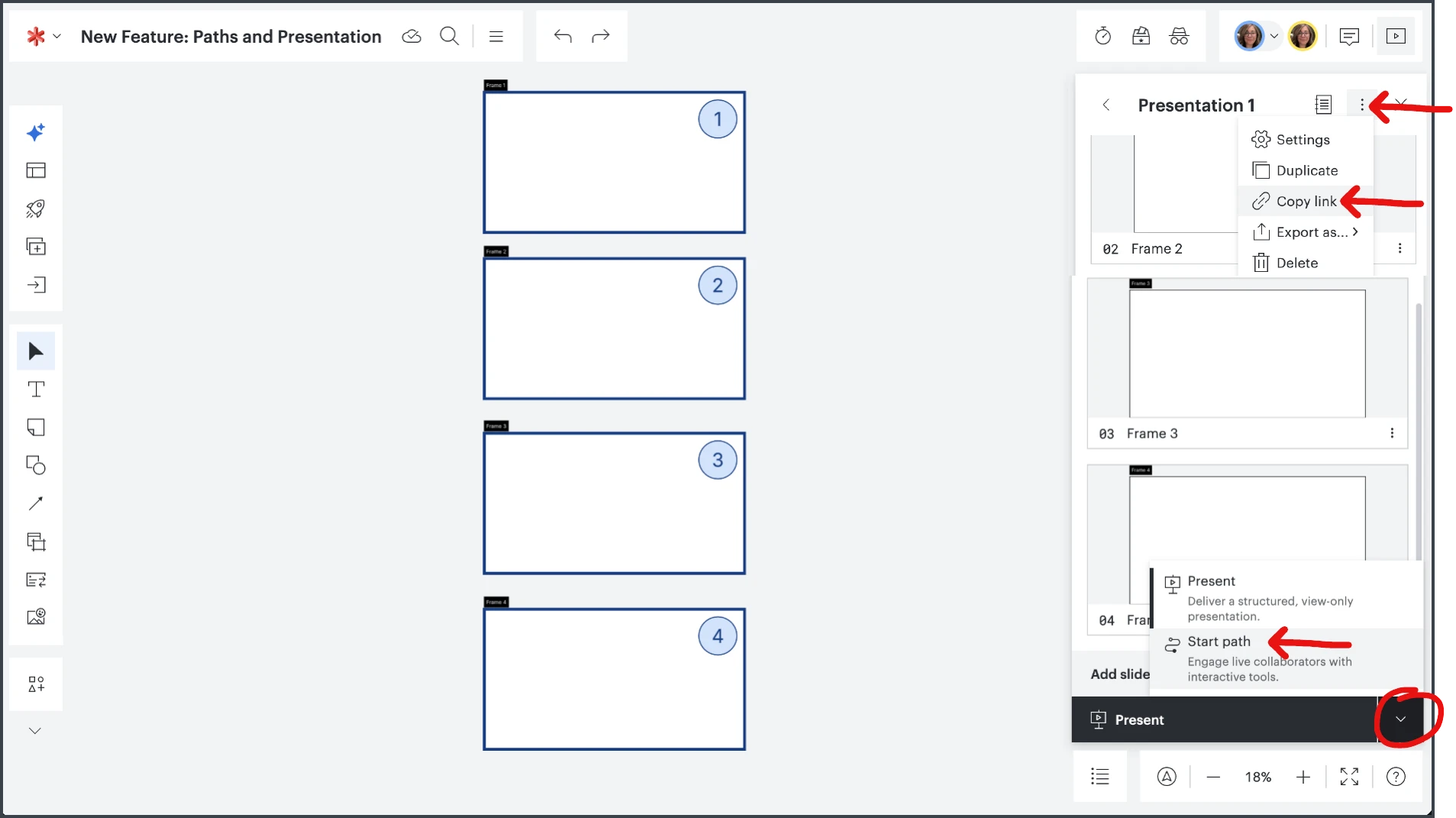
Step 5: Send the link to your students.
Tip: Use “Present” for more traditional presentations where you and your students won’t be using the editing tool bar during the presentation.
 Your privacy choices


