Answer

How can I use upper and lowercase text in Lucidchart diagrams?

  • August 21, 2025
  • 9 replies
  • 61 views

Forum|alt.badge.img+1

Unable to use mixed case on diagram. Tried changing font, but all fonts result in uppercase text (see link below). Issue appears to be only with one diagram. Using same font in new diagrams works correctly.

see: 

...for previous discussion.

Best answer by Leianne C

Hi ​@mattf, thank you for clarifying and sharing an account support PIN. To help me take a better look, could you also share a temporary Document Support PIN for this document? 

I am also checking internally for some additional insight into the behaviour you are seeing. I will share an update here as soon as I hear back from the team. Please let me know if you have any questions in the meantime. 

Comments

Leianne C
Forum|alt.badge.img+15
  • Lucid support team
  • August 22, 2025

Hi ​@mattf, thank you for posting in the community! To help us better understand the issue, would you mind sharing an example screenshot of what you are seeing in your documents? This will help our team take a closer look. 

Thanks in advance for your help! Please feel free to let us know if you have any questions. 


Forum|alt.badge.img+1
  • Author
  • August 26, 2025

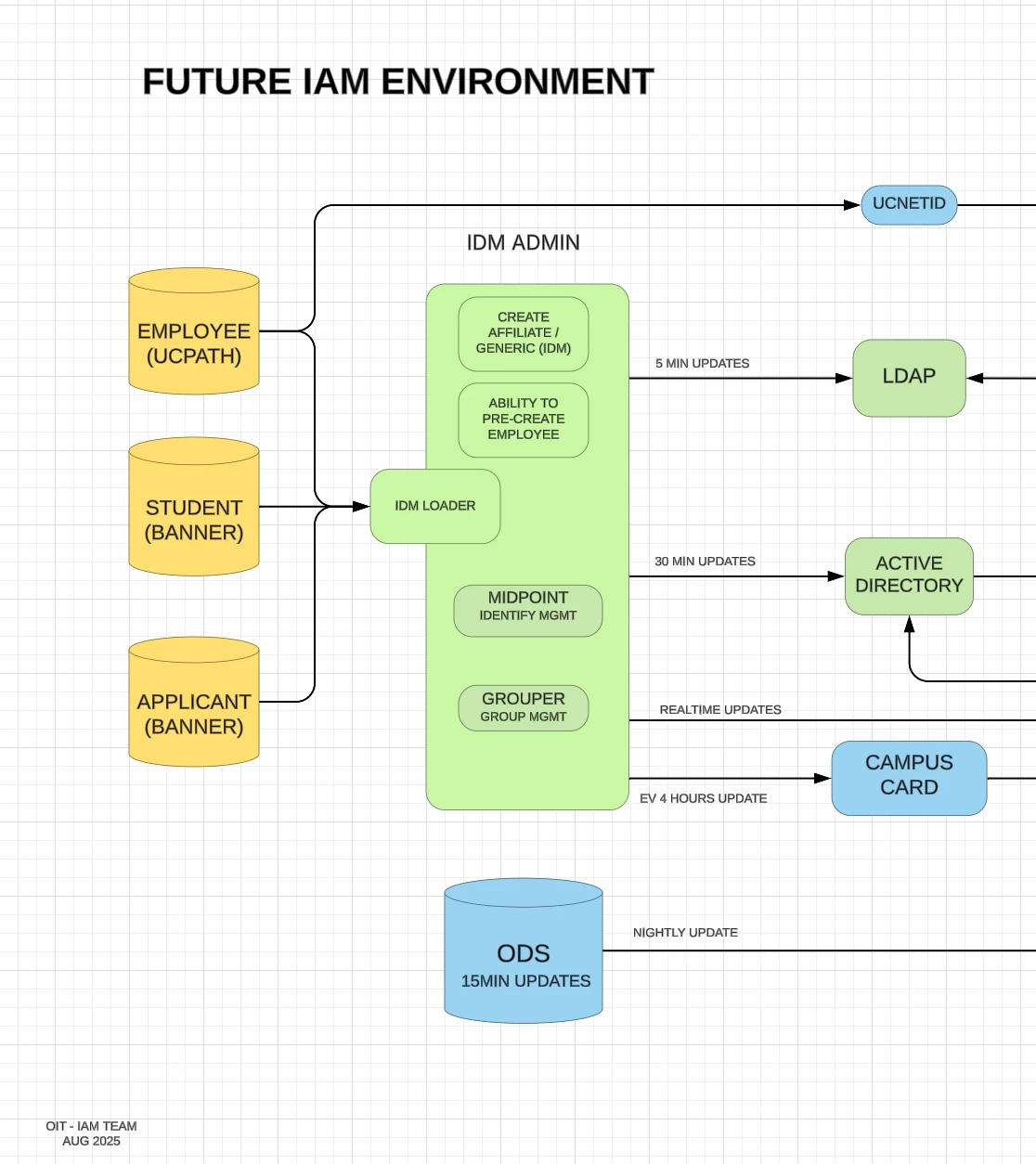
Hi Leianne, attached is the partial screenshot of the diagram (redacted for security)…


Leianne C
Forum|alt.badge.img+15
  • Lucid support team
  • August 27, 2025

Hi ​@mattf, thank you for sharing the example screenshot. To confirm, are you hoping to ‘Mixed Case’ and not ‘MIXED CASE’? Are you using a custom font in your diagram or the Lucid default ‘Inter’? 

If the issue persists, could you please share the temporary Support PIN for this document? This will allow me to take a closer look at the issue you’re experiencing. For more information on generating a Support PIN, check out this Help Center article. This Support PIN doesn’t allow anyone but Lucid Support to take a look at your document, so you are safe to post it here.


Please feel free to let us know if you have any questions!


Forum|alt.badge.img+1
  • Author
  • August 27, 2025

Hi Leianne,

Correct. Getting “MIXED CASE” and want “Mixed Case”.
Using “Liberation Sans” and no custom fonts.

Support PIN:
iueYWJN2xB3D6I103791223


-mattf


Leianne C
Forum|alt.badge.img+15
  • Lucid support team
  • Answer
  • September 1, 2025

Hi ​@mattf, thank you for clarifying and sharing an account support PIN. To help me take a better look, could you also share a temporary Document Support PIN for this document? 

I am also checking internally for some additional insight into the behaviour you are seeing. I will share an update here as soon as I hear back from the team. Please let me know if you have any questions in the meantime. 


Forum|alt.badge.img+1
  • Author
  • September 3, 2025

Hi Leianne, thank you for the follow-up...

Here is the Document Support PIN: duZ9ktJeJpp1py103791223


Leianne C
Forum|alt.badge.img+15
  • Lucid support team
  • September 4, 2025

Hi ​@mattf, thank you for sharing the document PIN. I was able to reproduce the issue in your document. It seems like this might be document specific, did you notice this same issue in any other documents?

 I am still checking with our internal team for more insight and will update this thread as soon as I have more information.  Please let me know if you have any questions! 


Forum|alt.badge.img+1
  • Author
  • September 4, 2025

Hi ​@Leianne C , 
No, this issue is only for this document (crazy). Appreciate the assistance on this one, as I am trying to avoid re-creating this drawing.


Leianne C
Forum|alt.badge.img+15
  • Lucid support team
  • September 16, 2025

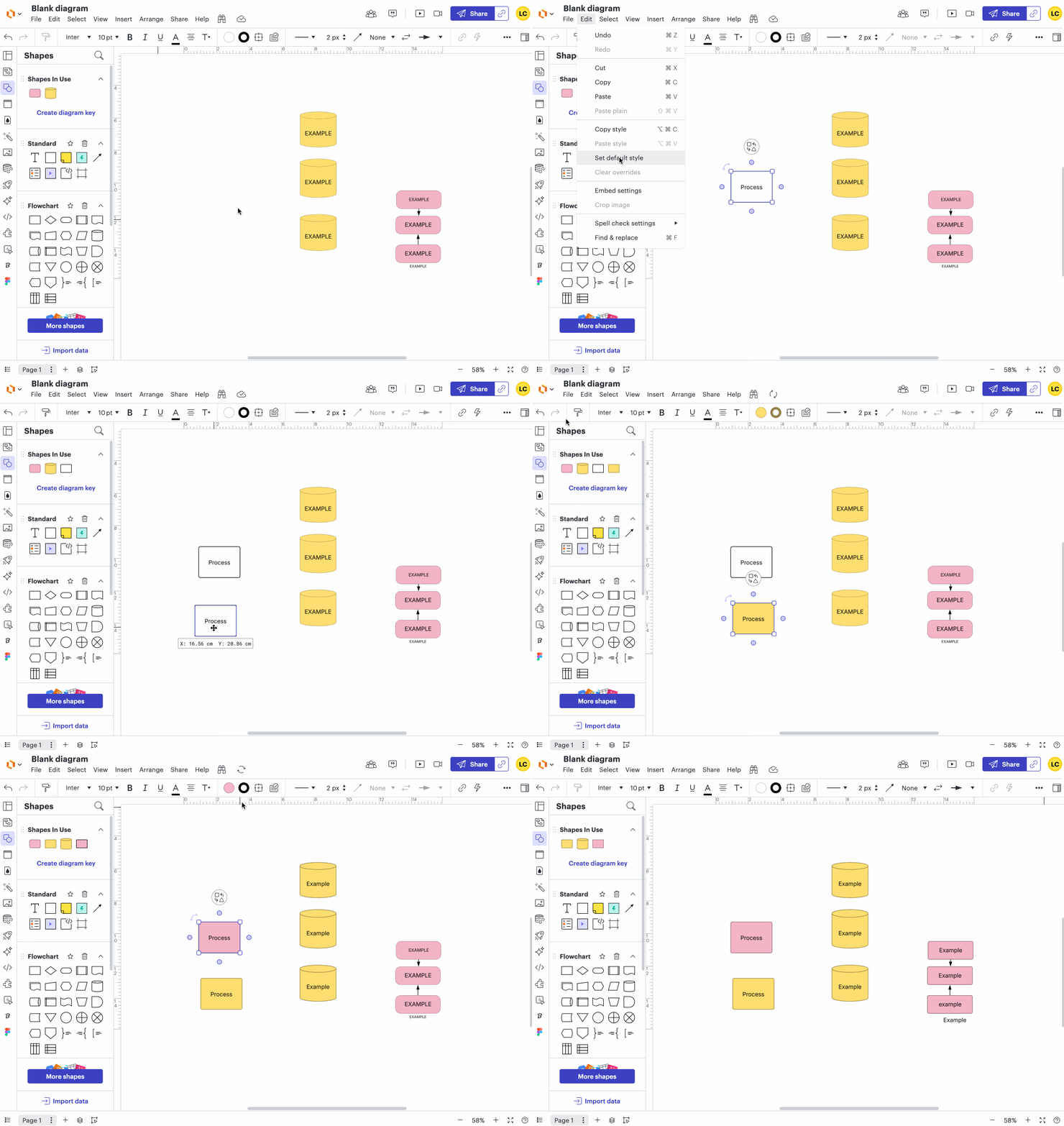
Hi ​@mattf, thank you for your patience as I investigated this issue. Unfortunately, there isn’t a setting to enable or remove the all caps style applied to your document. However, the quickest way to fix the issue you’re seeing in this document is by copy/pasting a new shape with the correct mixed case into the document. I recommend selecting the copied shape and clicking edit > set default style to help ensure all new shapes added to the canvas will be created with mixed case. 

After that, change the colours/style of the copied shape to match different elements of your diagram and use the paint format button to quickly apply the formatting & style the different shapes. I’ve created a GIF demonstrating this:

While this does require a few extra steps, it should help you quickly correct the shapes in your diagram and avoid needing to re-create the entire document. 

I hope this helps. Please let me know if you have any trouble with this or if you have any questions!