
Giving feedback on Lucid assignments
Students can have their own Lucid board to complete an assignment in your LMS. There are several ways to give feedback. I’ll cover how to give feedback in Canvas’ Speedgrader or directly on the students’ lucid boards.
Here is a screenshot of one student’s assignment that was turned in to Canvas with Lucid as the submission type.
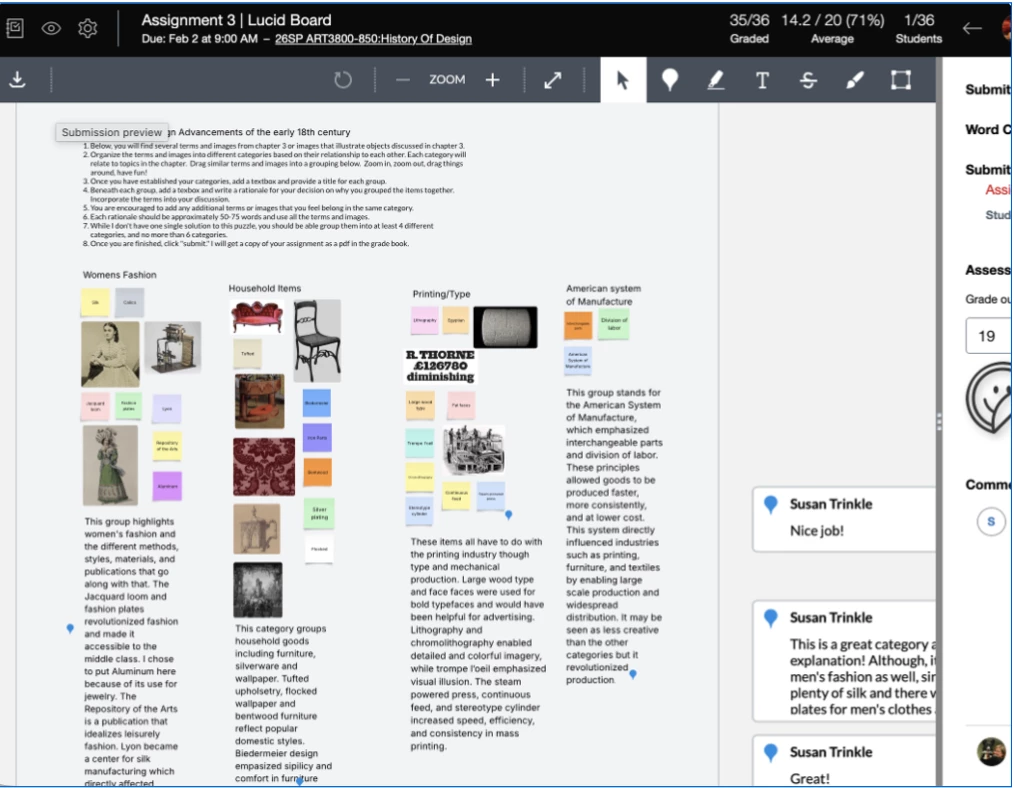
Use speedgrader the same way you would if you were giving annotated feedback on a paper. I love this especially with Lucid boards because you can point your comment directly to a visual or text that the student created.
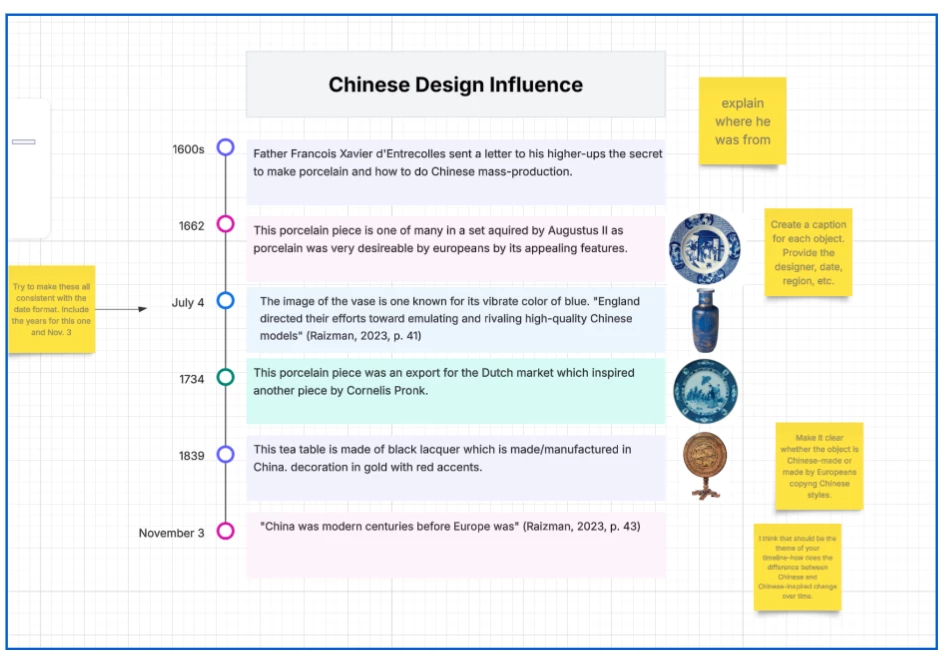
Another way to give feedback is to click on the link that accompanies their submission. If Lucid is selected as the submission type, you will get a pdf of the student’s board. But that’s not the most up-to-date. The live link is on the right side of speedgrader and lets you access their individual board. I like to use the sticky notes to leave comments on select points directly on their board. It looks like this image below.
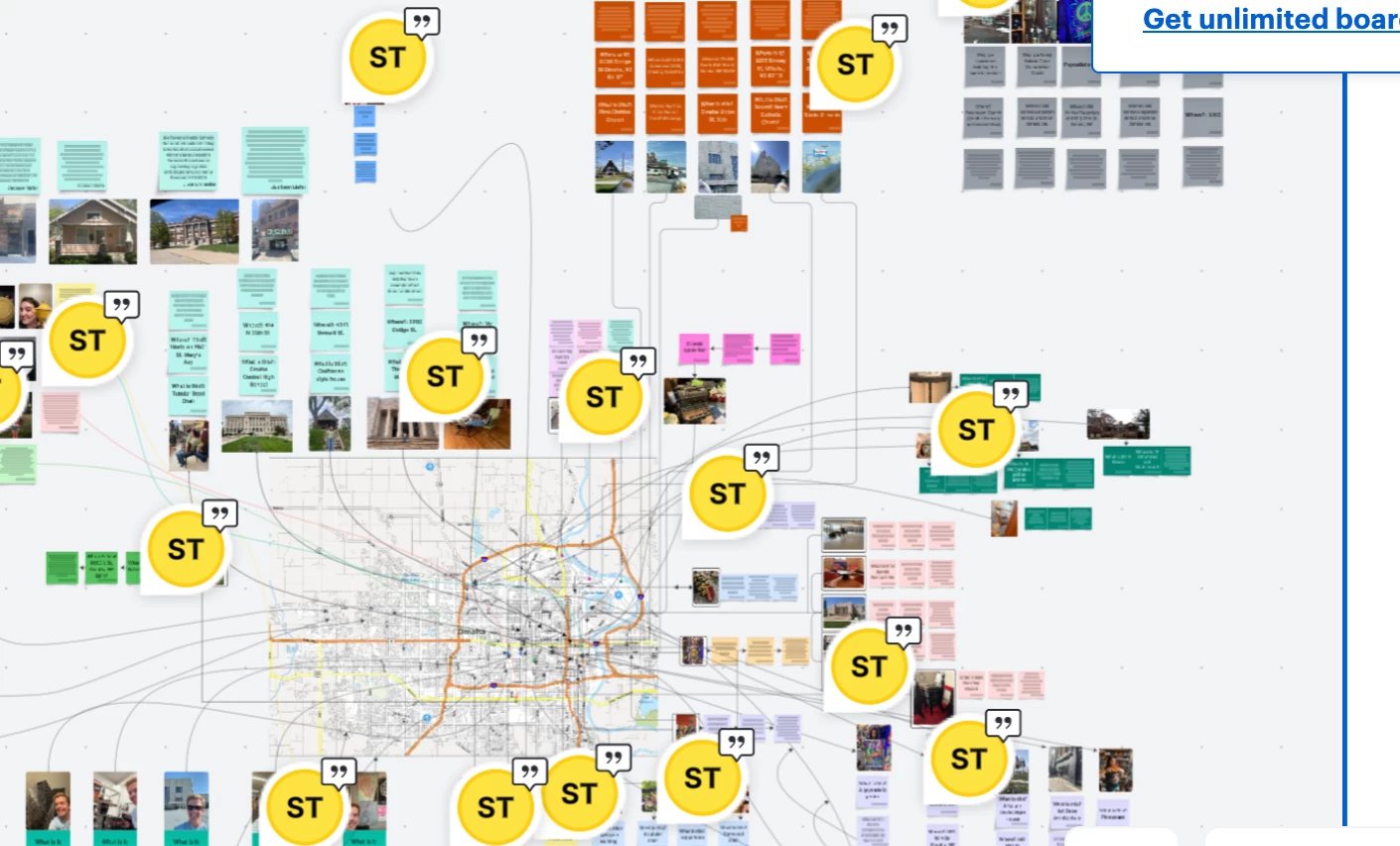
Another way to do this is to use the comment tool, which is the icon with the quotation marks on it at the top right of the Lucid board. This makes it easy for students to reply to you. Wherever you click after you select the comment button, is where your icon will show up, indicating to the student that you’ve left a comment. They can then click on it to read, respond, or resolve the issue.
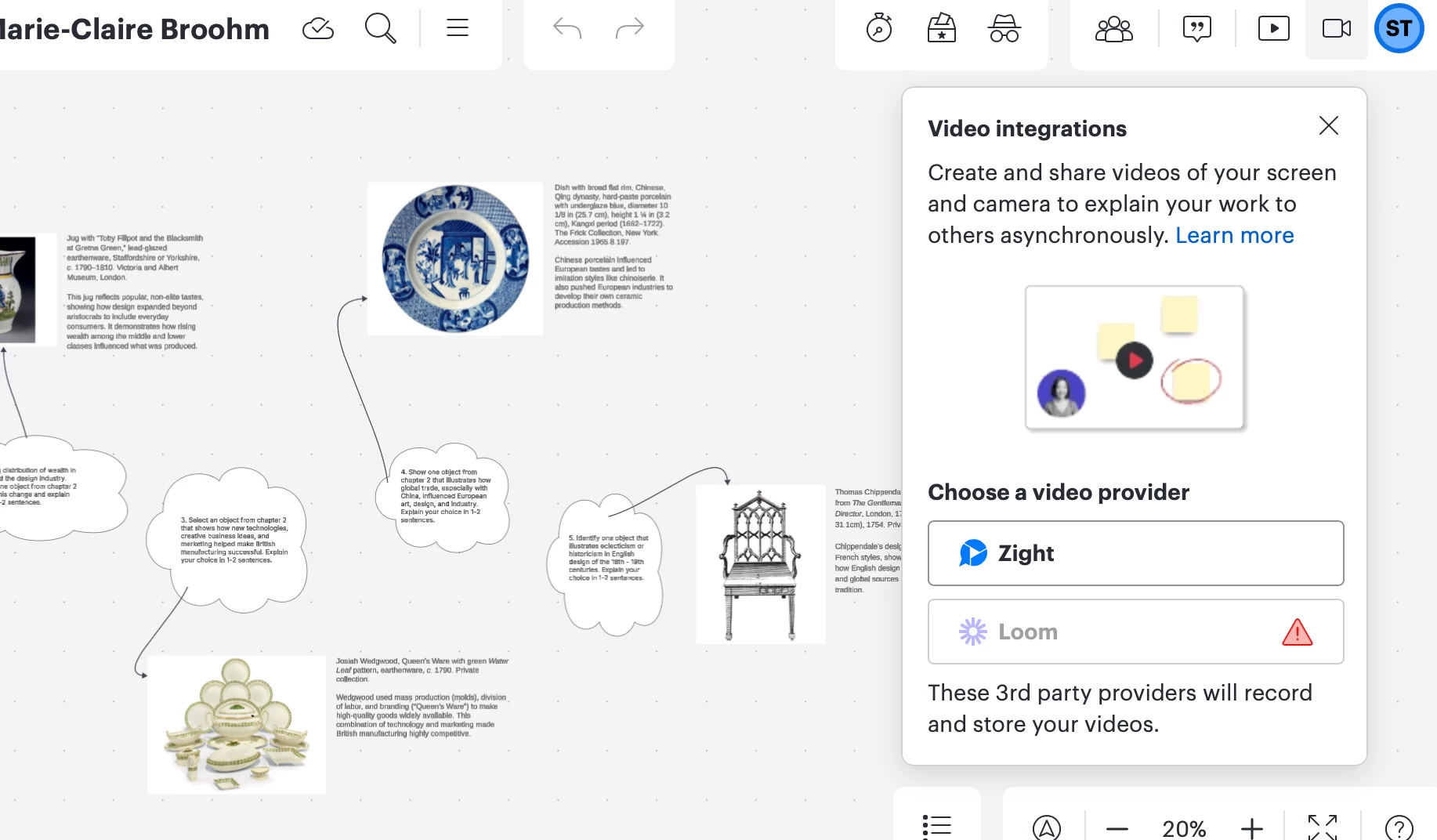
Finally, the coolest one is to use the video button, also on the top right. (It looks like a little video camera.) When you click this button, it will prompt you to select one of the 3rd party providers. I’ve used Loom and really like it. You’ll need to give your browser permission to record, so that might derail you, but after you’ve done that (and maybe reopened your browser) it will let you leave a little short video for the student to watch. Super cool!
 Your privacy choices


