

Feature Highlight: Board Navigation Buttons
Help students navigate your presentations and activities with easy to use “go-to” buttons! This has been a game changer for me and I use them ALL the time now.

For this article I will show you how to set this up for an interactive presentation in 3 easy steps, but you can use these go-to buttons to improve the navigation of any activity you build in Lucid. Save some time and get your own copy of my pre-formatted presentation template here.
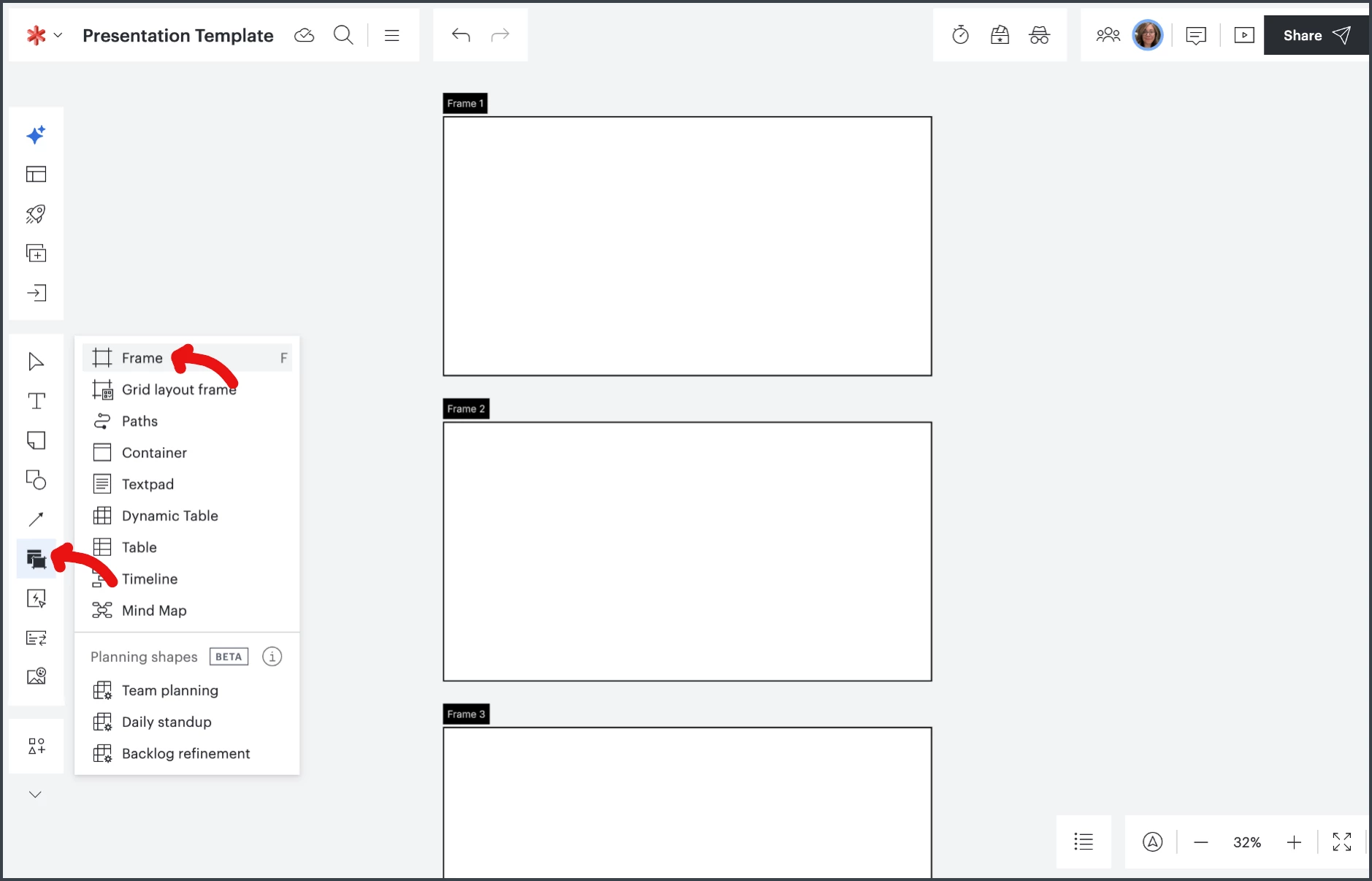
Step 1 | Create your presentation slides using “Frames.”
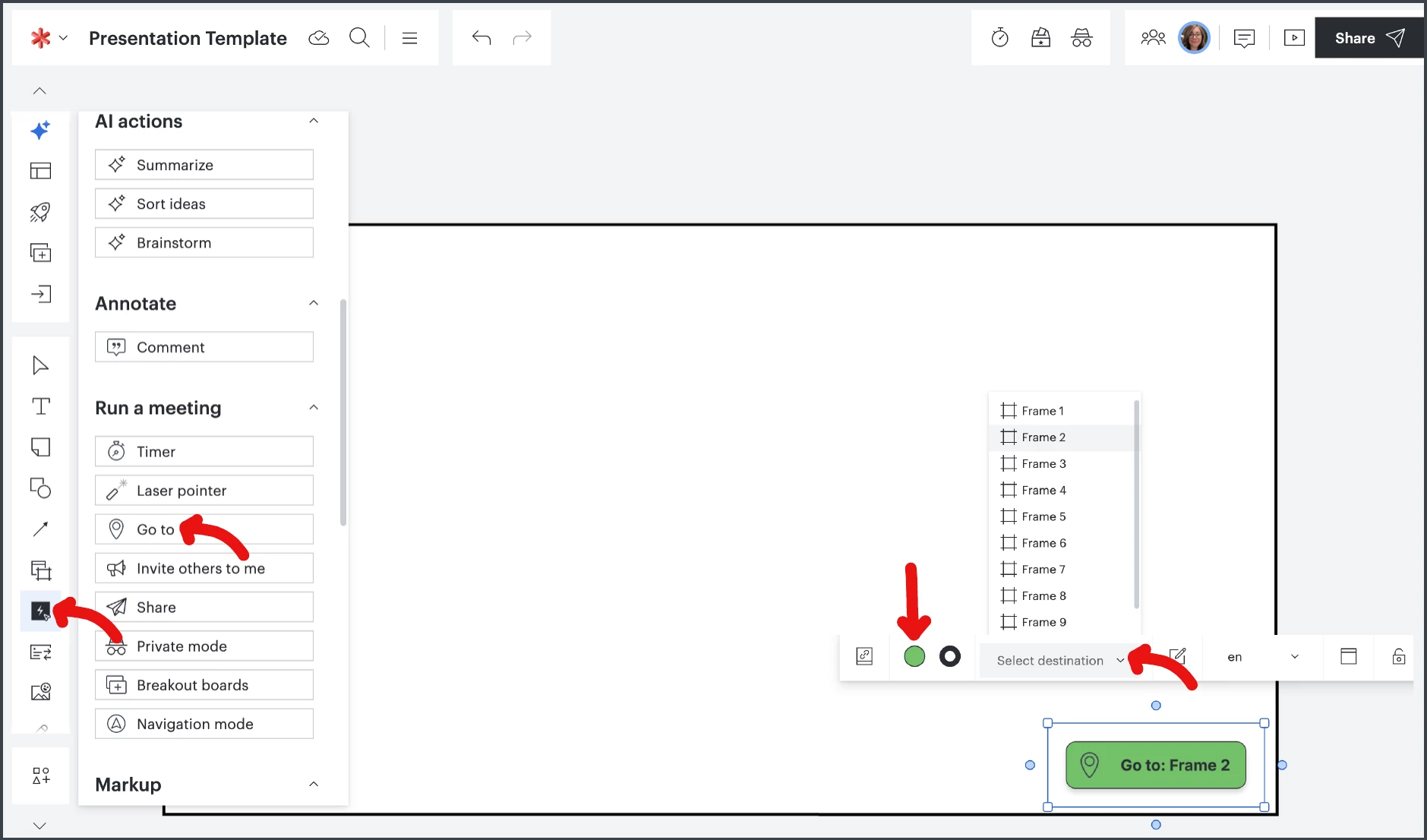
Step 2 | Add a “Go to” button to each slide, choose color and select the destination.
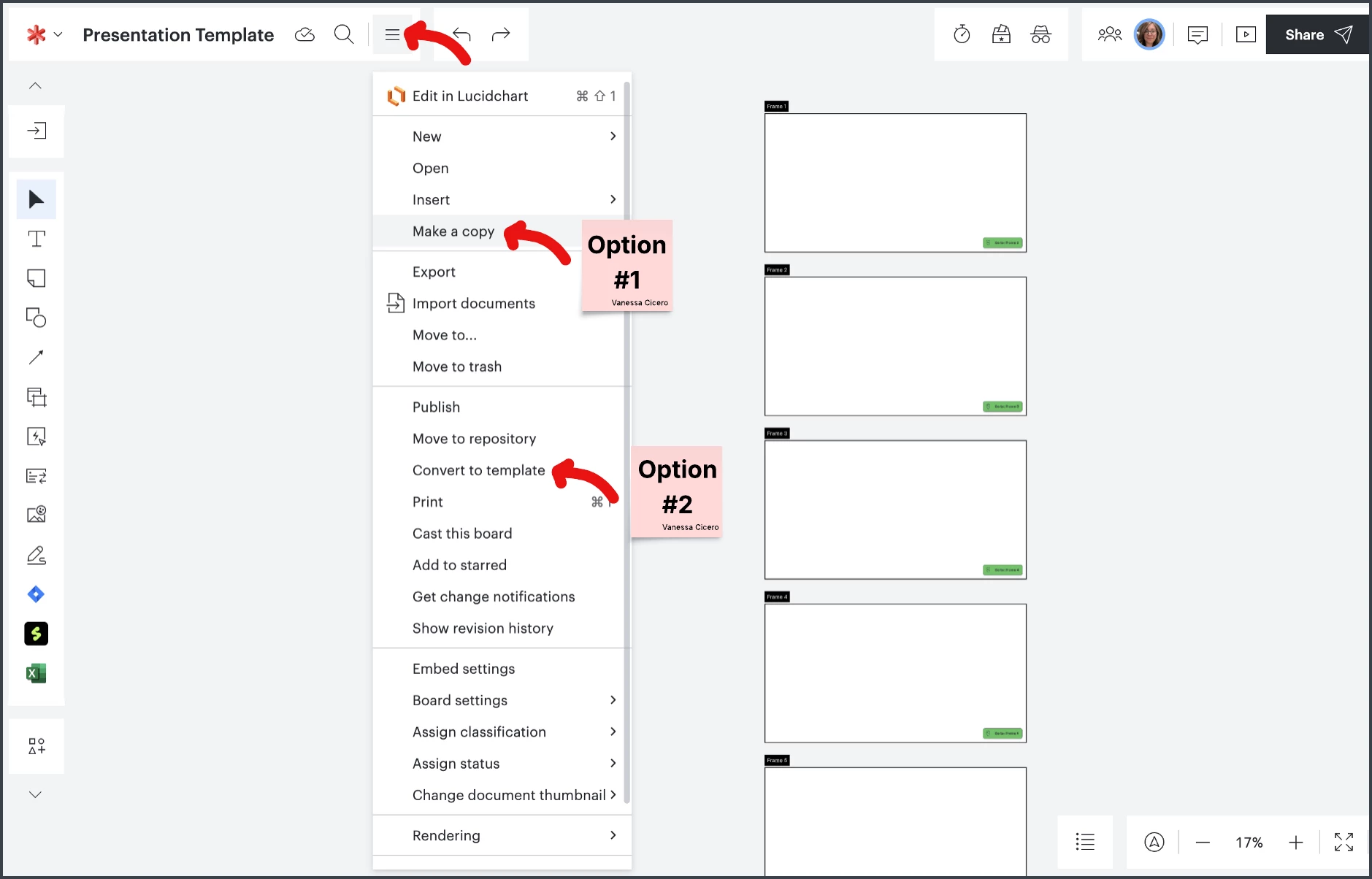
Step 3 | Now that your buttons are set up, use this presentation template.
 Your privacy choices


