

Create Self-Correcting Activities with Lucid AI
Creating engaging formative assessments doesn’t require hours of grading or complex quiz setups. With Lucid AI, you can generate interactive, self-checking activities in minutes for any subject, from introductory STEM to advanced humanities.
These activities automate participation checks to save you instructional time while empowering students through instant feedback, allowing them to self-assess and retry until they achieve mastery.
Read on for practical examples and setup methods. All of these self-correcting options can be applied to any fill-in-the-blank type of activity. (Get your own copy of the examples to test out.)
Don’t forget to look through the “how-to guide” at the very bottom of the page.
Example #1: Green Means You’re Good to Go
In this example students fill in the vocabulary words that match each definition. The shape will turn green when they input the correct word.
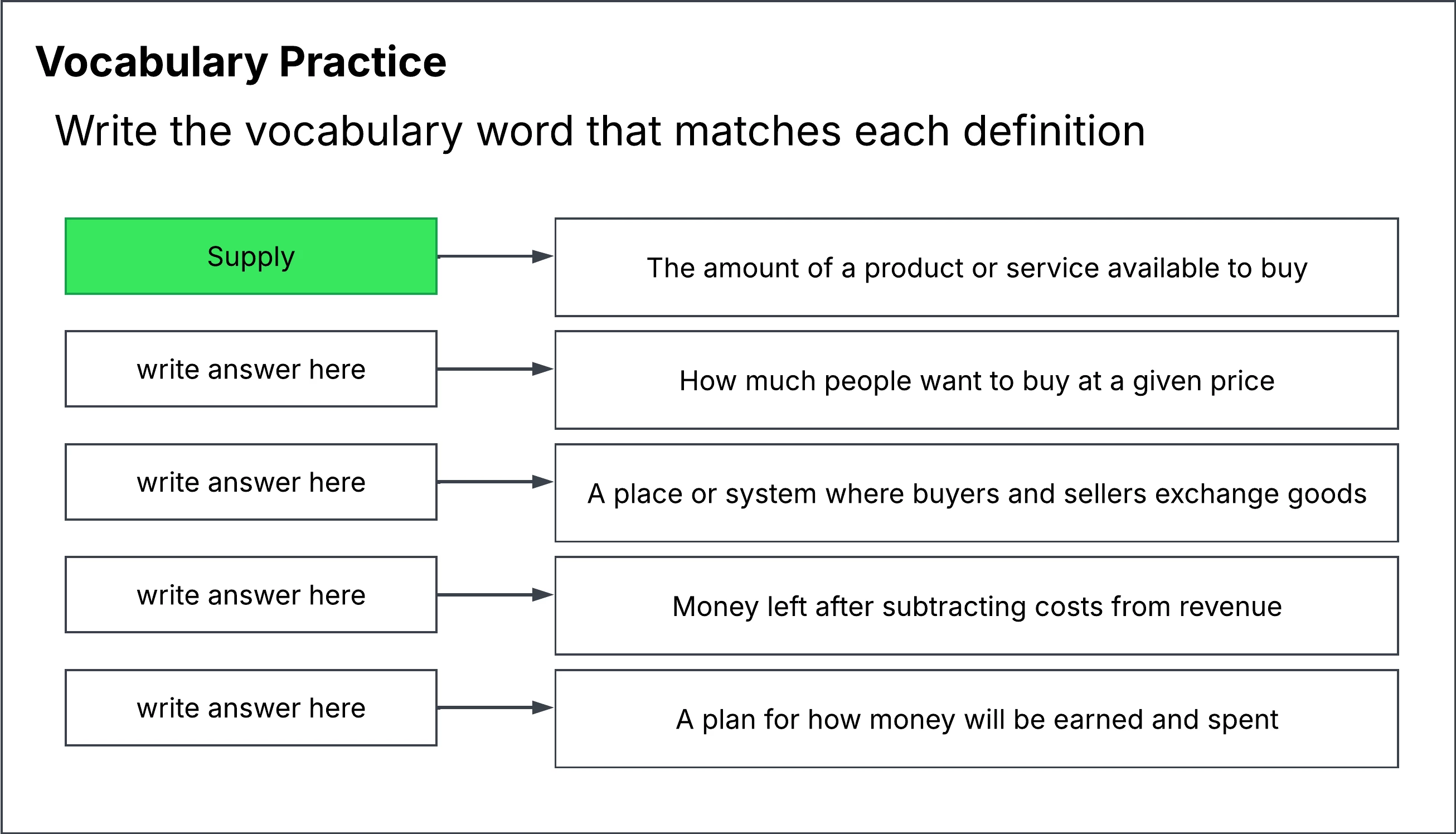
My Lucid AI Prompt: I am using this as a fill-in-the-blank self check activity. The text in each selected shape is the correct answer. Create a conditional formatting rule for each selected shape that turns the shape bright green when the shape contains the current text in that shape. Then remove the text from each shape and replace it with write answer here.
Example #2: Check, You Got It
In this example students write the correct art movement for each picture provided. Students receive a green checkmark when they input the correct answer.
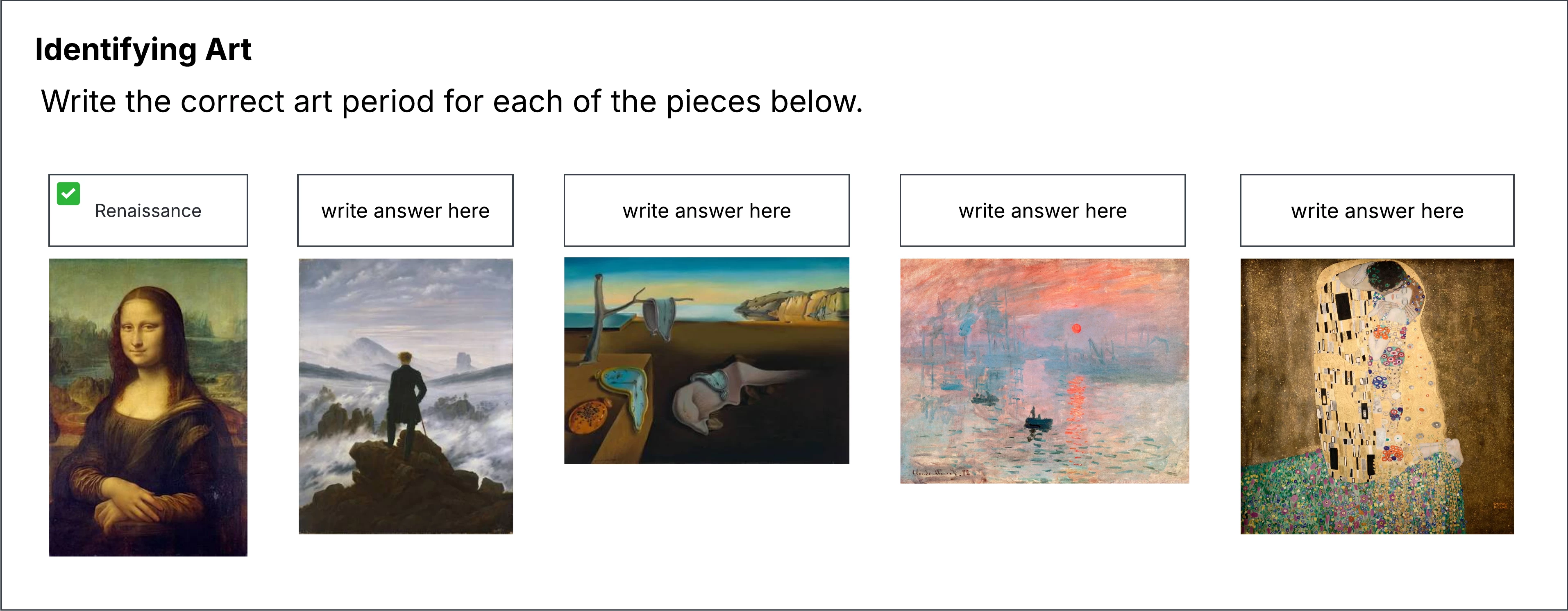
My Lucid AI Prompt: I am using this as a fill-in-the-blank self check activity. The text in each selected shape is the correct answer. Create a conditional formatting rule for each shape to show a green check-mark in the upper left-hand corner of the shape when the shape contains the current text in the shape. Then remove the text from each shape and replace it with write answer here.
Example #3: Correct!
In this example students students put living matter in order from smallest to largest. They receive a blue pop-up when they input the correct answer.
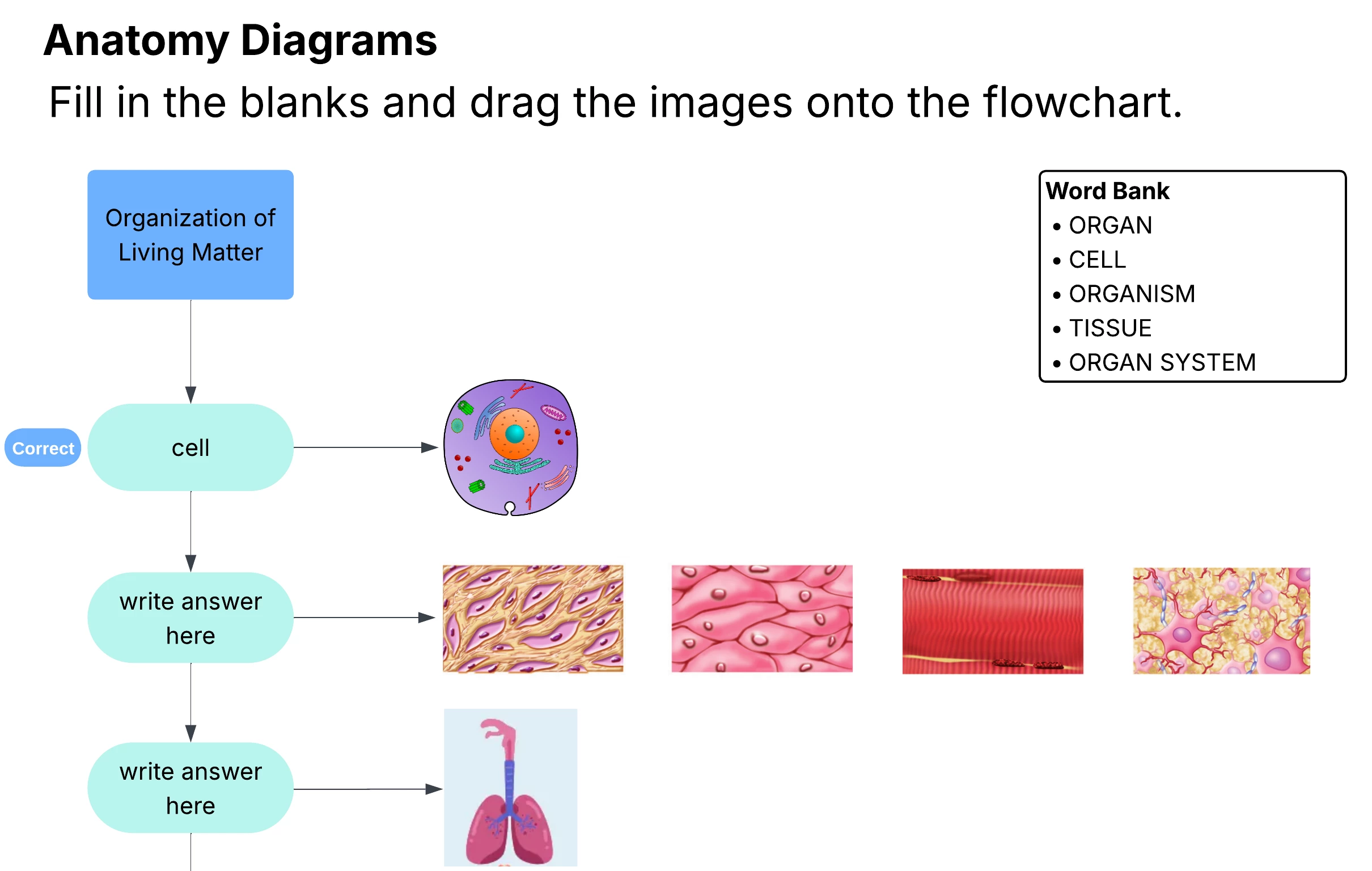
My Lucid AI Prompt: I am using this as a fill-in-the-blank self check activity. The text in each selected shape is the correct answer. Create a conditional formatting rule for each shape to show a Correct text badge to the left when the shape contains the current text in the shape. Then remove the text from each shape and replace it with write answer here.
Example #3: Green Check and Red X
In this example students label a diagram. They receive a green checkmark for correct answers and a red X for incorrect answers.
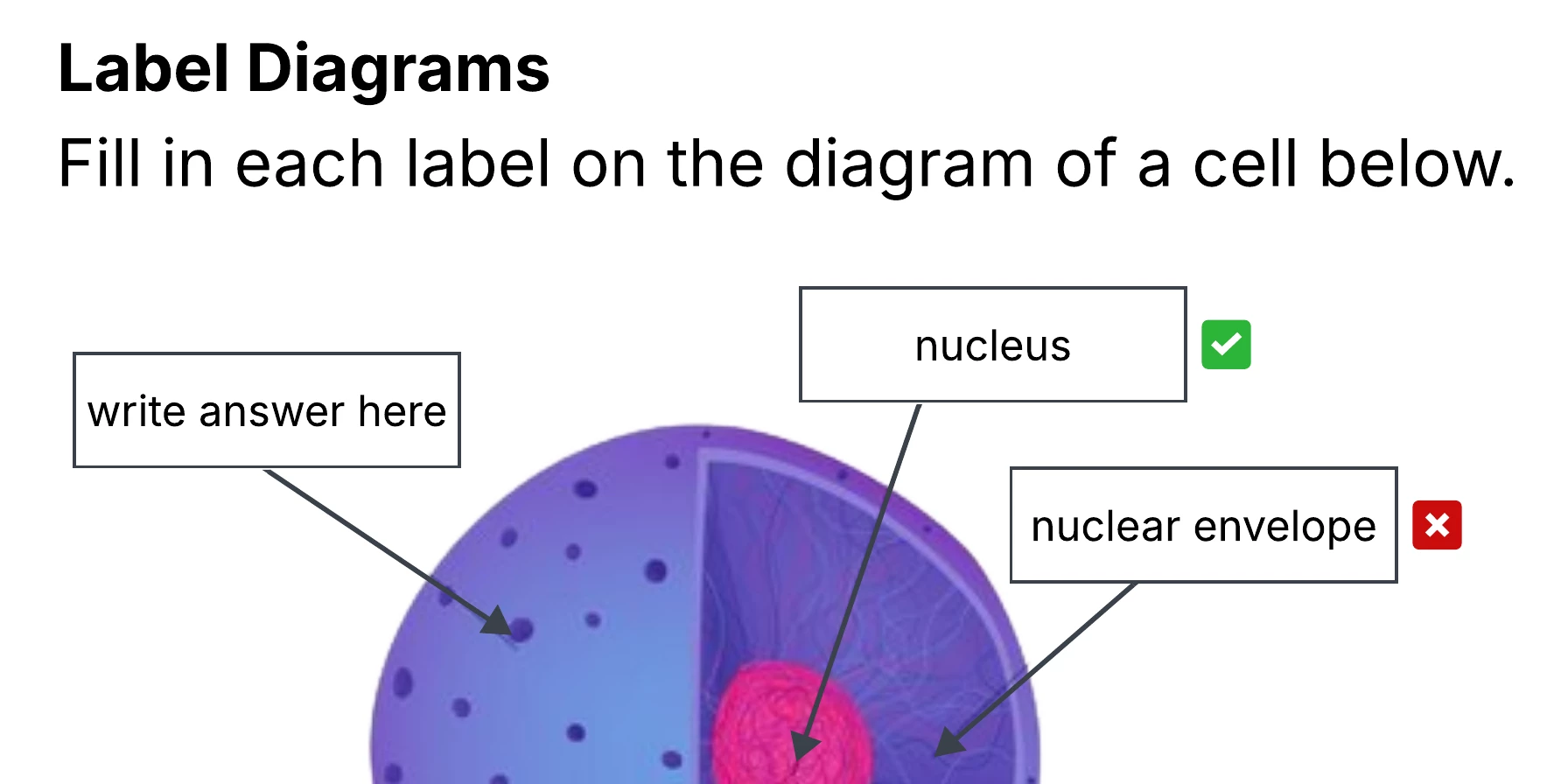
My Lucid AI Prompt: I am using this a a fill-in-the-blank self check. The text in each selected shape is the answer. Create a conditional formatting rule for each shape to show a green check-mark when the shape contains the current text in the shape. Add a second rule to show a red x when it does not match. Then remove the text from each shape and replace it with write answer here. Don't show any icon if the shape says write answer here.
Example #4: Green means go, pink means think again
In this student example students fill in the missing pieces and the shape turns green when they answer correctly and pink when they are incorrect.
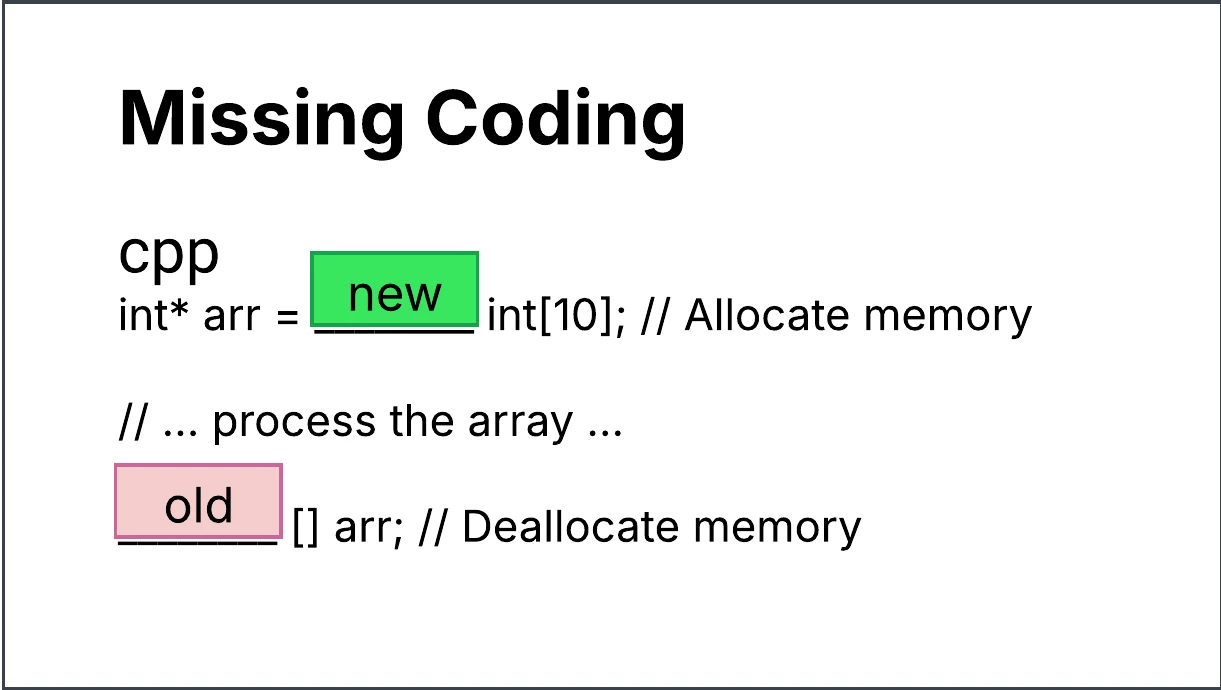
Lucid AI Prompt: I am using this as a fill-in-the-blank self check activity. The text in each selected shape is the correct answer. Create a conditional formatting rule for each selected shape that turns the shape bright green when the shape contains the current text in that shape. Create a second conditional formatting rule that turns the shape light pink if the text does not match. Then remove the text from each shape. Keep the original color when the shape says write answer here.
Example #5: Correct! Or Try Again!
In this example students fill in they missing steps in a process. A correct pop-up lets them know when they got it right and a try again pop-up shows the students they need to take another look.
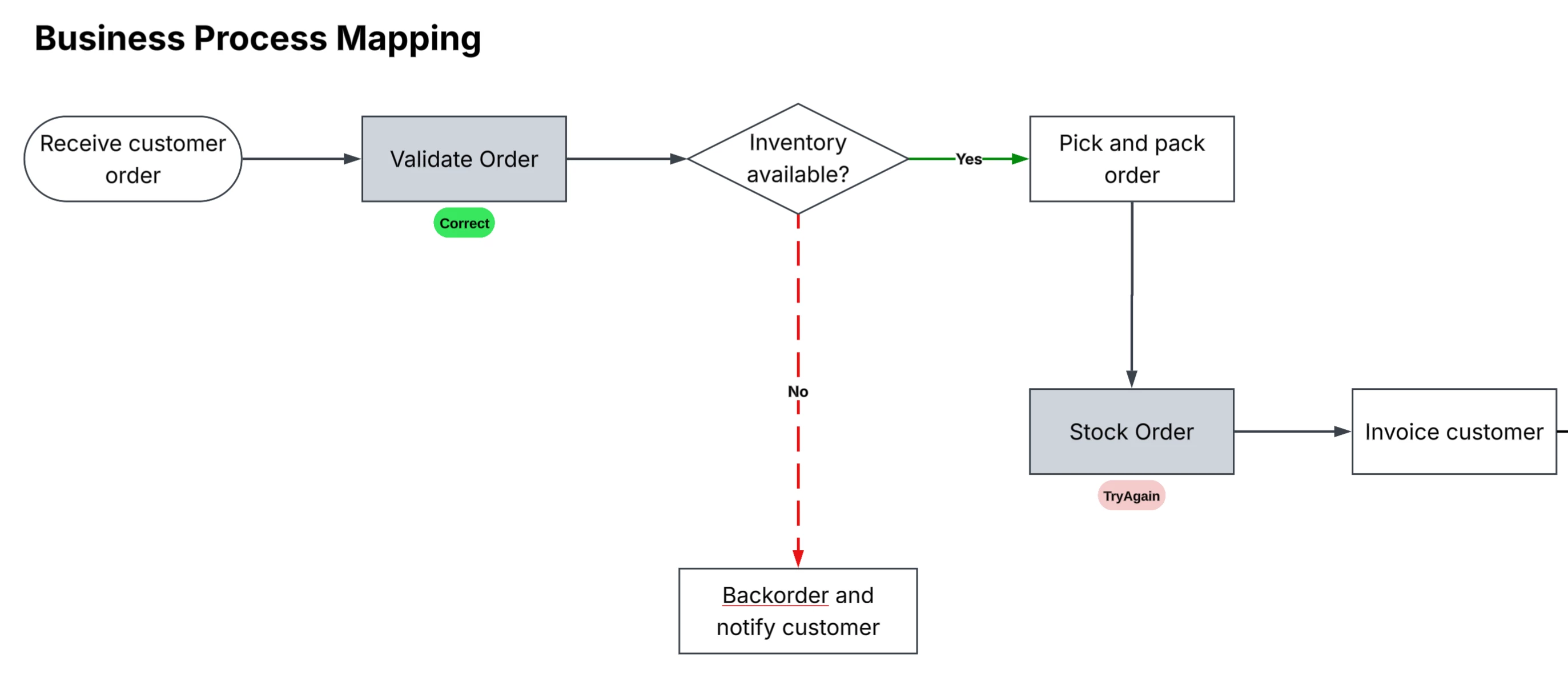
Lucid AI Prompt: I am using this as a fill-in-the-blank self check activity. The text in each selected shape is the correct answer. Create a conditional formatting rule for each shape to show a bright green Correct text badge underneath the shape when the shape contains the current text in the shape. Create a second conditional formatting rule that shows a red TryAgain text badge if it does not match. Then remove the text from each shape. Don't show any icon if the shape is empty.
How to Setup Self Correcting in Lucid
Step 1: Create your activity. Include the correct answers as you build.
- Self-checking is tied to an exact answer. You can use a word bank as a scaffold.
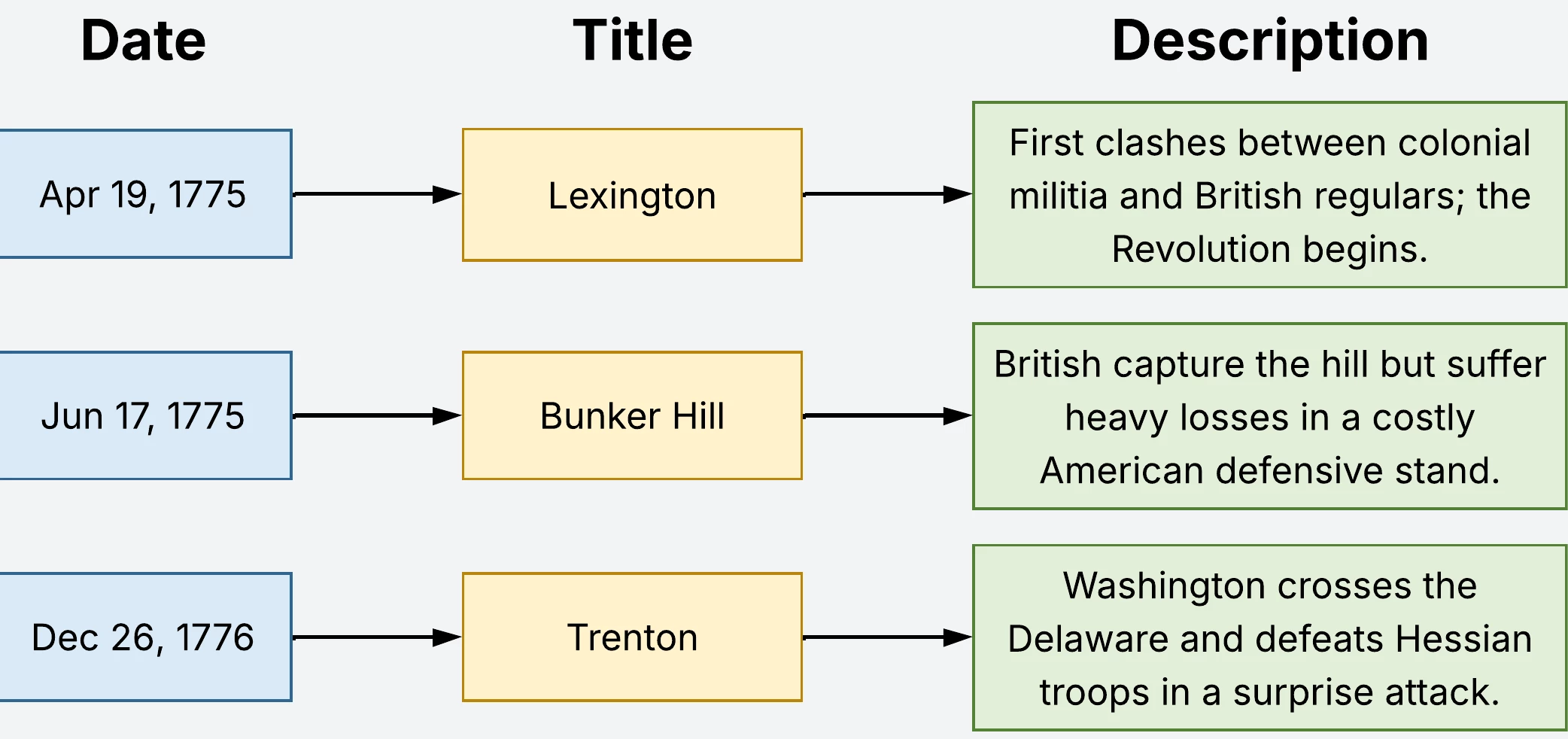
Step 2: Highlight all of the input shapes
- Mac: Hold command and click each shape
- PC: Hold Ctrl and click each shape
Step 3: Add the prompt to Lucid AI
- Choose one of the prompt below or try out your own
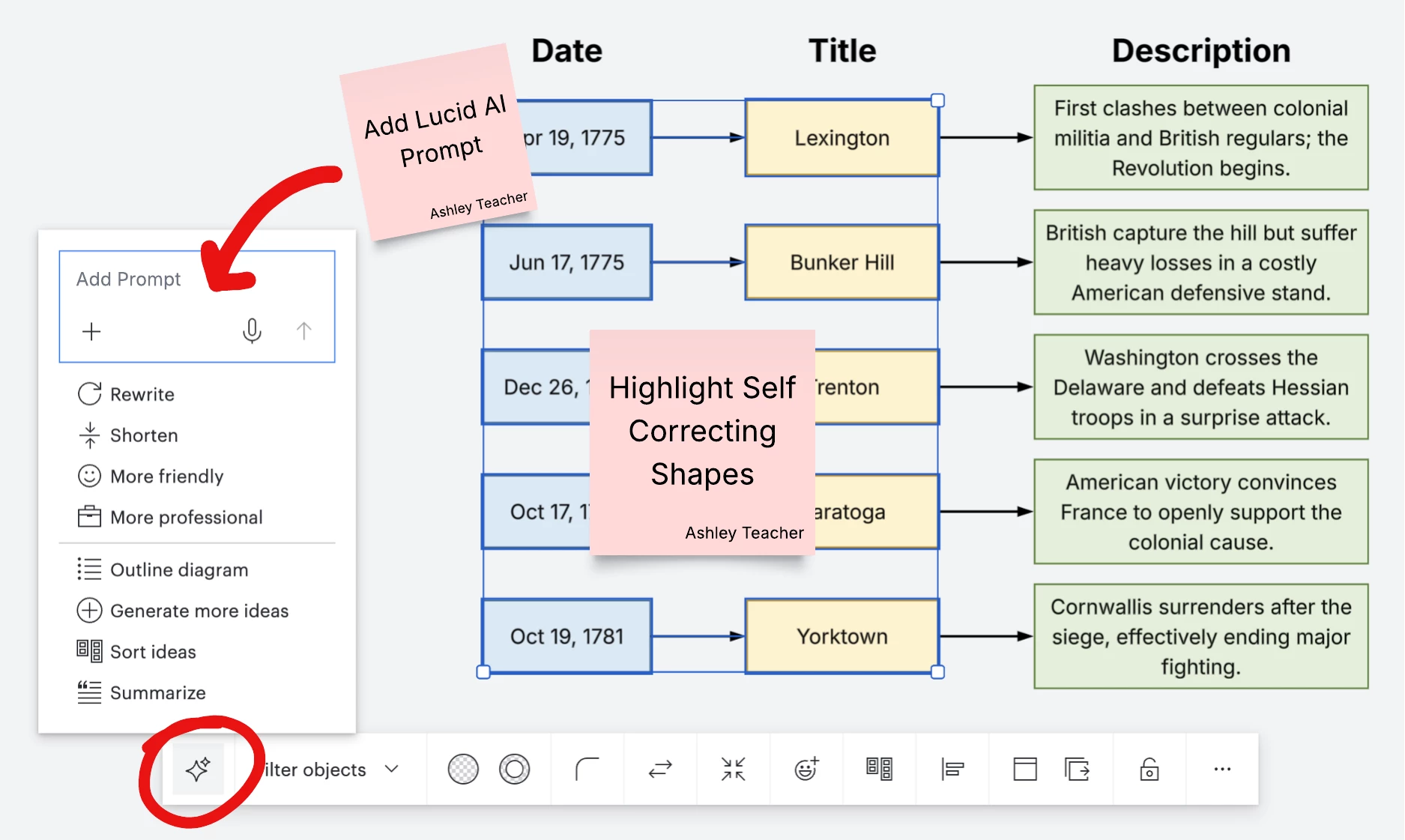
Step 4: Type in the correct answers to test that everything is working correctly
- Make a copy of your original for testing and keep a clean original copy
Step 5: Send out to students
- Add to a Canvas Assignment
- OR
- Send out a force-copy link
Lastly, do you have an AI prompt for creating self correcting activities in Lucid? Share it with the group!
 Your privacy choices


