
Tips and templates for structured collaborative digital brainstorming and discussion boards

  • April 1, 2025
  • 6 replies
  • 104 views

Vanessa C101
Forum|alt.badge.img+14

Lucidspark is the perfect tool for facilitating collaborative discussions and brainstorming.  Students can jump right in and drag their ideas onto the board using sticky notes in a free form style or instructors can provide students with a more structured  environment using one of our digital bulletin boards or brainstorming templates.  In this article we will explore a few of these templates as well as highlight a few features that give instructors additional control during the session in order to ensure a successful collaborative learning experience.


Tip #1 | Lock Size and Position, Not Content

Select all of the stickies and use the advanced locking features to lock down the size and position, but not the content.  This ways students aren’t moving the stickies around or deleting them, but they can still write their ideas in the stickies


AD_4nXdntcqeStgE1qzlhuX3qLDmR96bp_ce9kA55PbJU3DrOCpTjMipr_GzJ7RvUx5wUVNNDhGSX2oXcfNMQizD-EV0qpM8N_kdPWc9mPSHGwL-kHu3rVgzaoq2pAh2GqbfaoFAEDKu-w?key=bLzKGJYU1O8U2VgoJ_frY3oZ


Tip #2 | Divide Up Larger Groups with Breakout Boards

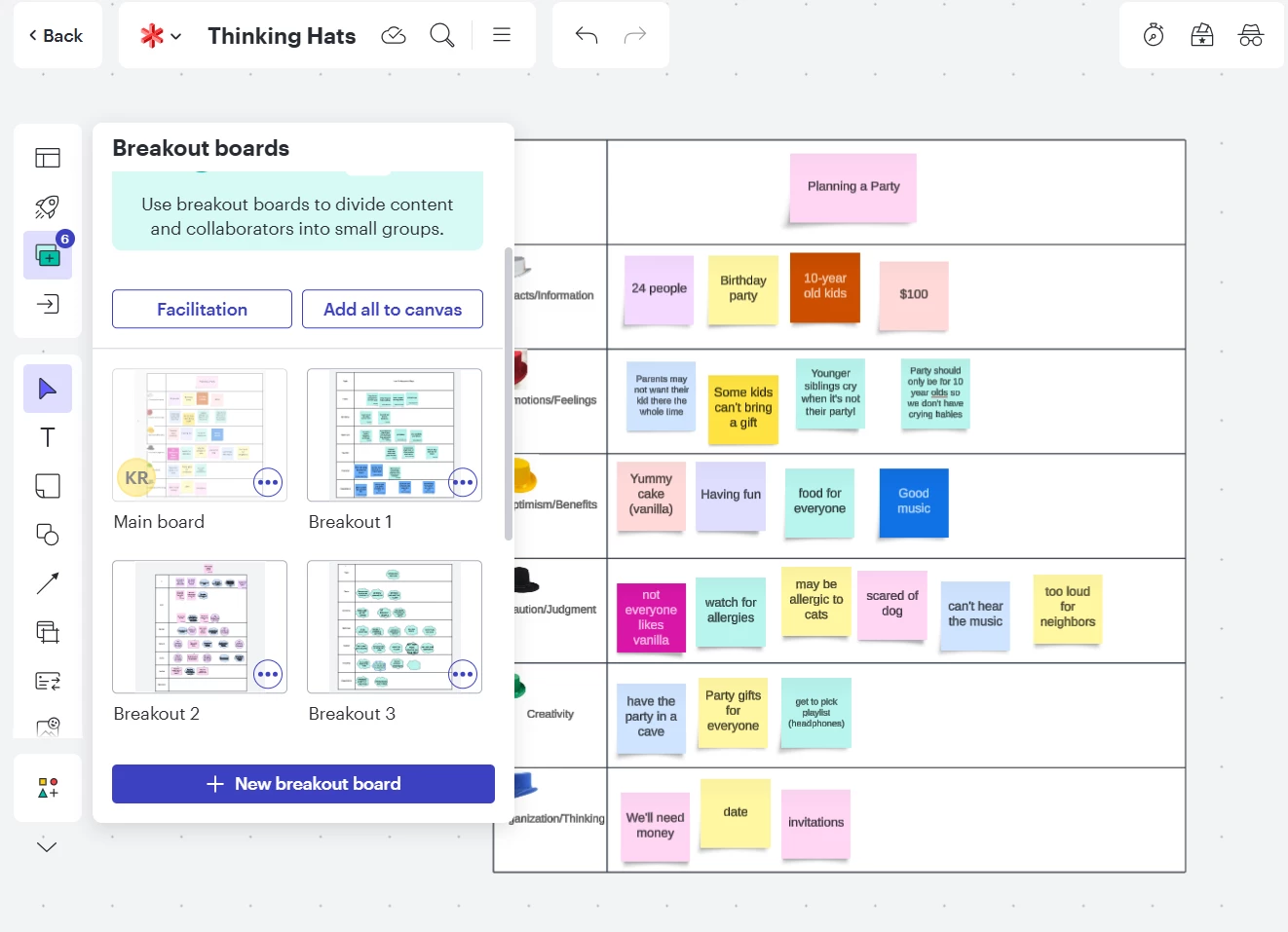
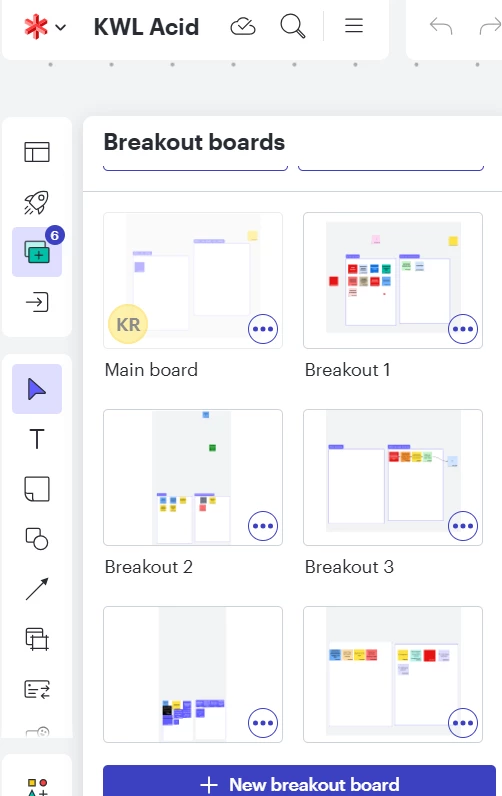
Too many students in one collaborative space can be chaotic and overwhelming.  Breakout boards allow instructors to utilize collaborative learning experiences without the chaos.  Add breakout boards for different sections of your class.  25-35 students is the recommended amount per breakout board.

AD_4nXfu-0mgTT6i07f1wYg6USi5GY_YA4Xbbd9b2_2g2SZPtYR4FhZ-xPBJFbYl0Q7Di-kFOz-wmMpdhTyb-Ft4aXtdg8X38p-FYkqKs7-SusEBWpgo3ef7EbW2__5G4qcqRbmjMW-xUQ?key=bLzKGJYU1O8U2VgoJ_frY3oZ


Tip #3 | Use Private Mode for Unbiased Responses

At times, instructors don’t want students to be initially influenced by what other students are adding to the board.  They want students to add their own original thinking before reviewing what other students are thinking.  Instructors can turn on private mode to keep the content of the sticky notes hidden until the instructor ends private mode.  Students do need to drag their own stickies onto the board after private mode has been initiated in order for their content to be hidden.

AD_4nXfKwxgmaBH825H-apl3Rx6q5kVmT2FMxdrnyG_49AKRvIEFEgjyhHNGPPaLXv4yXuK-ft23nyFIbg9z5OgLj-GYG2oSkGfDmY3V_N4SFCK947wl4UQLi6ckZ3lP-zxim8ezagHoGA?key=bLzKGJYU1O8U2VgoJ_frY3oZ


Tip #4 | Turn On Facilitator Controls

Most importantly, instructors should always make themselves the facilitator before a collaborative activity with students and restrict access to certain features using the controls toggles in order to set the lesson up for success.  

AD_4nXevgbwZmUti8JM6Vd-N9u--4vk8zH6dhoCKXYX0dJNOz01vNjR3pWcrpe1PYgB4S2mOmu4QV1ifX8w4RmnxCjdLBNRN1dflFdu6HcmeFdMoCh_lBhXj05W7AJDhicLIDyAPSZoDsg?key=bLzKGJYU1O8U2VgoJ_frY3oZ


Tip #5 | Quickly See Who Participated

There are a couple ways that you can quickly see who participated duing the collaborative session.  Check them out here.

AD_4nXcL0y0Hf3fuN8UglPc7fcMEej1r1YOw0yi3t5RadcQB3rEWwwdGKeaXDRC60xKPmp_fpQe7t9hc7UlHk7DXLi9KIuuMKnIstE-HaKPHNxcv4Xiz7XwujPKG4xWnAck9_BfPMh_jnA?key=bLzKGJYU1O8U2VgoJ_frY3oZ


Template | Colorful Response Prompt Board

AD_4nXcLyqy1rmvLU1crWS-Jyxgr5WEBilN9SDq6BB0oR0yg5Bn2o3KztOWQ4GoGjcJ-M3wLEiHPPSTdm8l1PTU2O0g2NTmUM4VfS3dDK_T4SSB_N9Y7Sllo0VuMzttC3aIVFi6vL1ZjwA?key=bLzKGJYU1O8U2VgoJ_frY3oZ


Template | Frame Workspaces

If you need more space for students to complete their work you can use frame workspaces.  This gives students a lot more room than just one sticky note.  Students can use the table of contents to find and navigate to their frame workspace.


AD_4nXezvzxuJt0UHj0zFPWXtLBr39WLCTL6sQ4jpCZYjSQIvYfR_vbEE5UHrKRnVXcHPrLW9X-zBTxB2WnMgNzqF2TpBUUQP7Vmyk04iJUQz2uCB5mxFhAKj4pgNEorVyH-9FJku9fktQ?key=bLzKGJYU1O8U2VgoJ_frY3oZ


Template | Category Focused Brainstorming

AD_4nXe2FHro2yCOj3EO1fOHseI8MAnVhisHZDRDmMAkQ3IpTkuFcd8b2-KA3ePS8TdAZQSoSguQ9NAlg-kk6EFdJpVkDQr_2-gEc4XrX51ZyvvnuprYuLf-yzNE8ZqRn-7JhU8K32yv2A?key=bLzKGJYU1O8U2VgoJ_frY3oZ


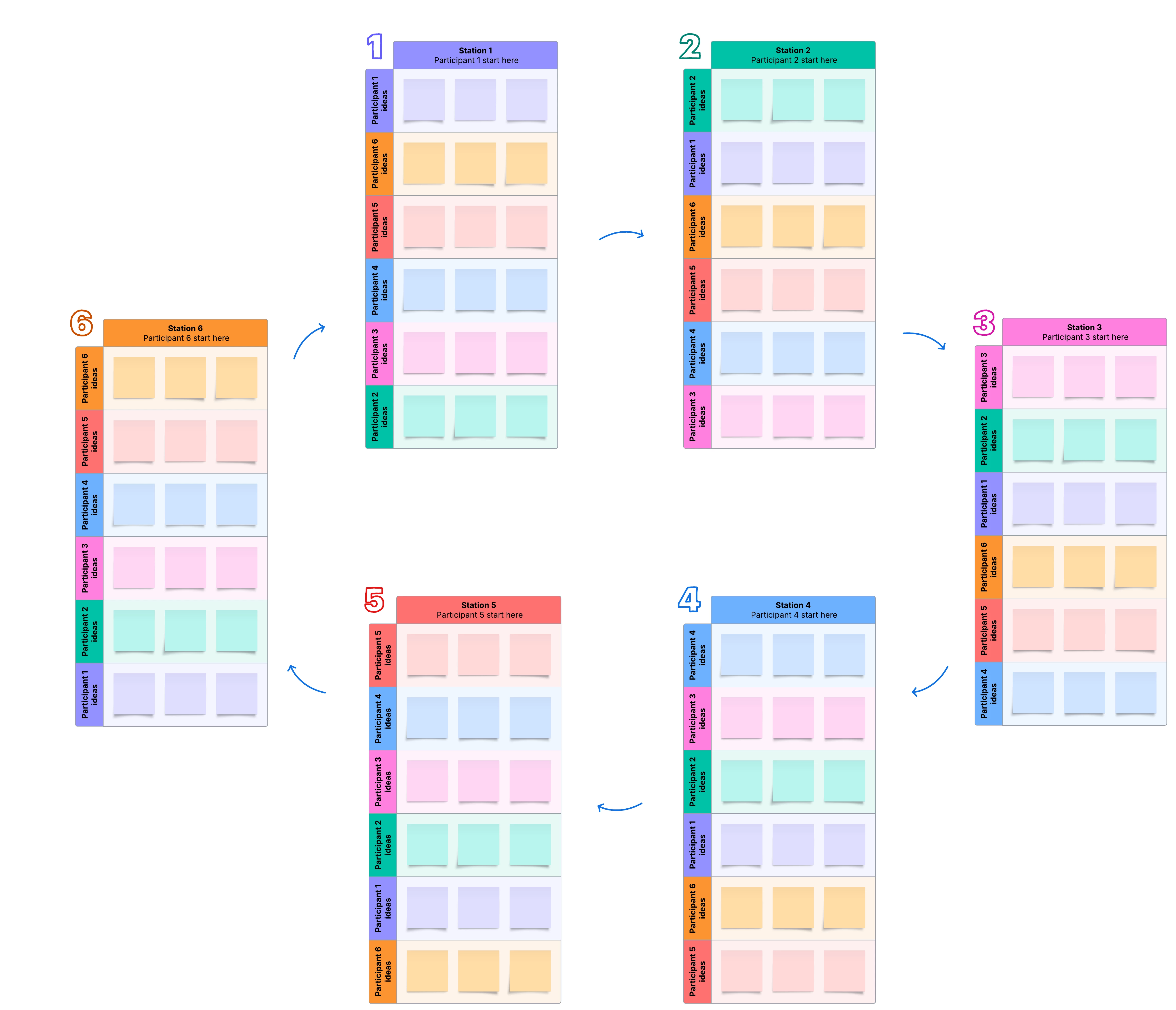
Template | Brainwriting 6-3-5

 

Now it’s your turn, share with the community any tips you have for structuring a successful collaborative learning experience.

Comments

Stacey R
Lucid Legend Level 5
Forum|alt.badge.img+10
  • Lucid Legend Level 5
  • April 1, 2025

Awesome tips, as always!

The ease of creating and using Breakout Boards is definitely one of my favorite things to showcase in Lucidspark. I also really like creating Paths when people will be contributing in a more self-guided way (versus when we are collaborating all together).

The Brainwriting templates in Lucidspark are some of my favorites. They have certainly encouraged me to explore new ways for participants to engage in activities and interact with each other’s contributions.


Kathy R
Lucid Legend Level 5
Forum|alt.badge.img+10
  • Lucid Legend Level 5
  • April 2, 2025

I’ve used the breakout boards before to make the movement of items and ‘fights’ over who put what where limited.  It also limits how many people are on each board.  I used my main board to share what to do as a class.  Then we moved to breakout boards where each group did their own topic like our main board example.


Ria S
Lucid Legend Level 8
Forum|alt.badge.img+19
  • Lucid Legend Level 8
  • May 14, 2025

these tips are great! thanks for sharing!


Shira M
Lucid Legend Level 5
Forum|alt.badge.img+9
  • Lucid Legend Level 5
  • September 15, 2025

Thanks for sharing these awesome tips! I completely agree that Lucidspark is a fantastic tool for collaborative learning. I've been using it in my classroom for a while now, and the features you highlighted have been game-changers.

I especially love the Facilitator Controls. I always turn them on before any activity, and they've been so helpful, especially at the start of the year during our digital citizenship unit. Students get really heated and have a lot to say on the topic, but with these controls, they can go wild in the comments and replies to other people's posts. It's a great way to let them express all their ideas without everyone talking at once.

Quickly seeing who participated is a game-changer. After a brainstorming session, I highlight all of the stickies on the board and then use the "Filter objects" feature. This gives me a super clear list of every student who contributed and exactly how many stickies they created. It’s a fast and easy way for me to assess participation at a glance and make sure everyone is engaged.

Thanks again for sharing these valuable tips and templates. I'm excited to try out the Brainwriting 6-3-5 template with my students!


Kathy R
Lucid Legend Level 5
Forum|alt.badge.img+10
  • Lucid Legend Level 5
  • September 15, 2025

Tip #2 I just used this week!  My 5th graders needed to fill out a KWL chart and, 1) They can’t always be trusted to not play around on the larger shared board, but 2) I also wanted them to have their own ideas in their own smaller groups.  I was quickly able to make a main board, show them what to do, break them into groups and just duplicate the board for breakout rooms.  I could see everyone that was in each room and I knew everyone was on task.  A great monitoring and participating option!


Ambar D
Forum|alt.badge.img+10
  • Lucid community team
  • September 16, 2025

Thanks ​@Kathy R for sharing such a great example of this tip in action! 

What a great use of this functionality in the classroom setting!