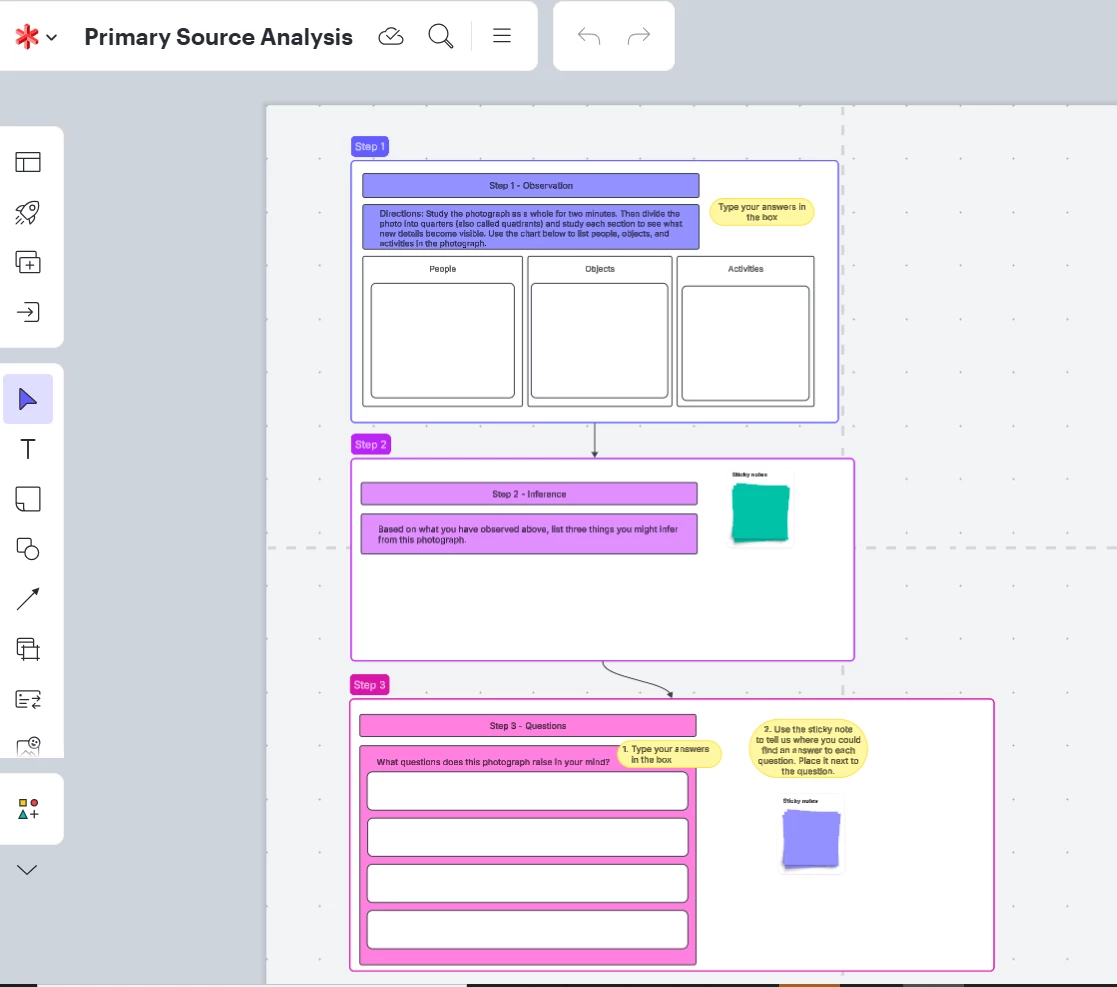



I was able to do my first Lucid activity integrated into Canvas. Prior to this, I was sharing a link with my students which allowed them to Force Copy one of my templates and then submit their work back to me using the Share button within Lucid.
Now that I’ve used the integration tool, I’ve seen an advantage to both options! So, if you don’t have access to the integration option within your LMS, or want a different way for students to share back with you, there are good options!
For my assignment, I recreated a worksheet into Lucid (very easy to create, and more exciting than a piece of paper!). I work with elementary students, so for my kids, I turned off the infinite canvas so they wouldn’t get lost (or play around).
For the Canvas integration, I just selected my template from the external tool option and students received a copy when they opened their Canvas assignment page. When students completed the assignment and submitted, I got their completed assignment. Very easy!!
But, here’s a cool difference between giving the Force Copy link to click on within the assignment and the Canvas integration: when you use the Force Copy link, students can submit their assignment and keep working! The link they share back with you is a live link and any changes students make will be seen by using the link. This is not true when using the Canvas integration. Like a piece of paper, once the assignment is submitted, any other changes won’t be captured.
When I use the Force Copy link within the assignment page, I always have my students click on the link and open the assignment for themselves. Then I have them immediately press the Share button in Lucid, copy the link, and have them submit that link into the Canvas assignment as that link. THEN they go back to Lucid and actually start their work. This means the assignment has been handed in, I have the link, and I can monitor what students are doing as it happens during class. If we take more than one class period, students can just return to their link and continue updating what they were working on and I can keep monitoring. This assures that students are working, I have a copy of what they are working on, and no one forgets to hand in the assignment.
So, if you know you are planning to work on an assignment for more than one class, and you want to see progress each day AND see a final copy, I would suggest using the Force Copy link within your assignment page vs using the Lucid External Tool integration option.