


This article shows you how to incorporate Lucid assignments into your Canvas course so that you can also use Canvas’ copying and blueprinting features (The Lucid integration itself is not compatible with copying or blueprinting inside of Canvas).
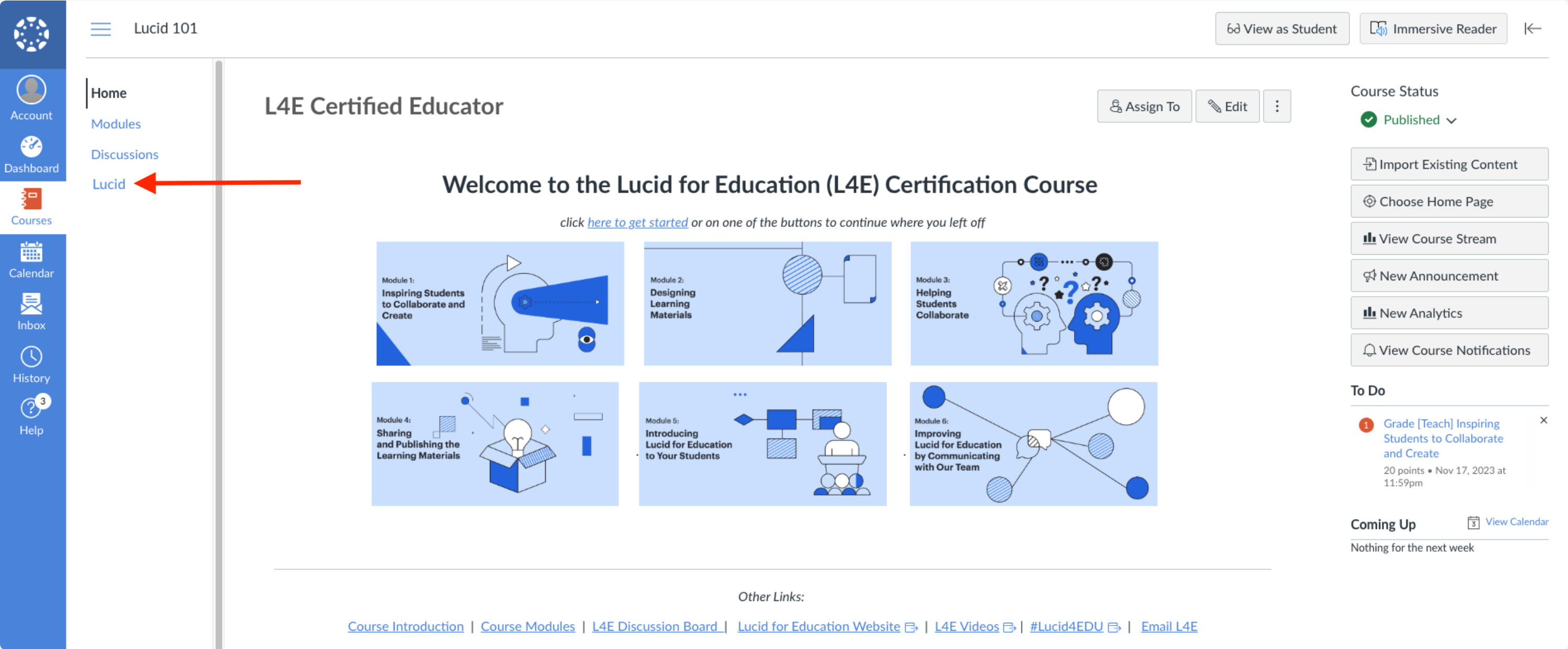
1. Navigate your Lucid Dashboard by clicking on “Lucid (Whiteboard)” from your Canvas course navigation.
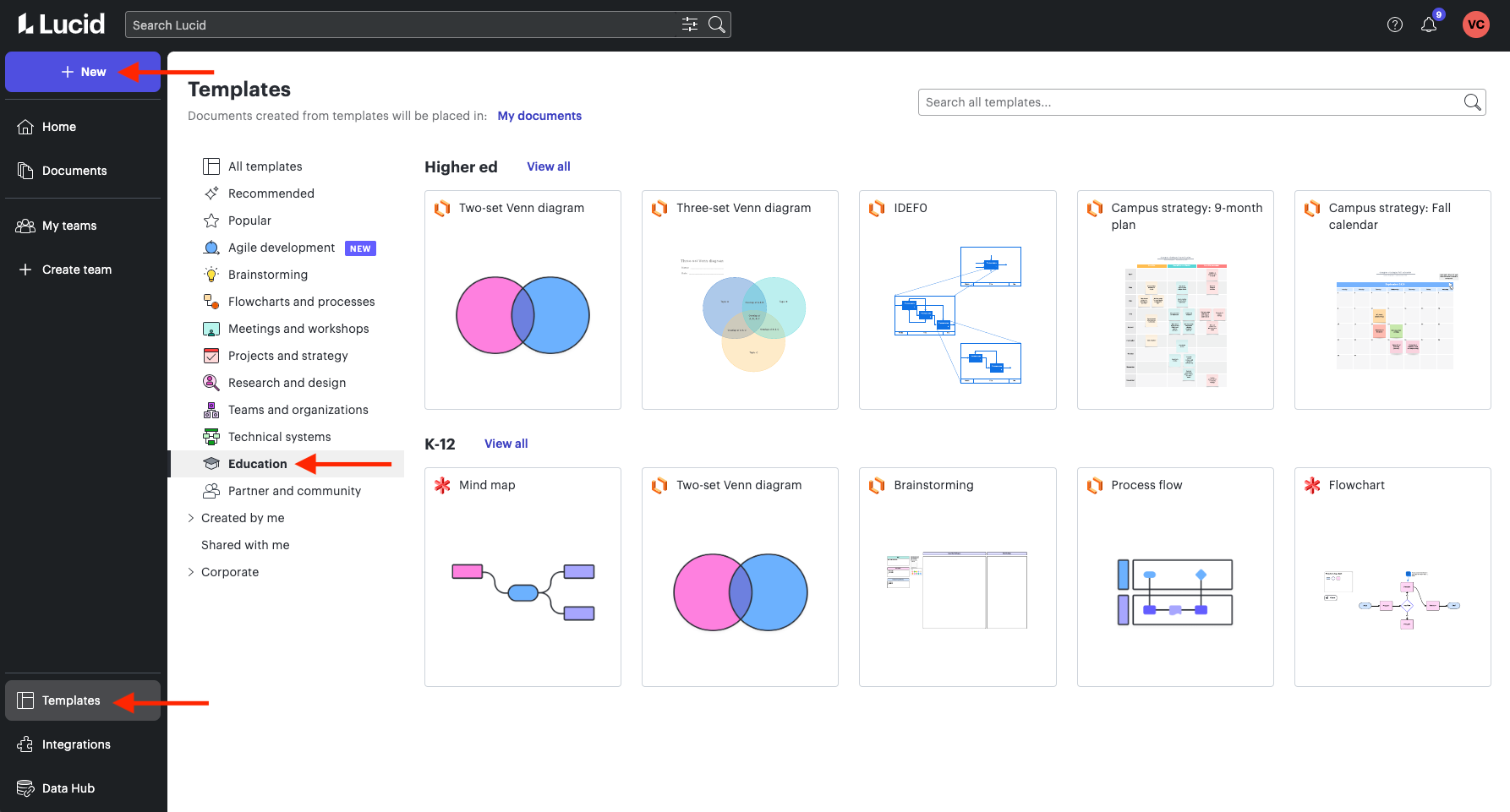
2. Browse through and customize one of Lucid’s templates or build your own template from a blank Canvas.
3. Once your template is completed, create a force-copy link for your template (how to video).
-
Publish your Lucid document
-
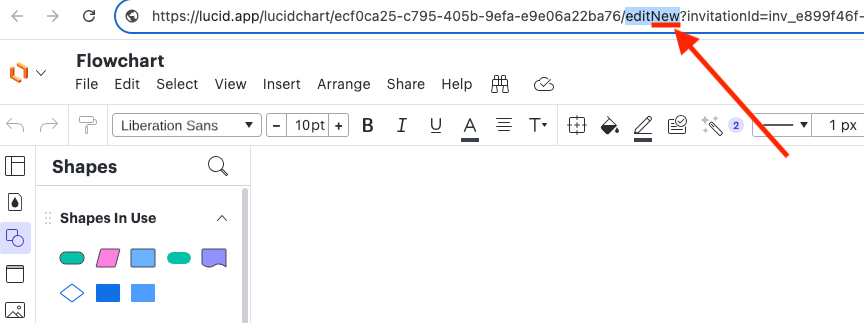
Add “New” after edit in the URL for the Lucid document
4. Now it’s time to add this force-copy link to a Canvas Assignment so that students will get their own copy of the template when they click on the link in Canvas.
-
Create a new assignment in Canvas.
-
Type the name of the template into the Rich Content Editor
-
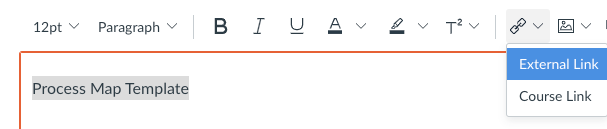
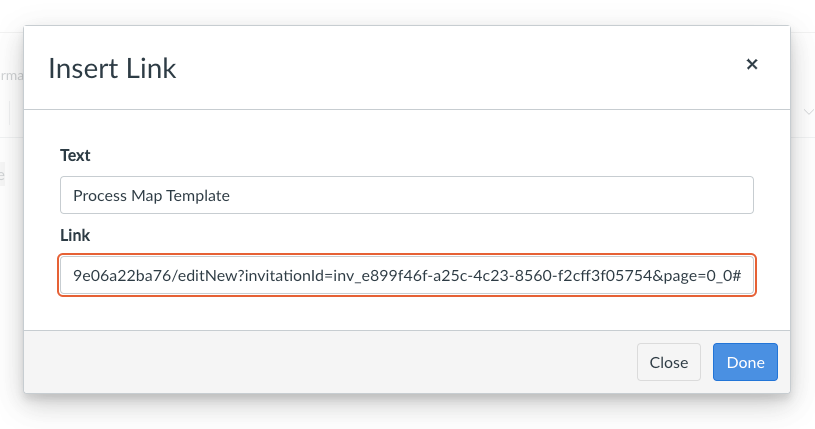
Highlight the name of your template in Canvas. Click on the link option in the RCE, Select “External Link,” paste the force-copy link you created.
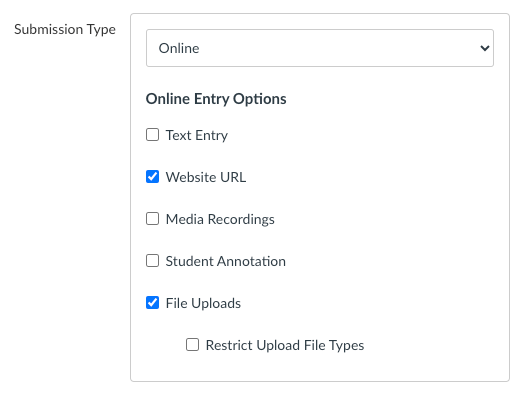
5. Choose “Online” as your Canvas submission type. Select “File Uploads and/or Website URL.”
6. Finish your grading settings for the assignment and save/publish.
Once student have completed the Lucid assignment, they can…
-
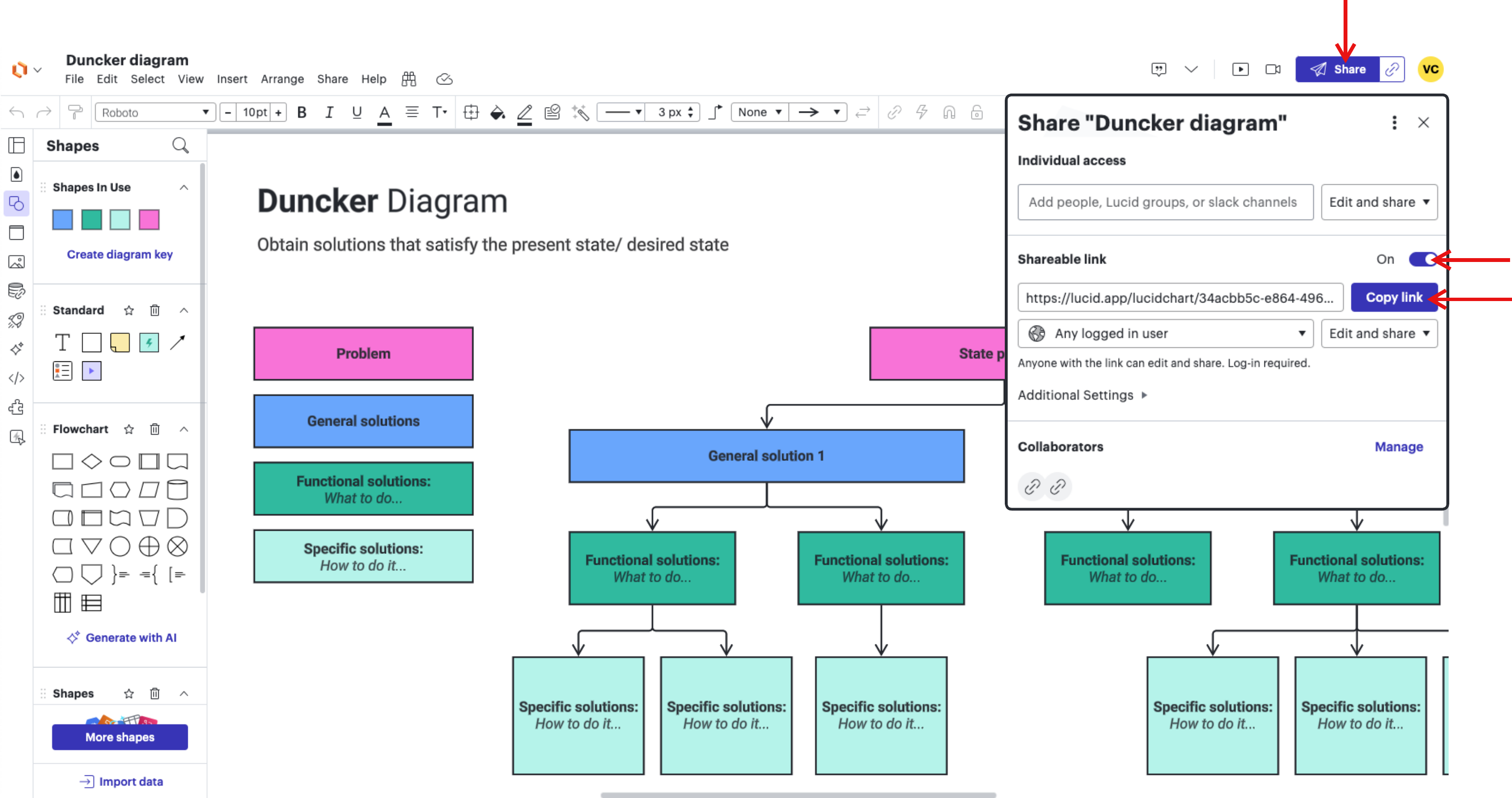
Option #1 Submit by grabbing the share link for the document
-
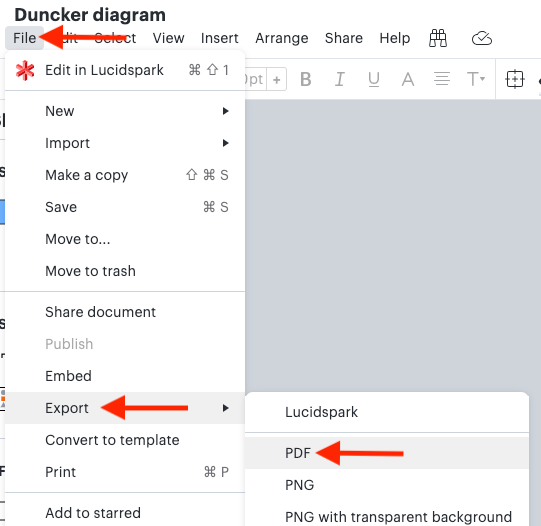
Option #2 Submit by downloading a PDF
 Your privacy choices


