This article will show users from EURO or APAC regions how to activate their Lucid license through Canvas if there institution has selected to use Google SSO as their authentication method. Start by watching this video walkthrough or follow he steps listed below.
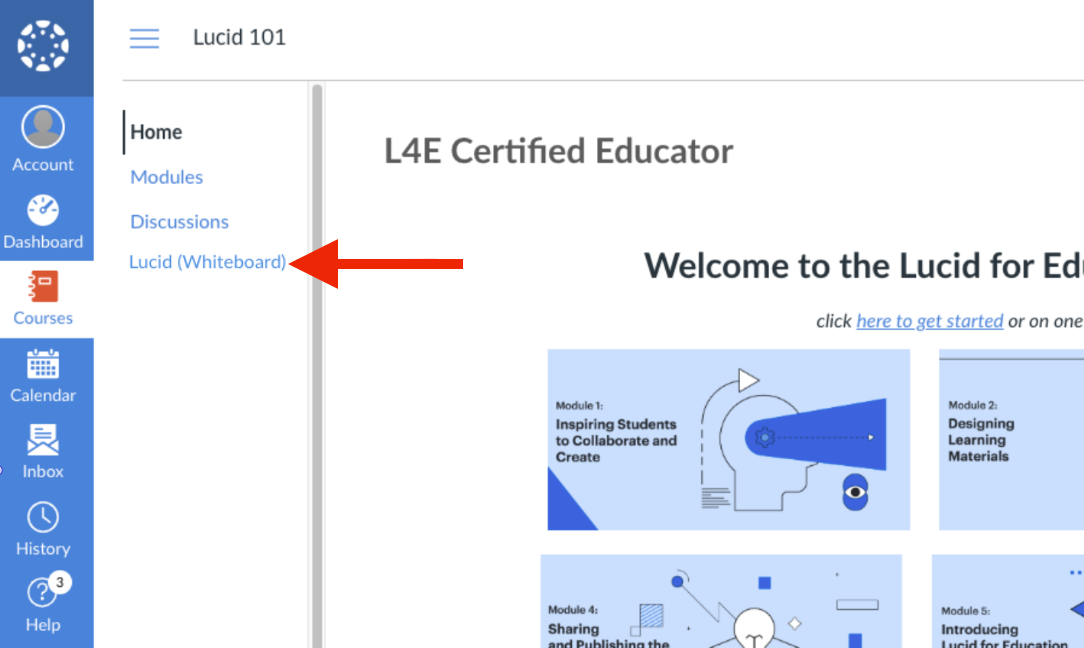
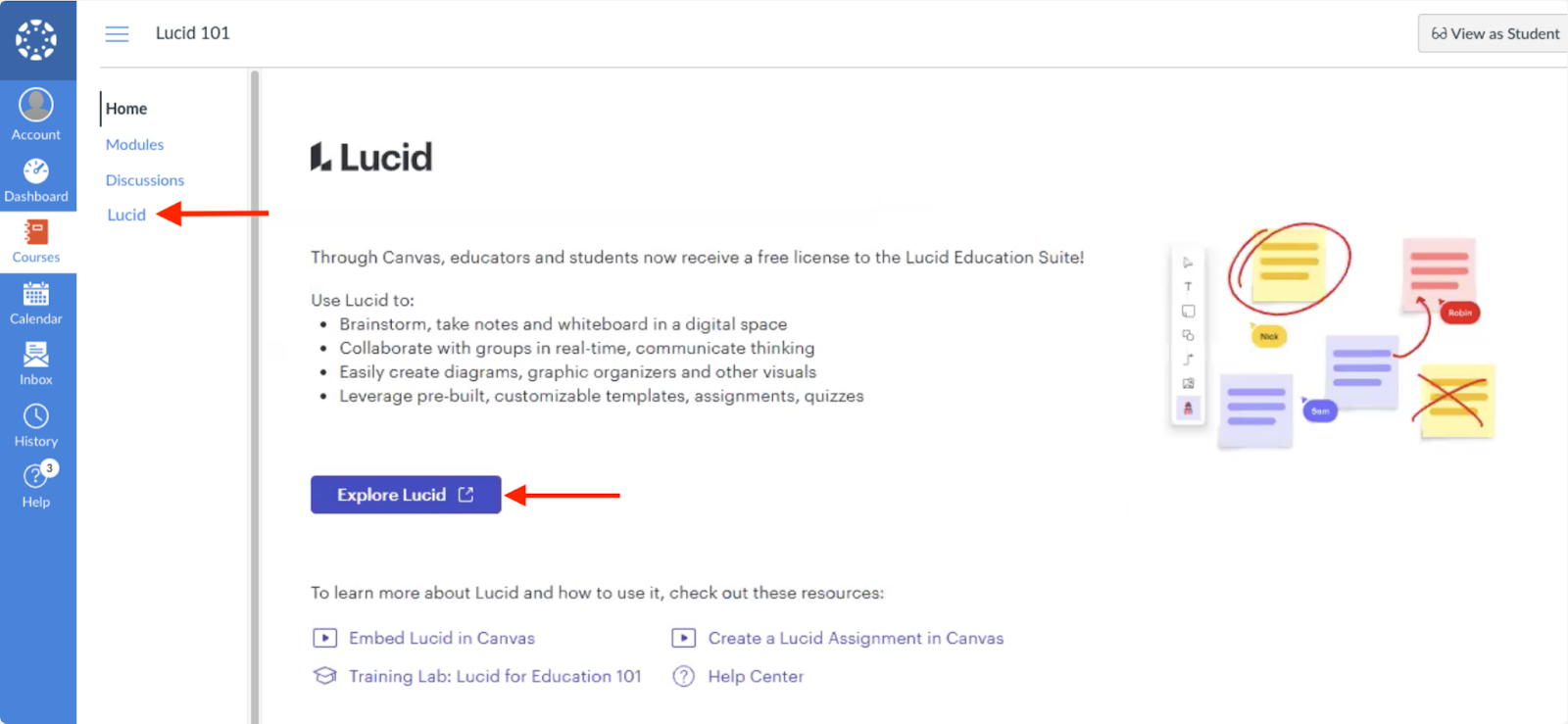
#1 Navigate to Canvas and click - Lucid (whiteboard)
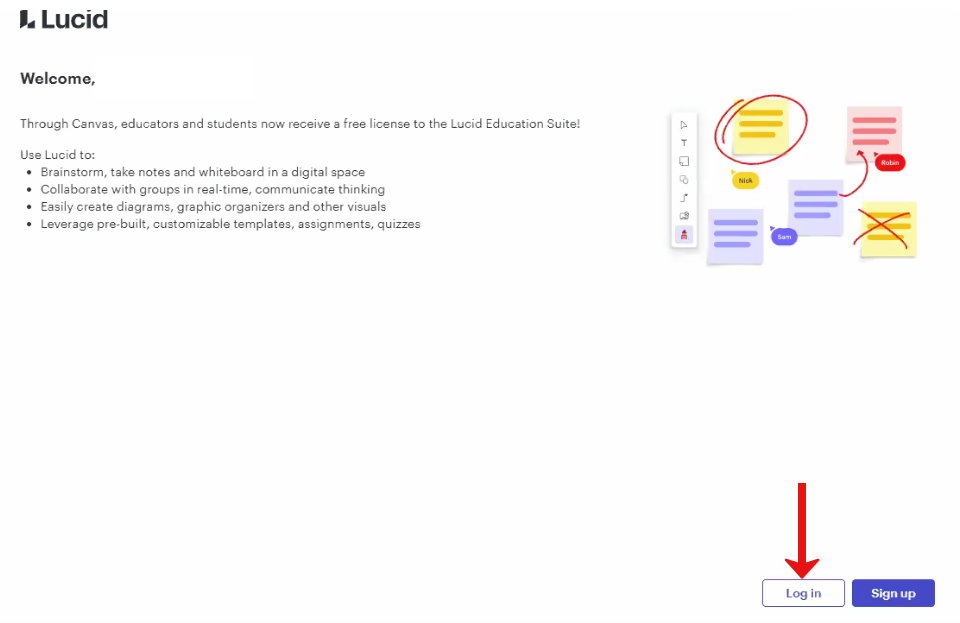
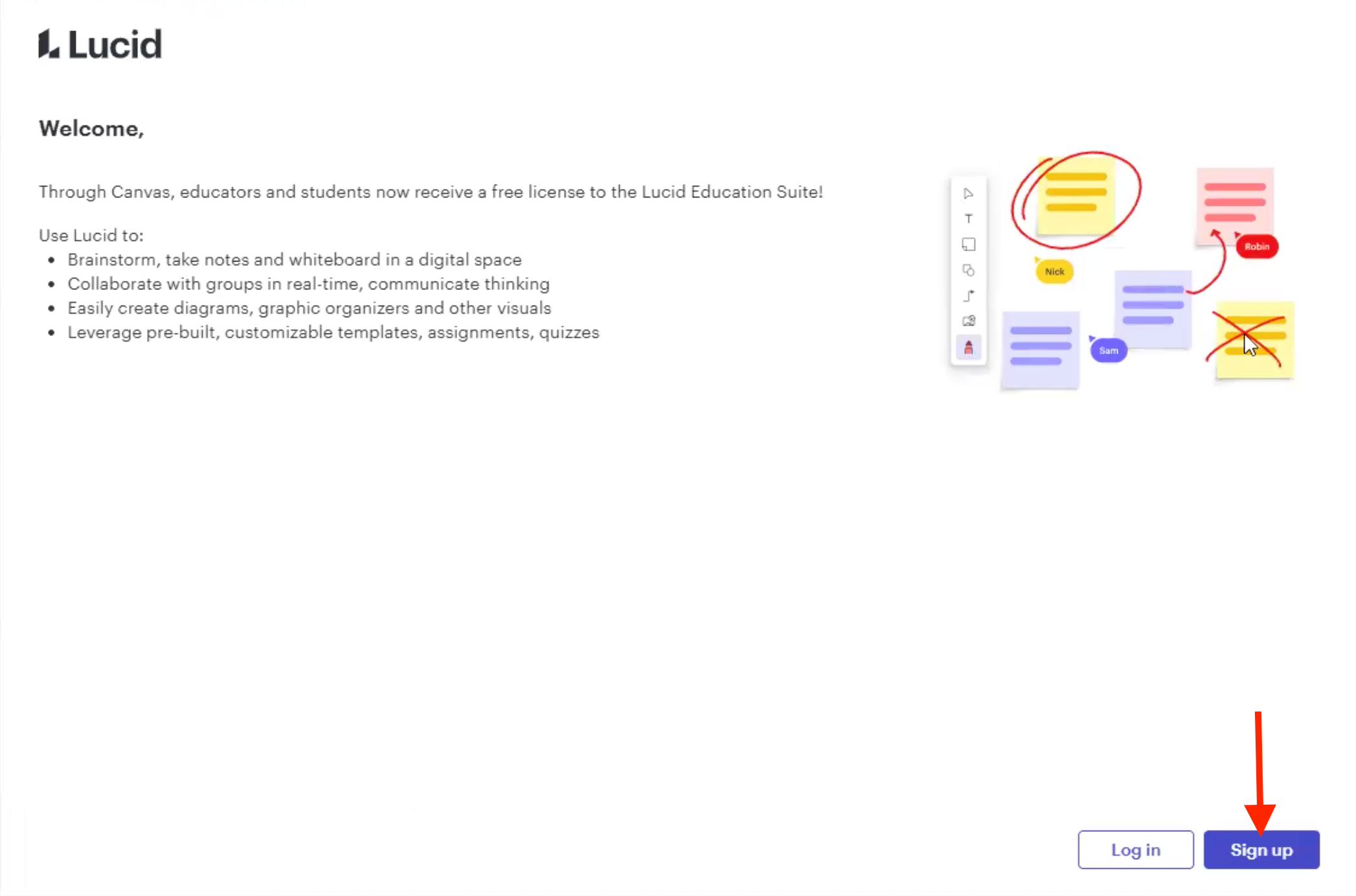
#2 Click Log in
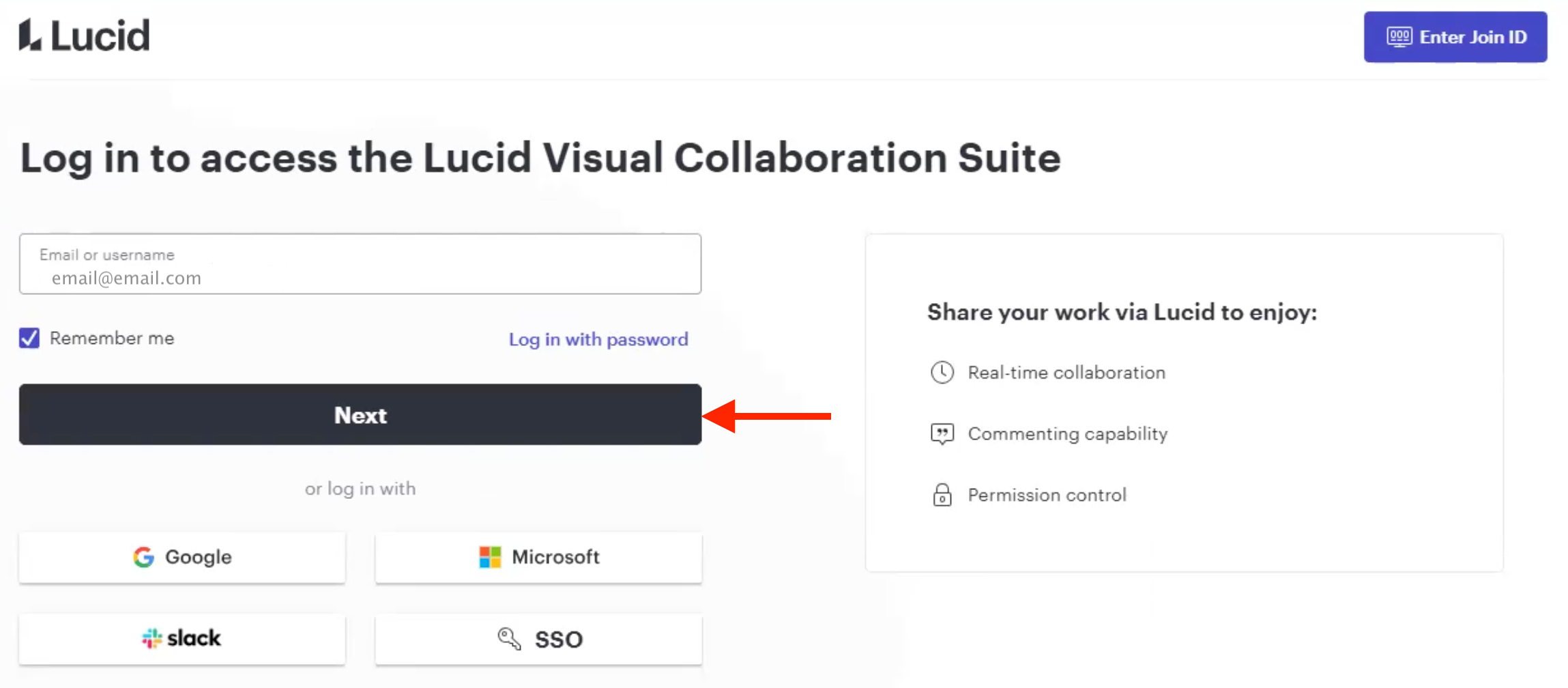
#3 Click Next
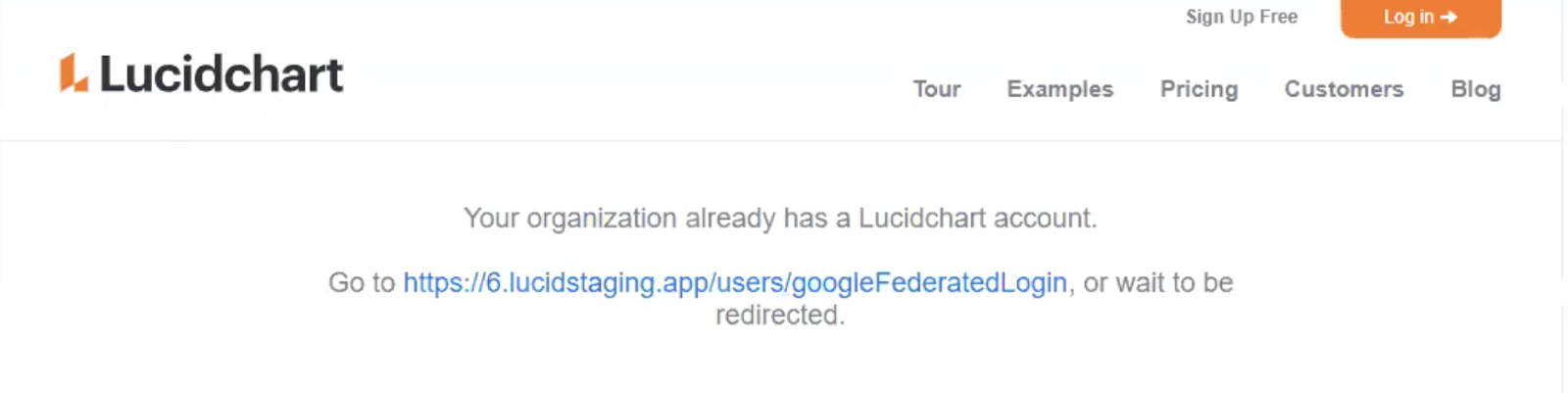
#4 You will be redirected to Lucidchart. Wait for the sign in with Google pop-up or click the link if you are not automatically redirected.
#5 Choose your Google email address for your institution.
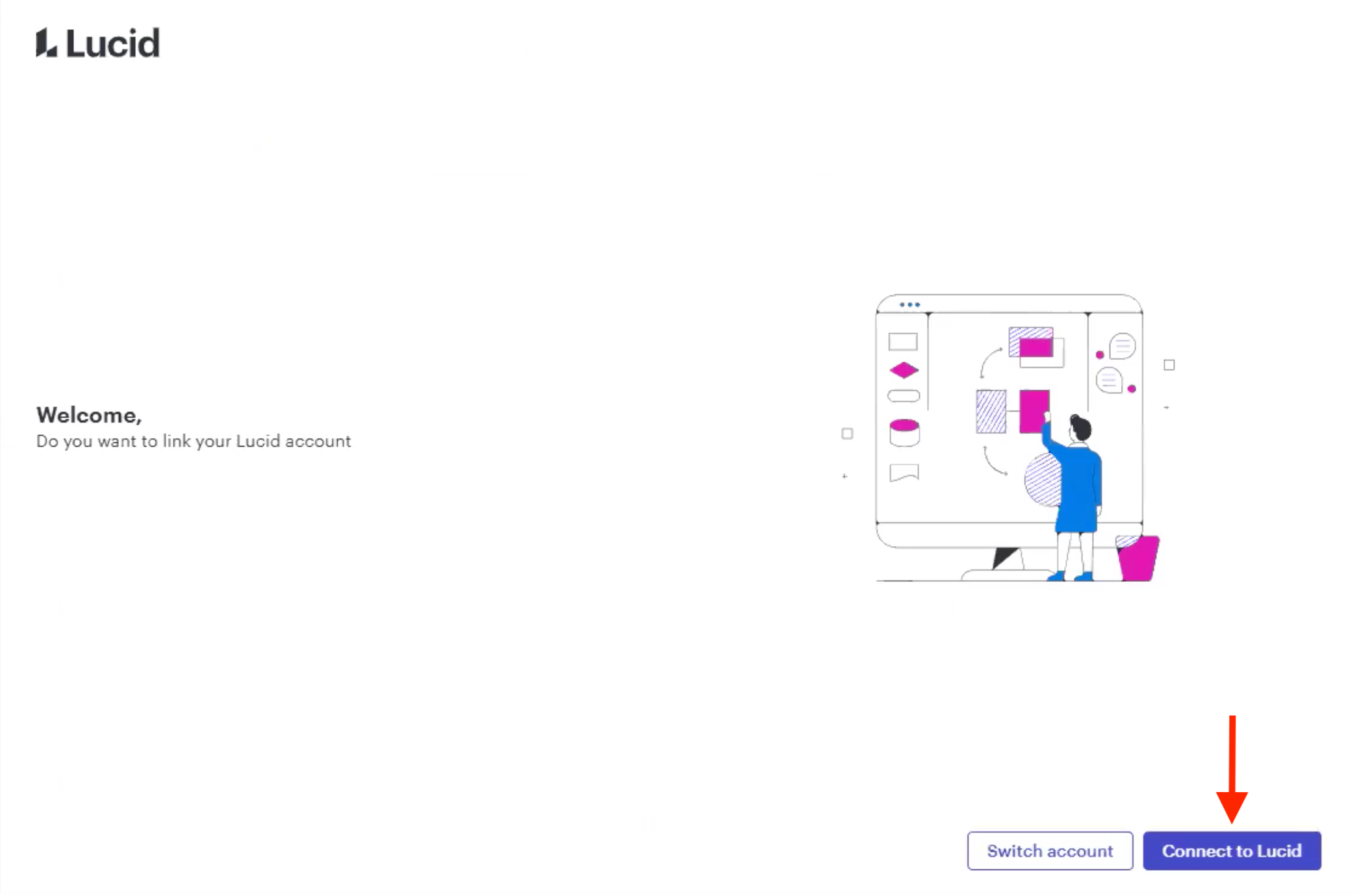
#6 You will be automatically redirected to Canvas. Click Connect to Lucid.
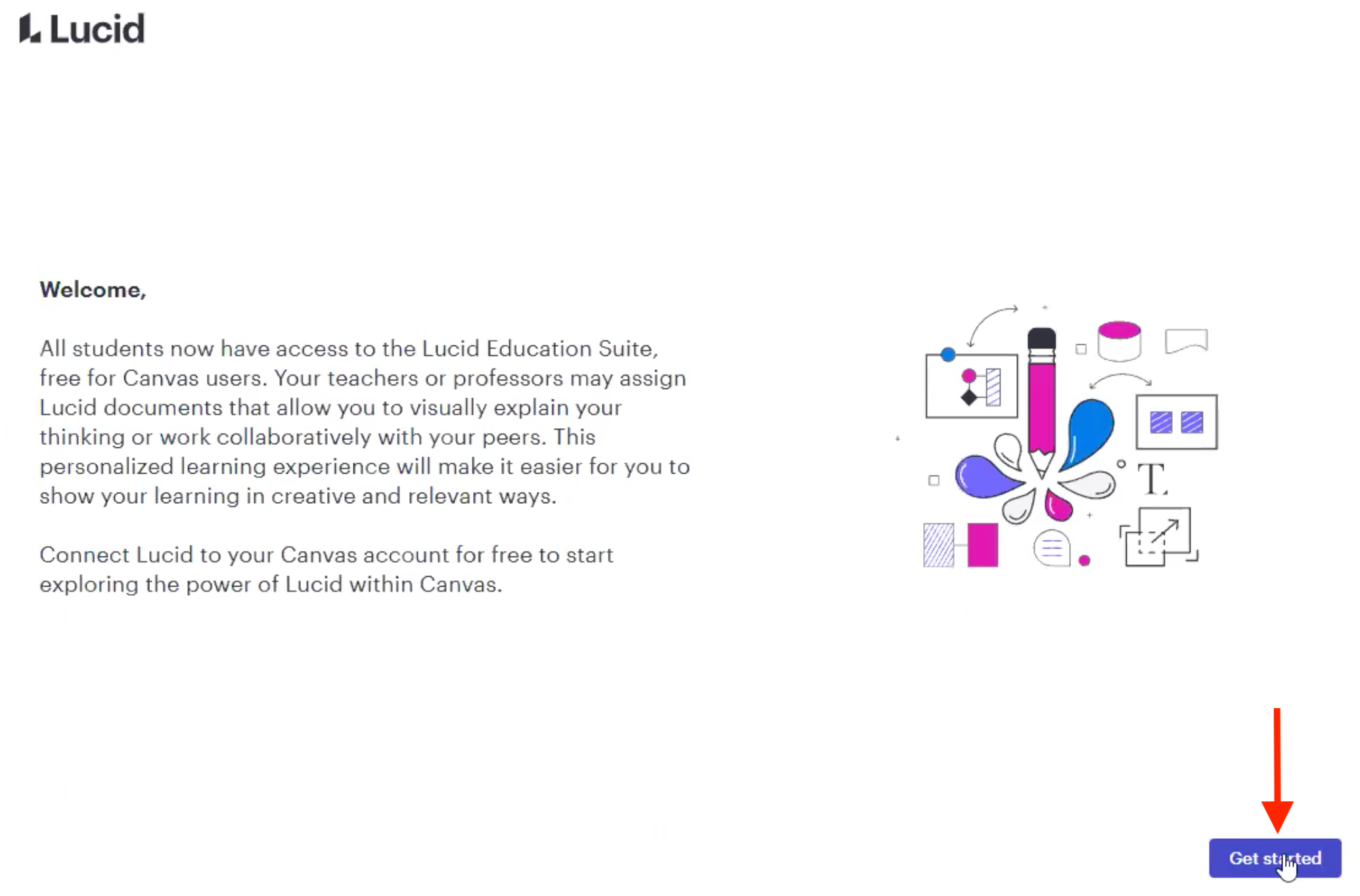
#7 Click Get started
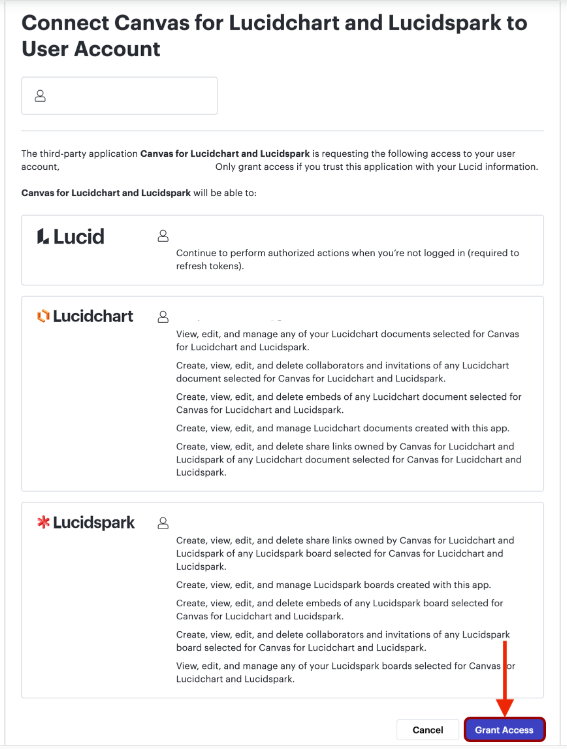
#8 Click Grant Access
Your Lucid account is now set up and connected to Canvas. Moving forward, simply click on the blue Explore Lucid to access your Lucid Dashboard.
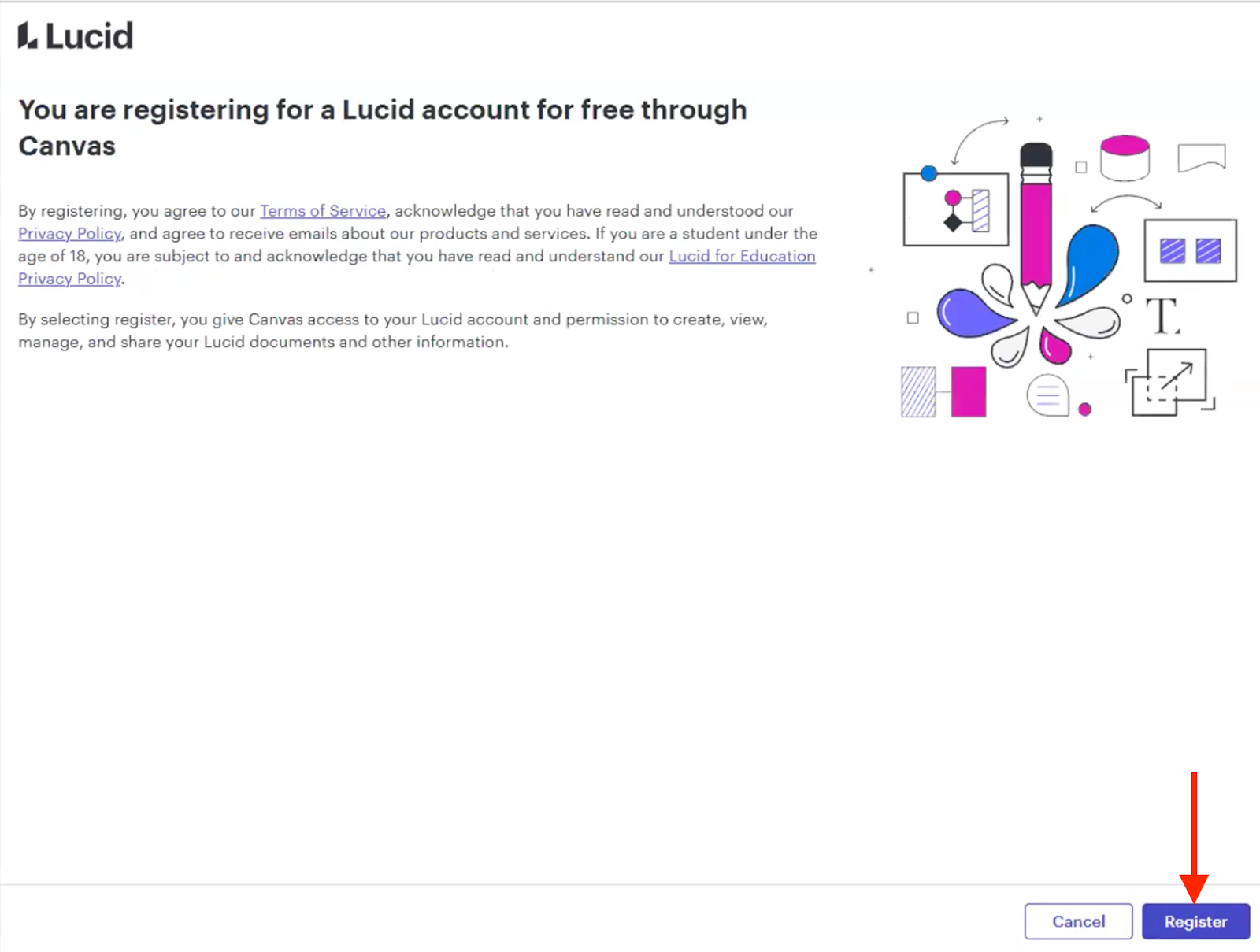
If you accidentally click Sign up instead of Loginyou can still create your Lucid account, but the process is a little different.
Click Register
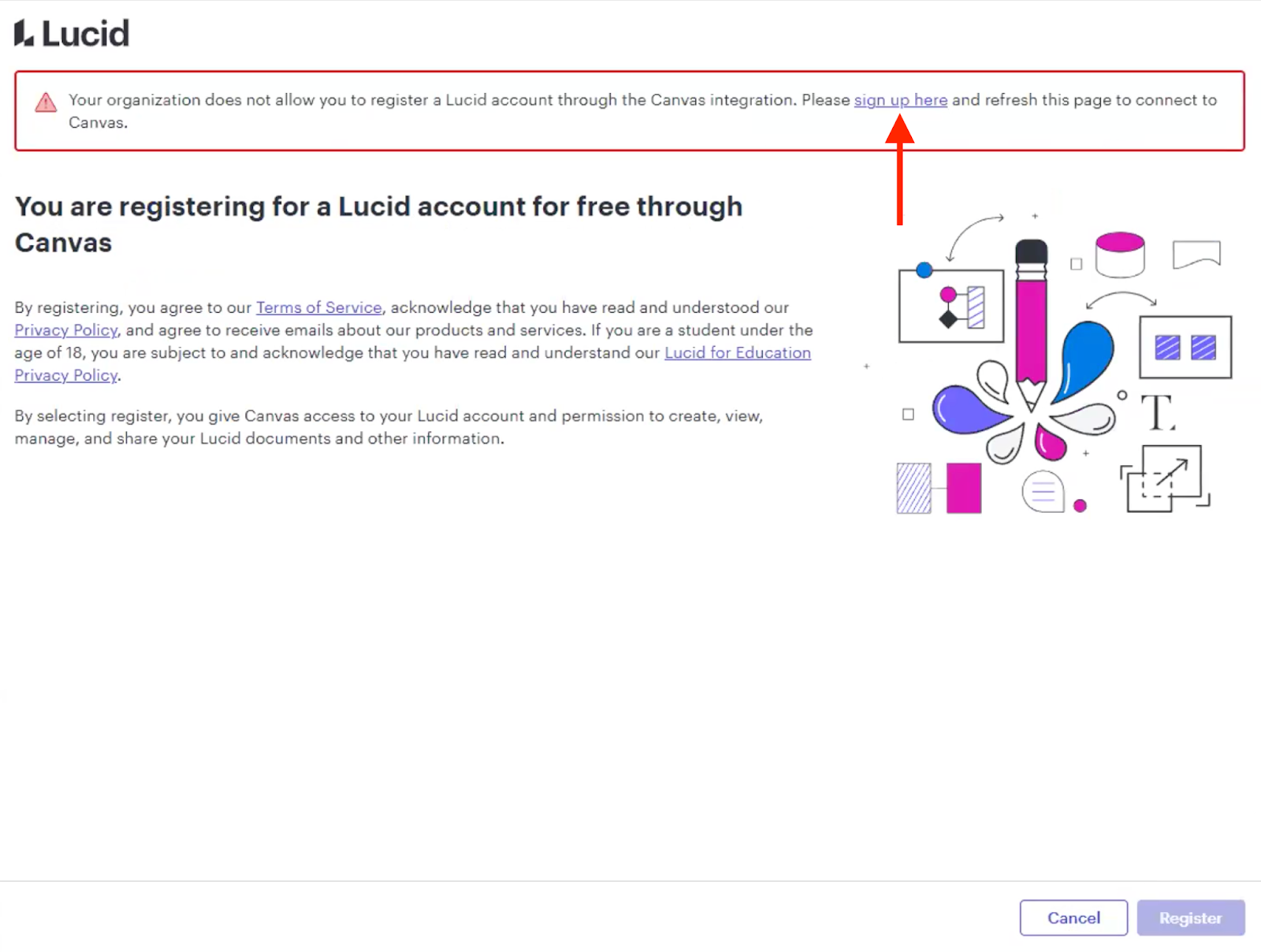
Because your email domain is linked to your institution, you will get the following pop-up. Click sign up here.
You will be redirected to Lucidchart. Wait for the sign in with Google pop-up or click the link if you are not automatically redirected. Now follow the steps 4-8.
A Lucid or airfocus account is required to interact with the Community, and your participation is subject to the
Supplemental Lucid Community Terms.
You may not participate in the Community if you are under 18. You will be redirected to the Lucid or airfocus app to log in.
A Lucid or airfocus account is required to interact with the Community, and your participation is subject to the
Supplemental Lucid Community Terms.
You may not participate in the Community if you are under 18. You will be redirected to the Lucid or airfocus app to log in.